Projects and tasks
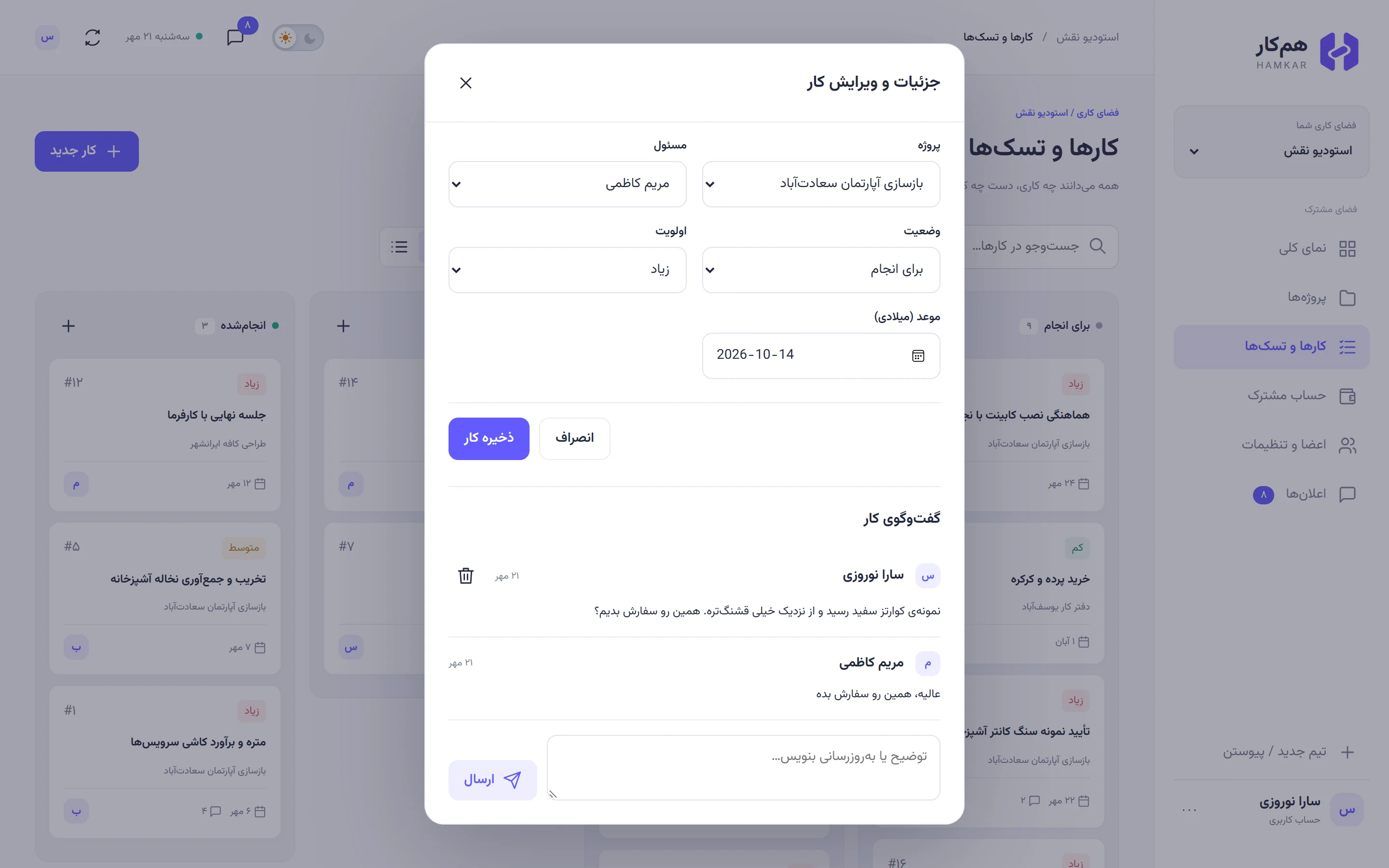
Create a task, hand it to someone, talk it through underneath, and move it along until it’s done.


Tasks, shared expenses and team cash in one place. On the web and on Android, always in sync.
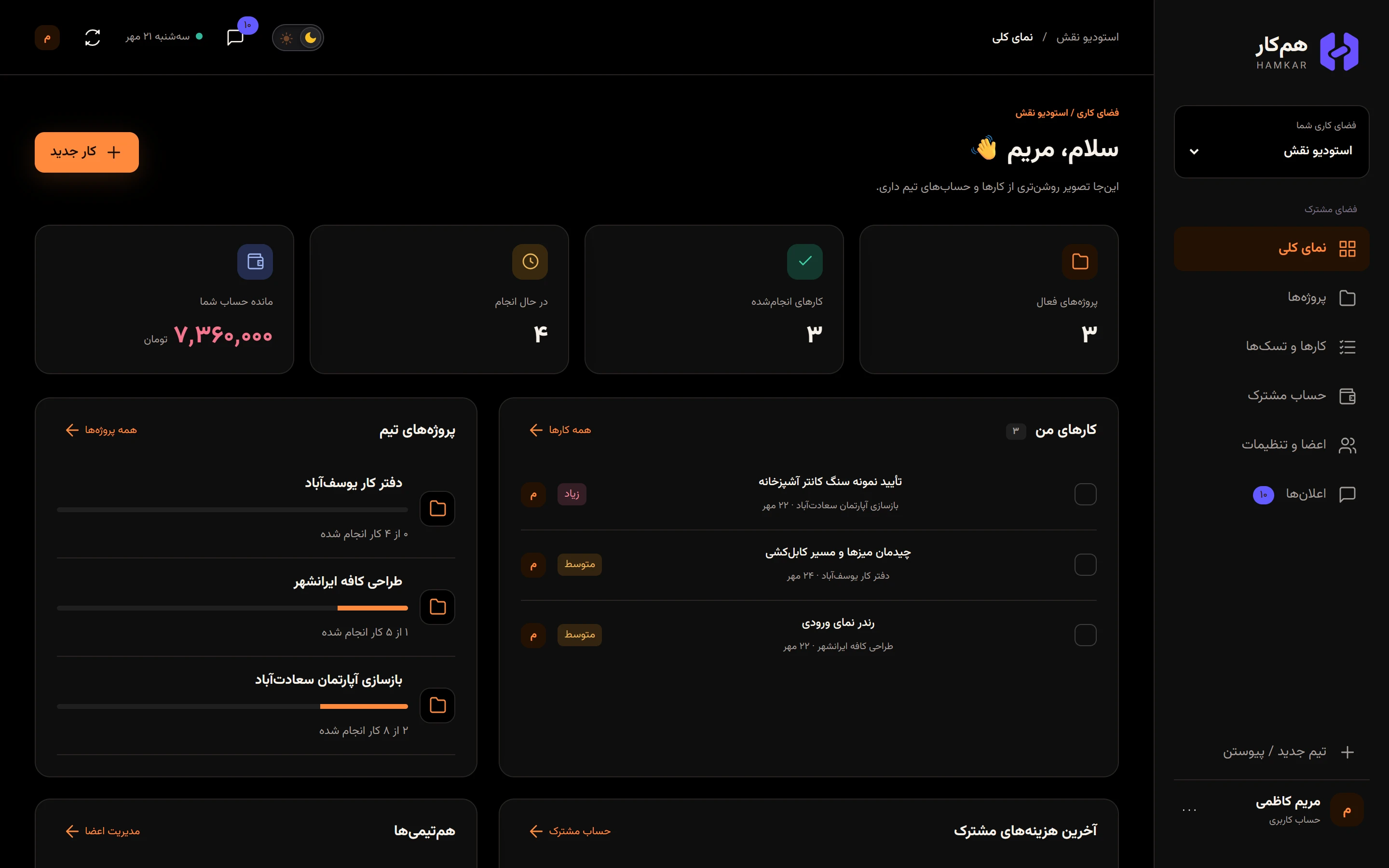
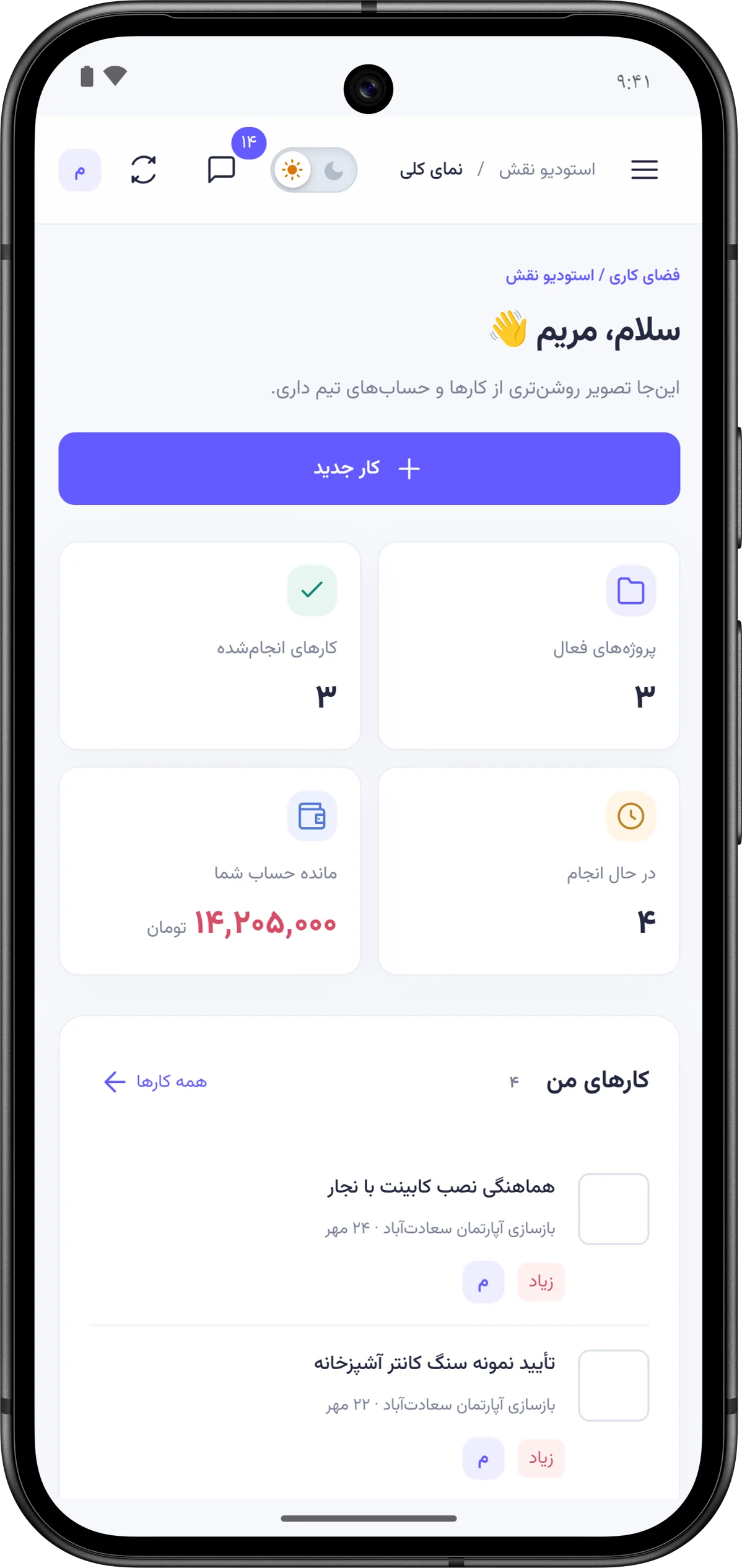
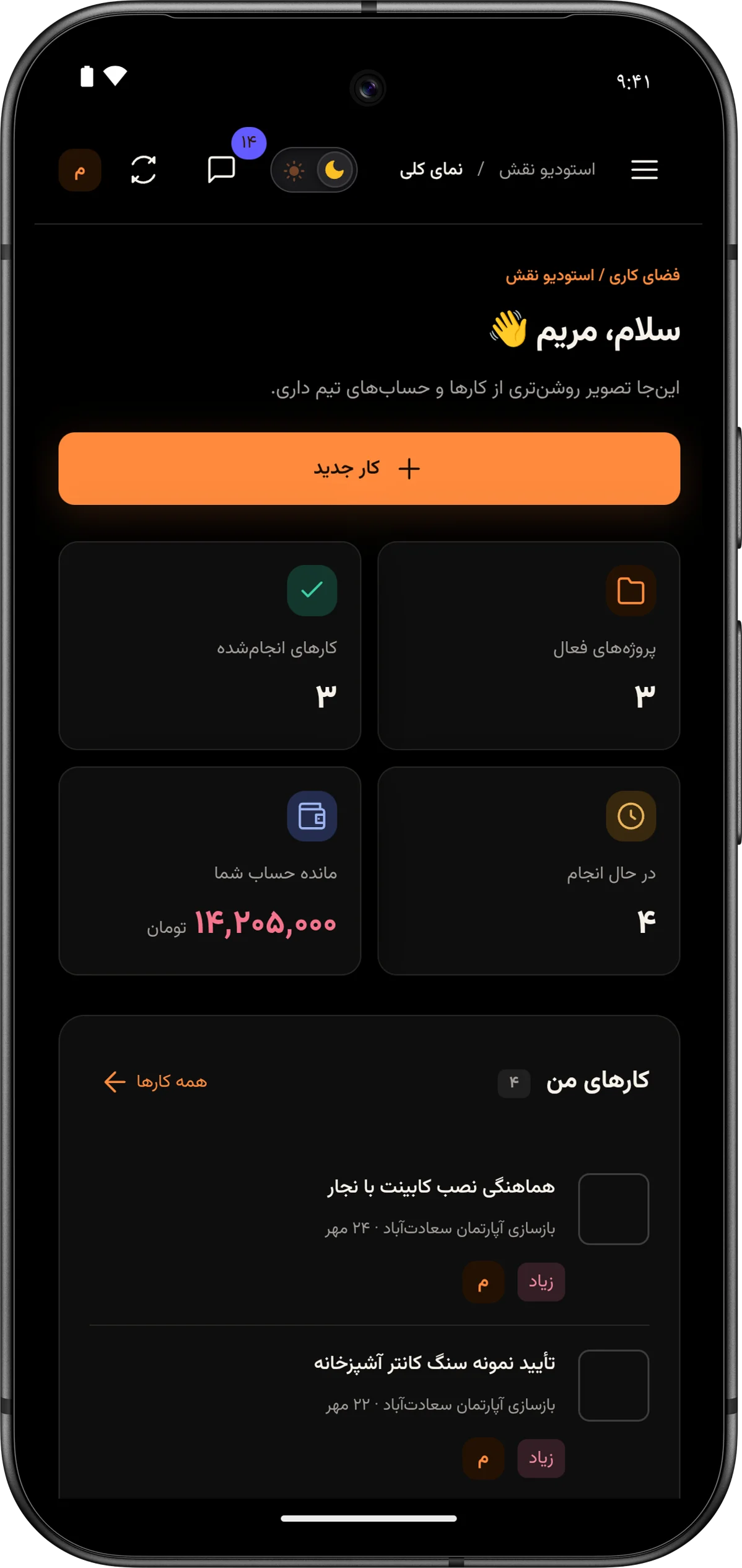
An ordinary day at Naghsh Studio, from Omid’s laptop to Maryam’s phone.
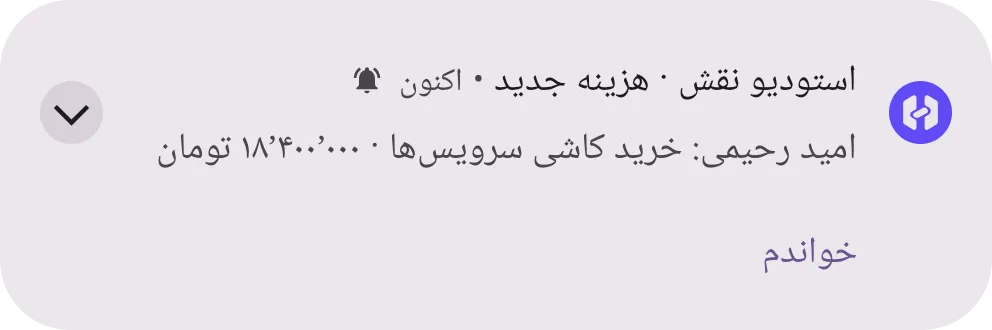
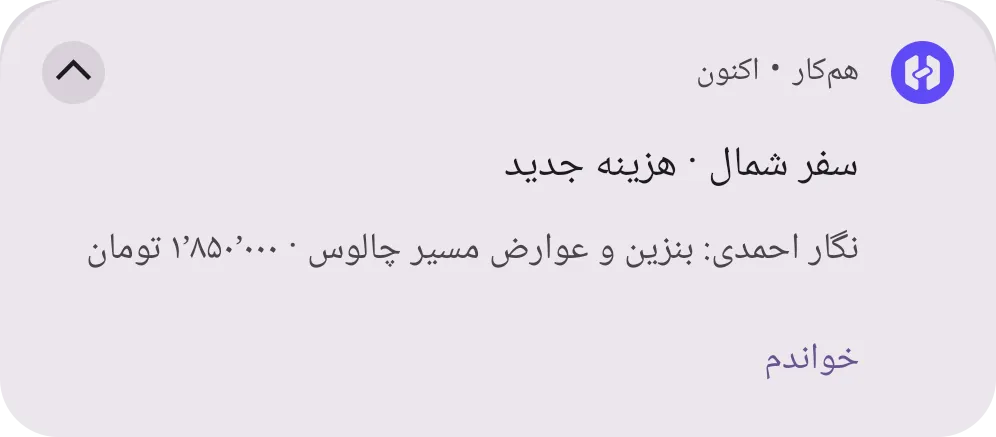
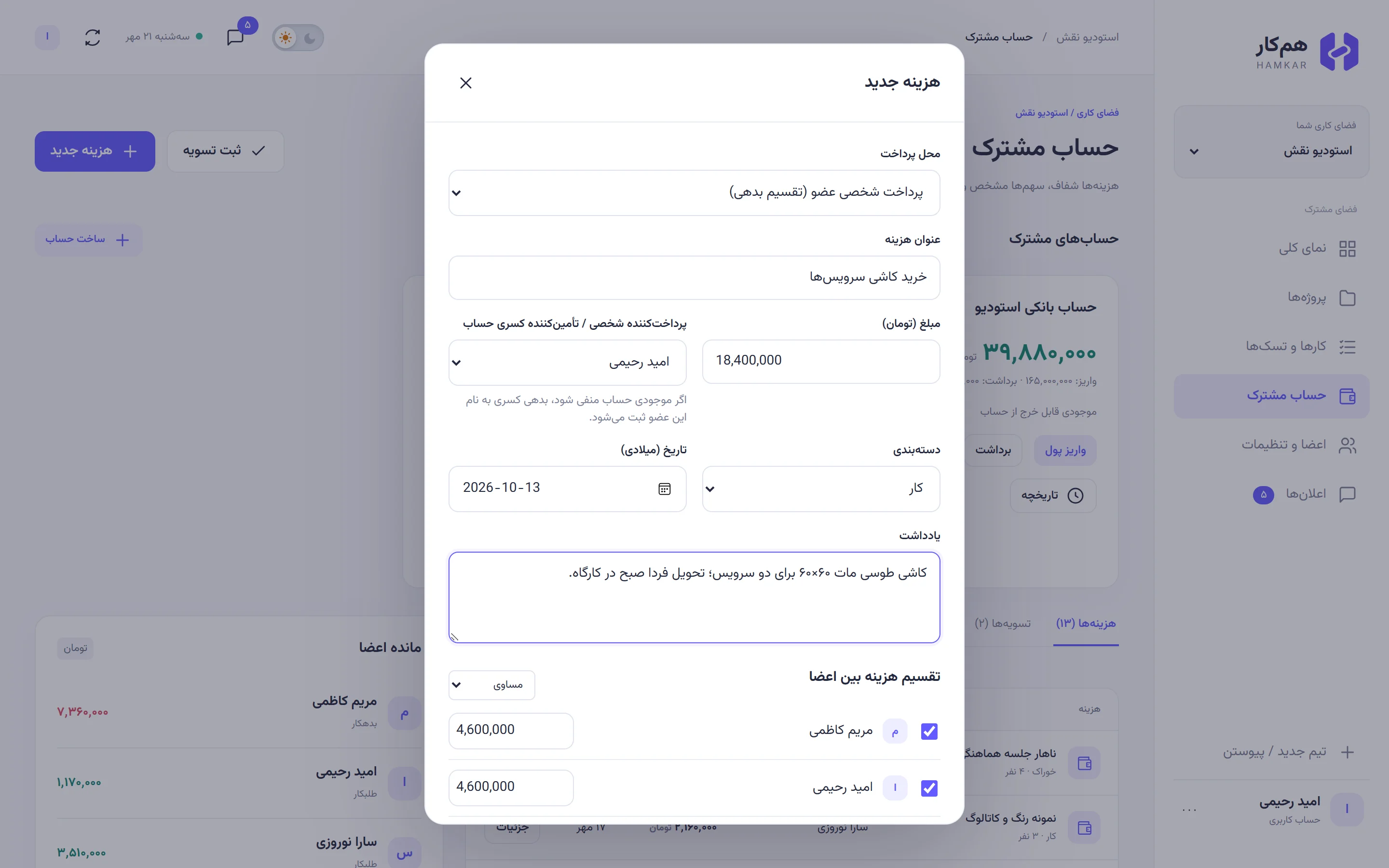
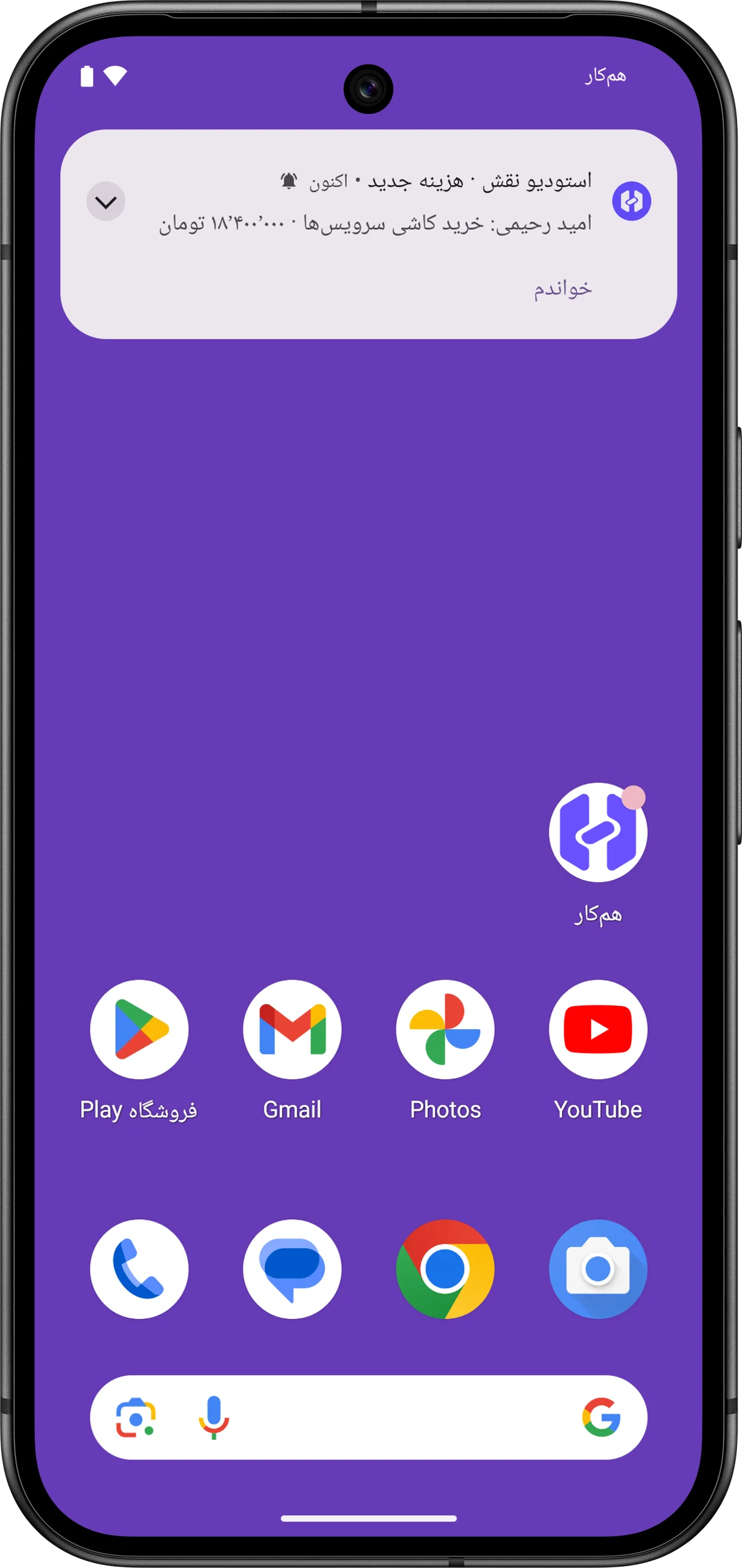
He enters the bathroom tile purchase with the amount and each person’s share. Everyone’s balance updates right away.
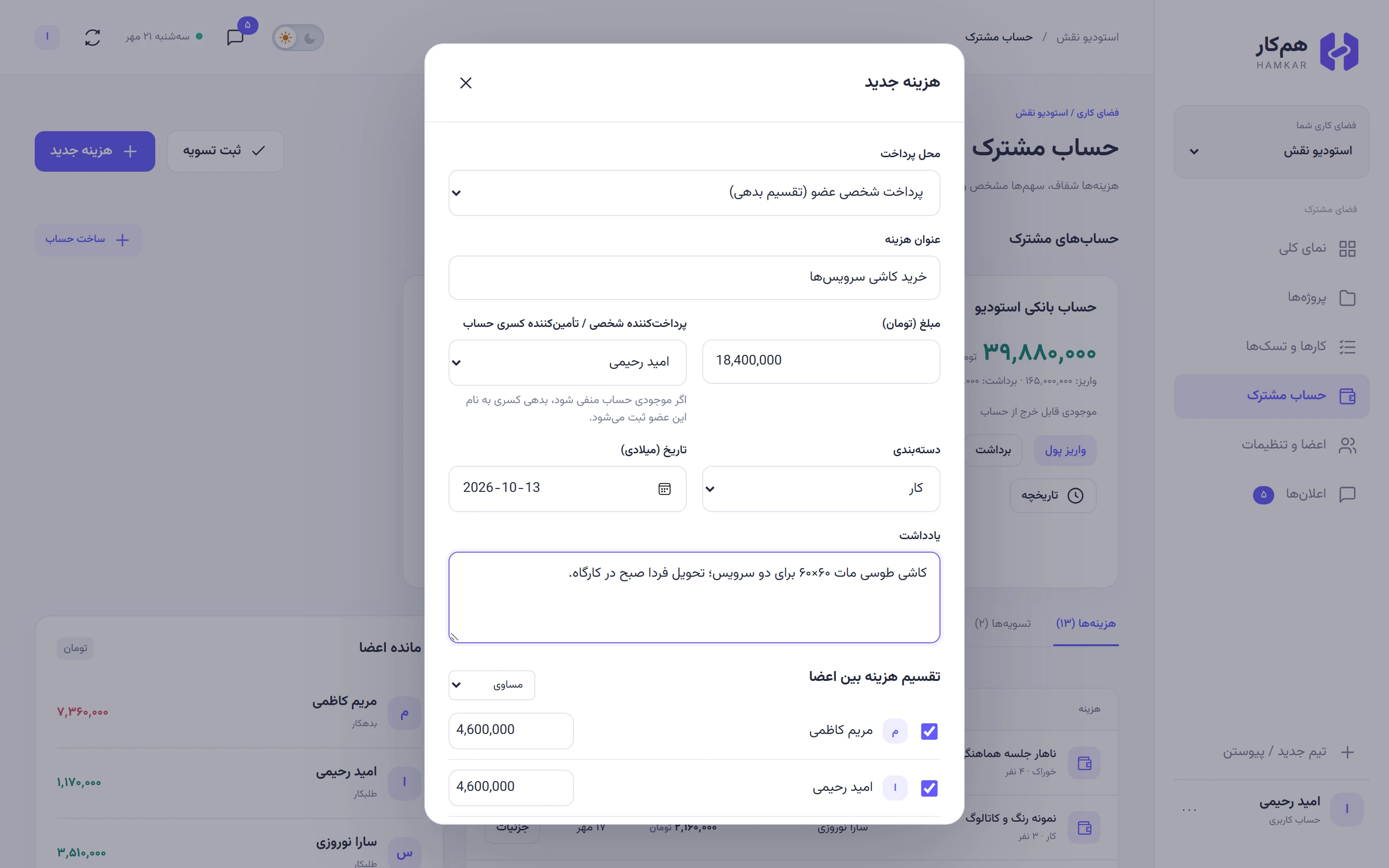
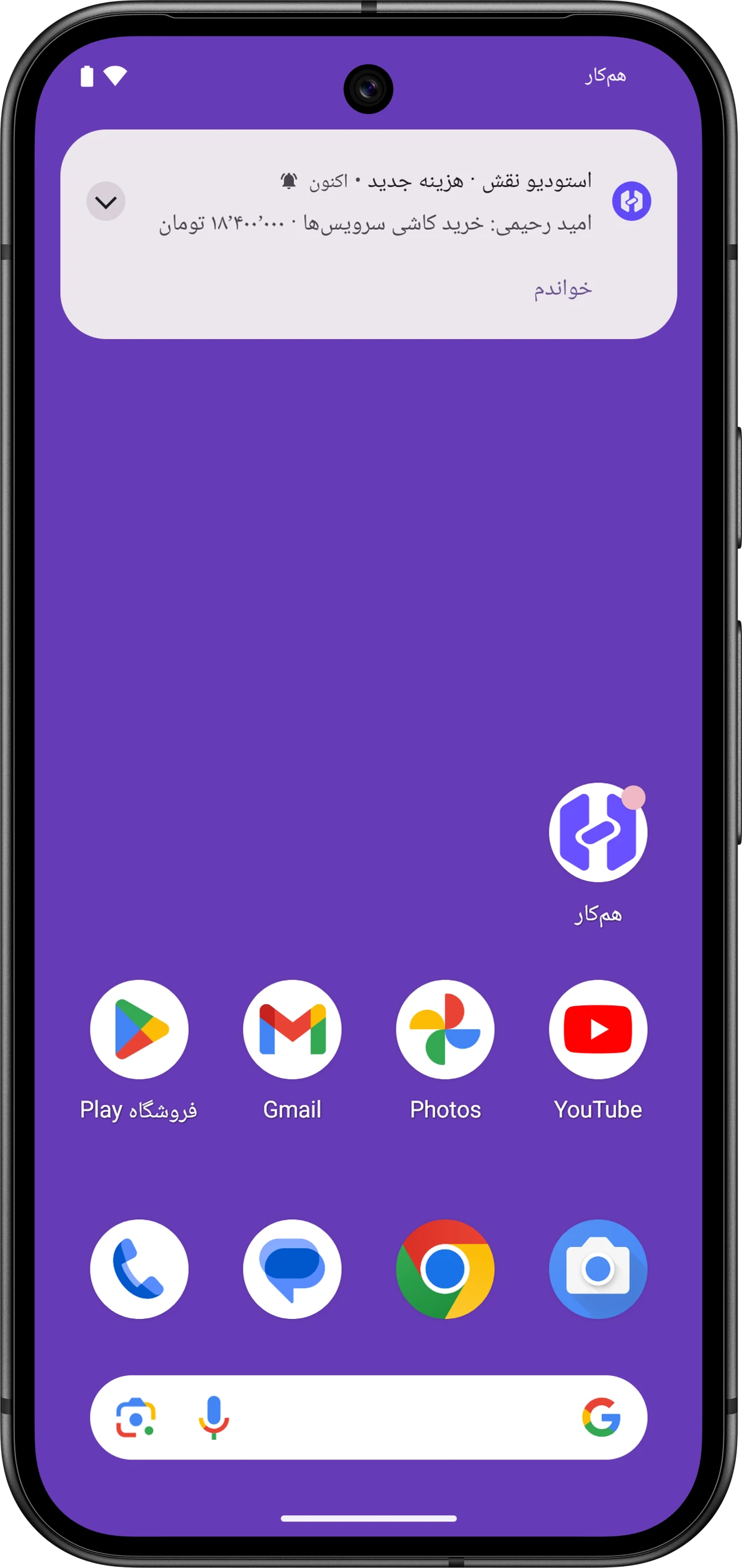
The notification arrives with high priority, even when the app is closed, and already shows the amount and who logged it.
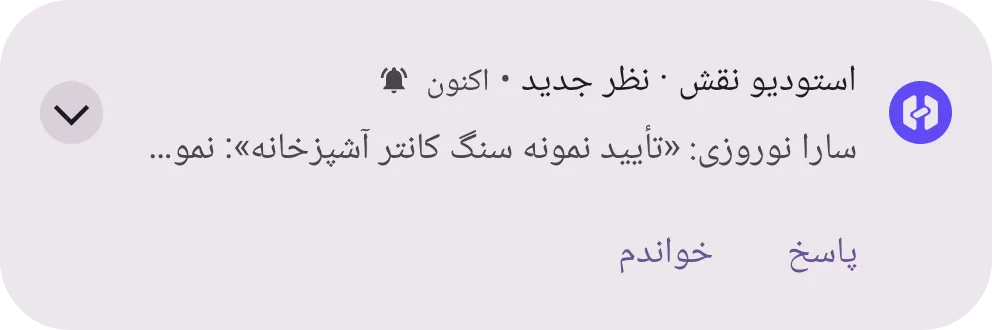
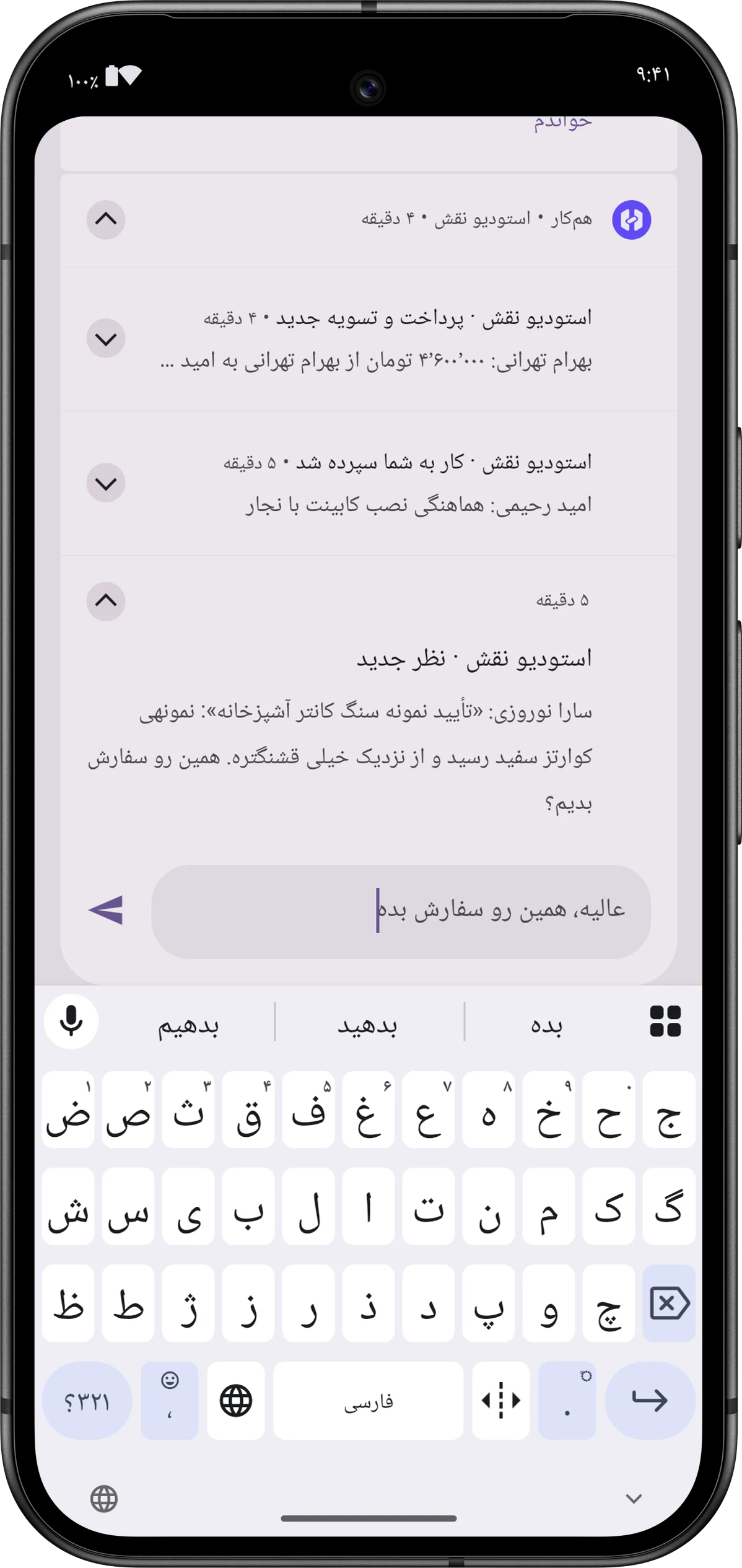
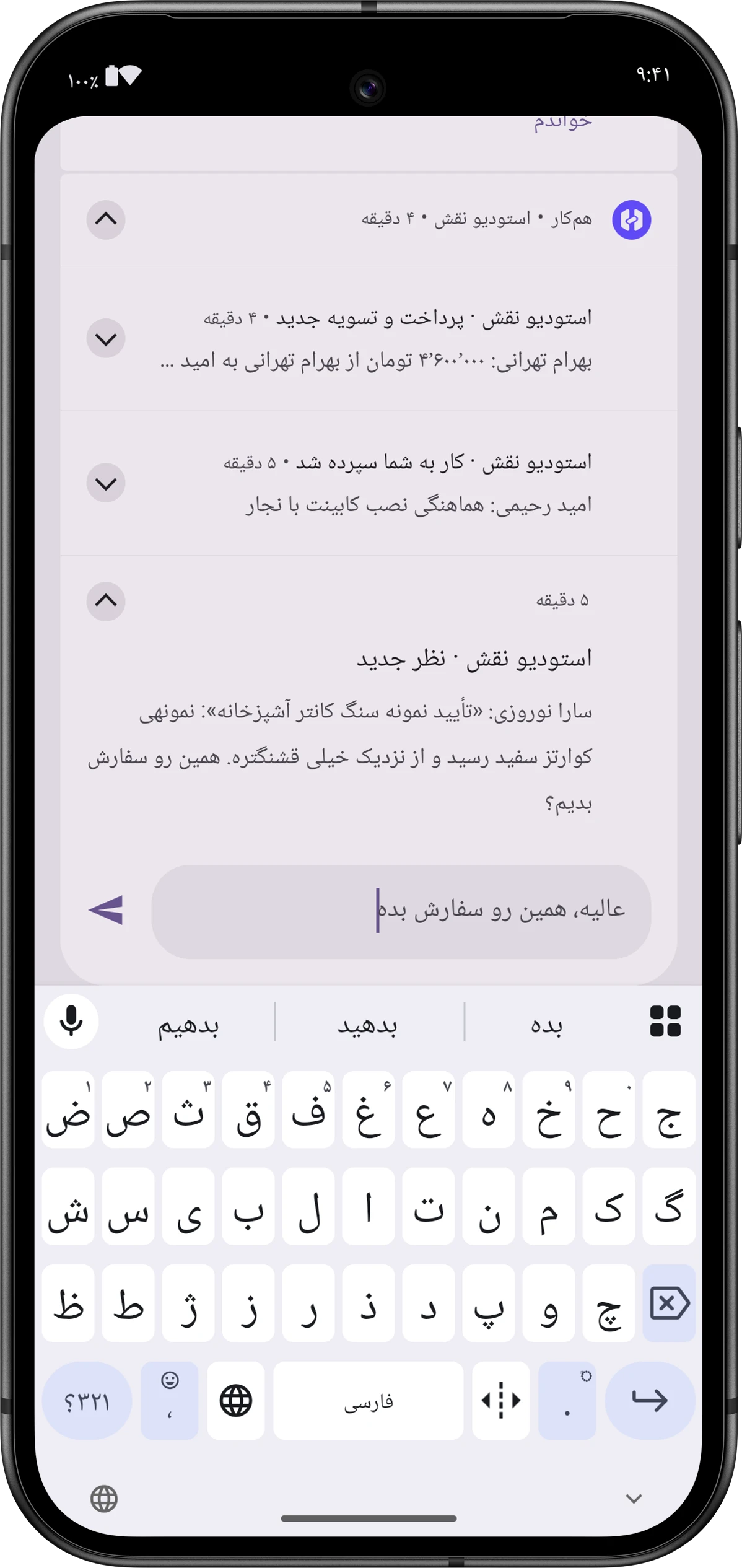
Sara asked a question on a task. Maryam types her answer right in the notification, without opening the app.
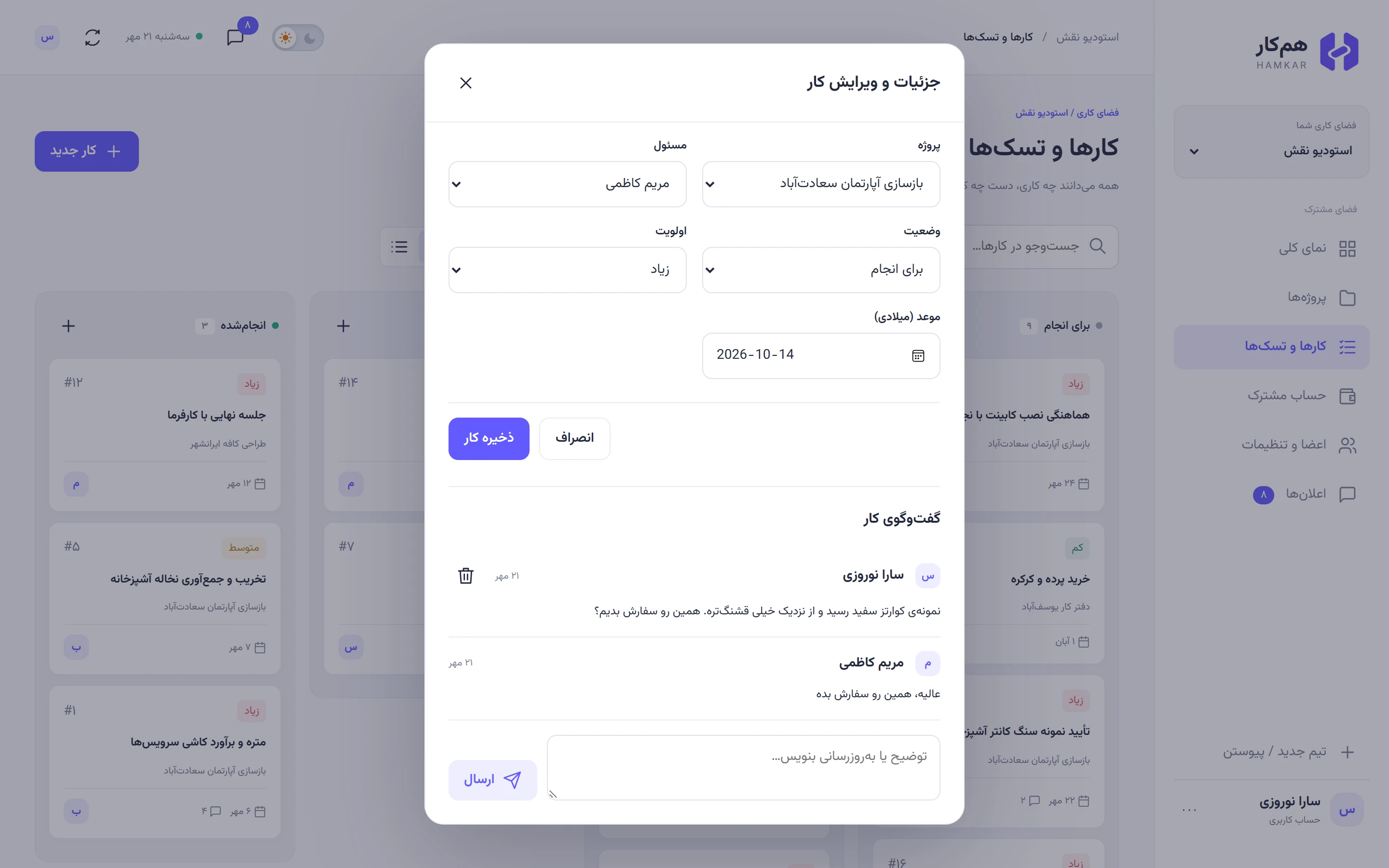
Her reply appears on the web and on the others’ phones without a refresh. Nobody has to pass it on in a separate chat.
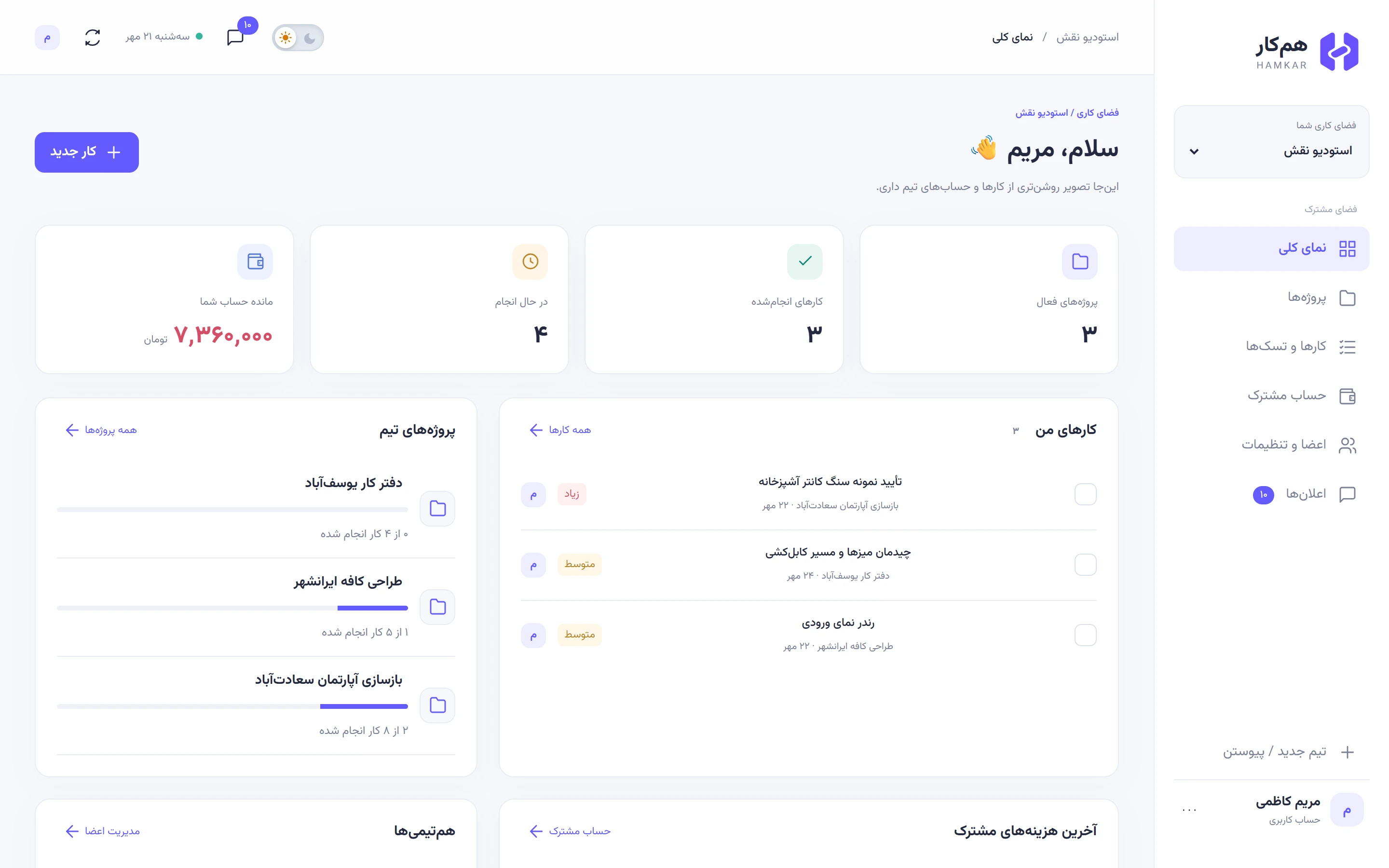
What a small team needs every day, without juggling several apps.
Create a task, hand it to someone, talk it through underneath, and move it along until it’s done.
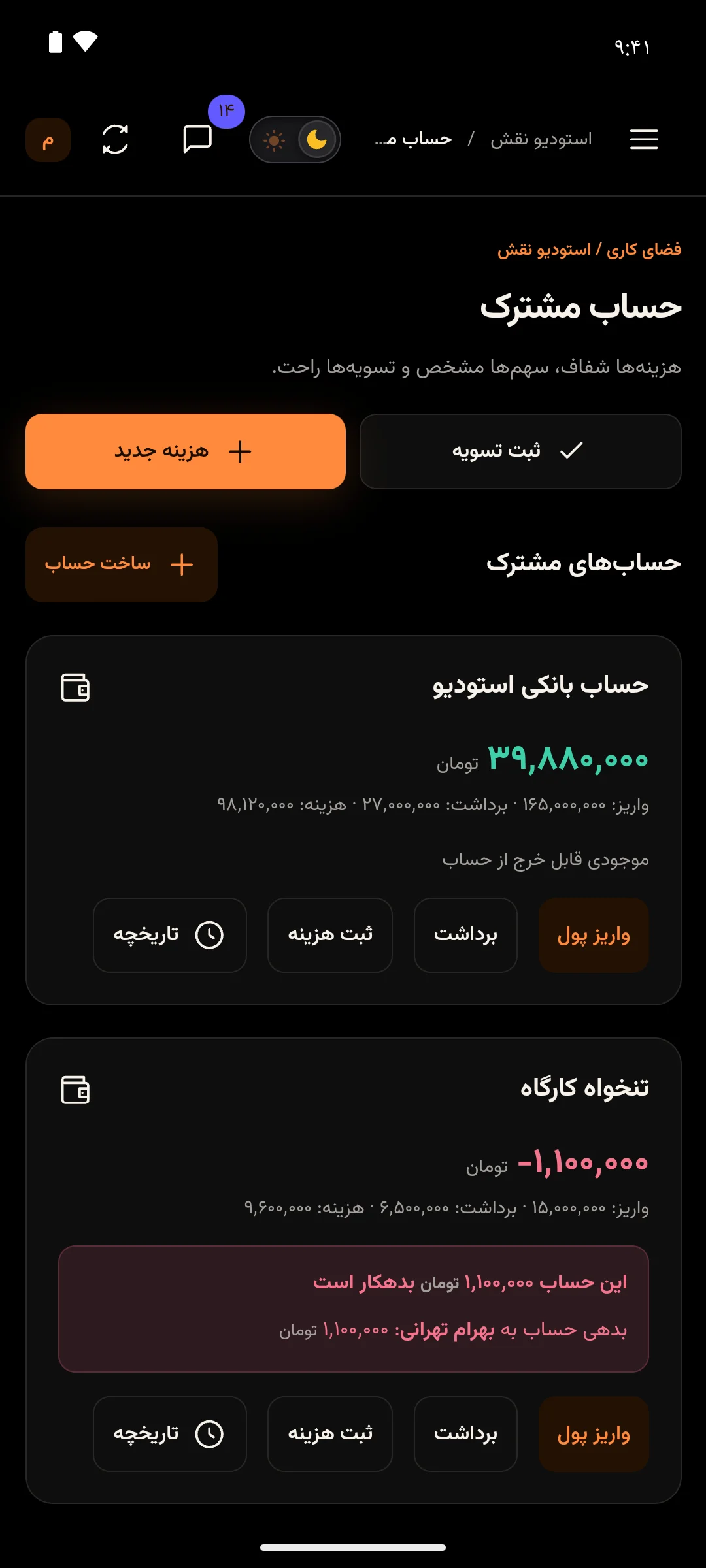
Say who paid and who shares the cost. Hamkar works out who owes whom and suggests how to settle.
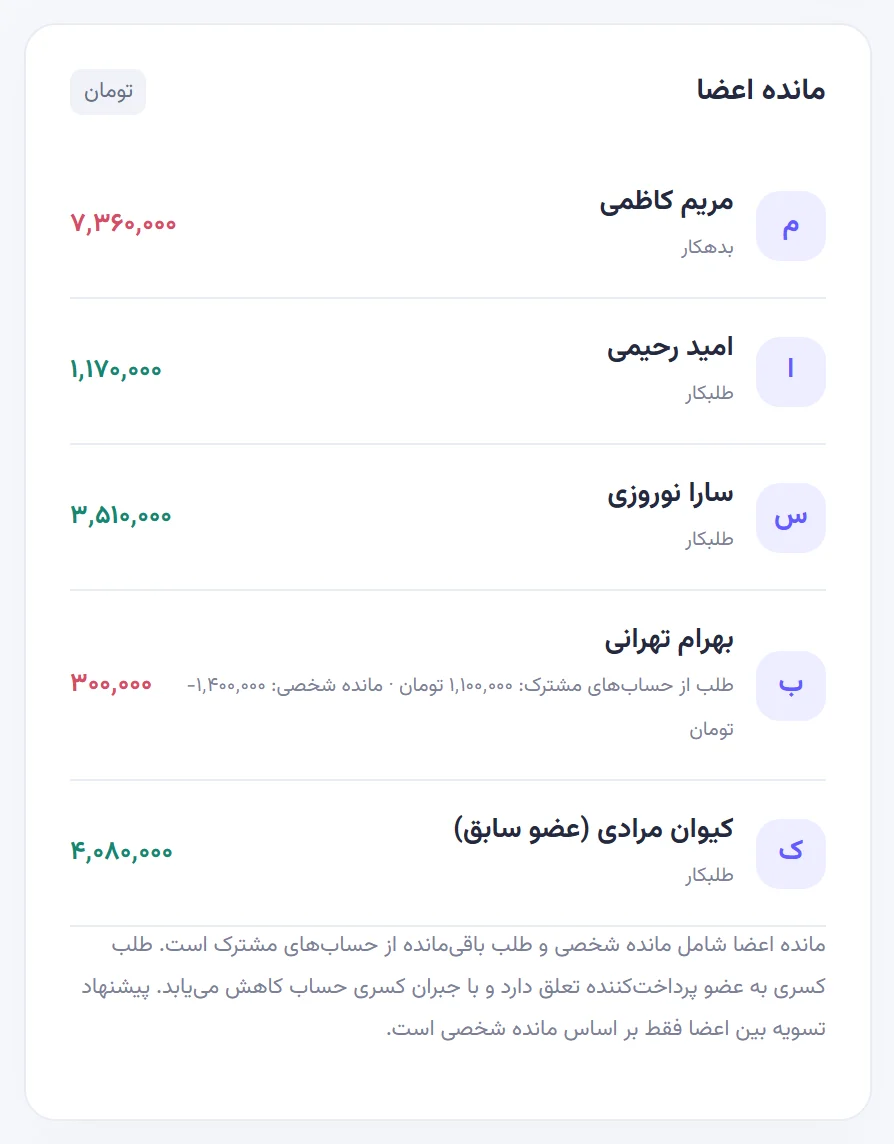
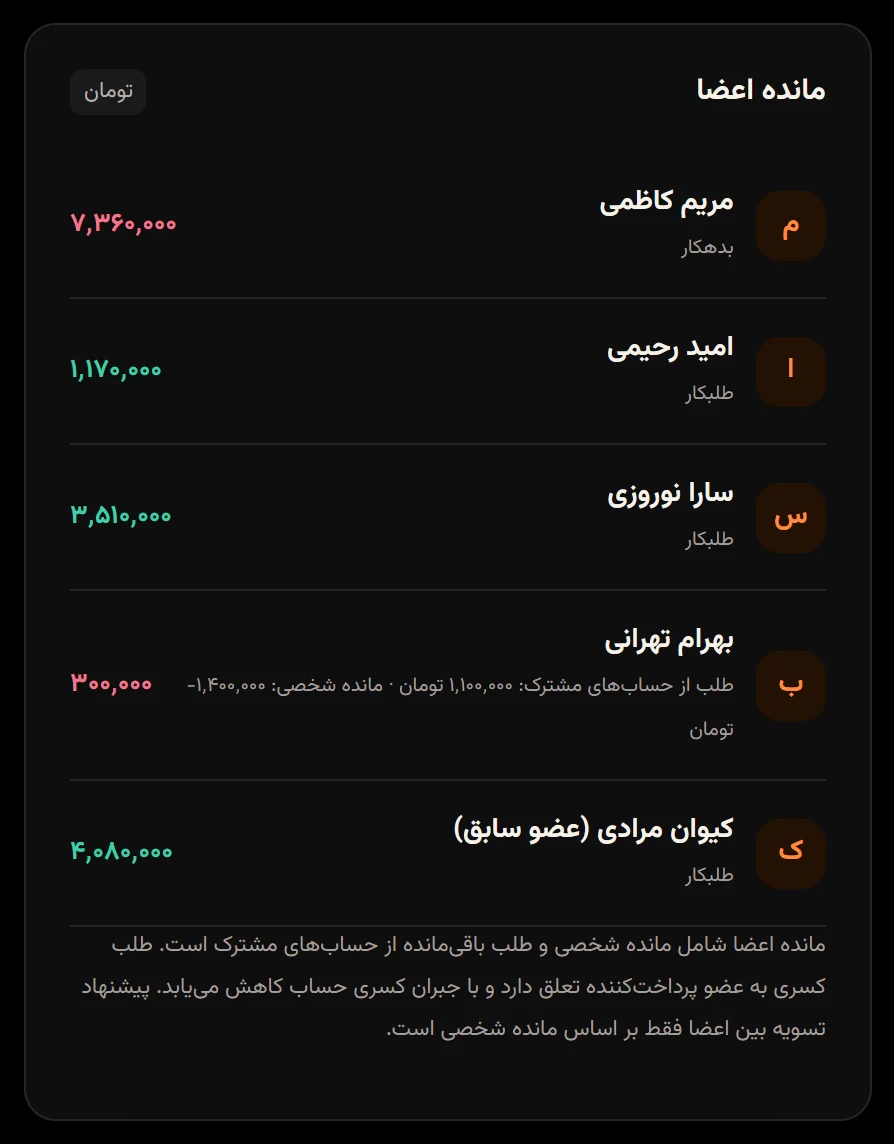
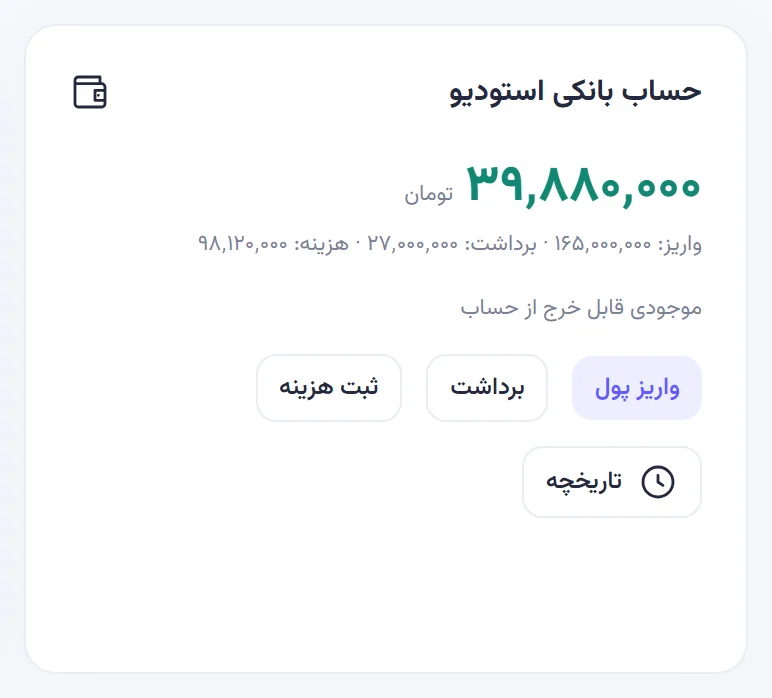
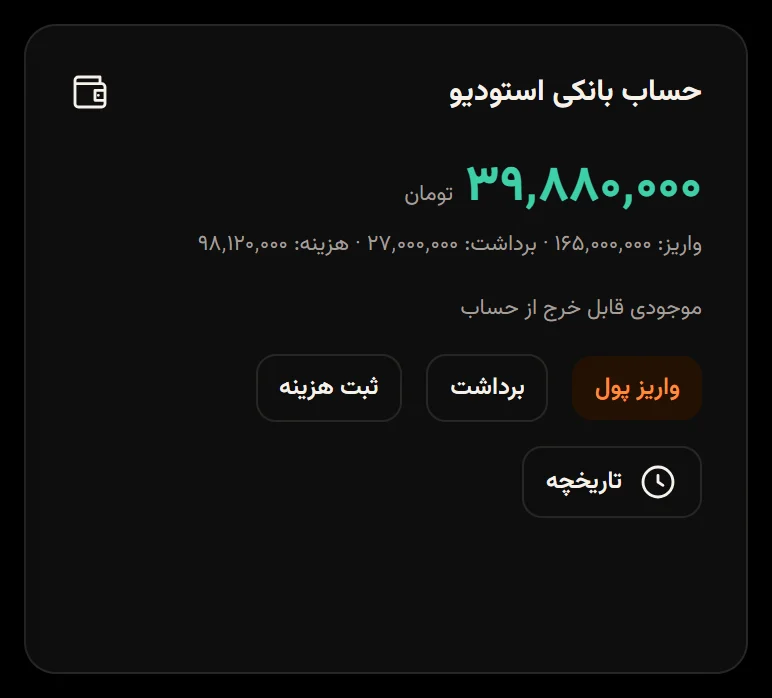
Workshop petty cash or the team bank account. Every deposit and withdrawal records who put the money in or took it out.
Each person picks what they want to hear about: 25 kinds of notification in five groups.


Easy on tired eyes at night, on the web and in the app.
Add people with an invite code. Sensitive actions stay with admins.


The same Hamkar, with notifications that show up on time.
Hamkar for Android
If your phone asks for permission, allow installs from this source for your browser.Install guide
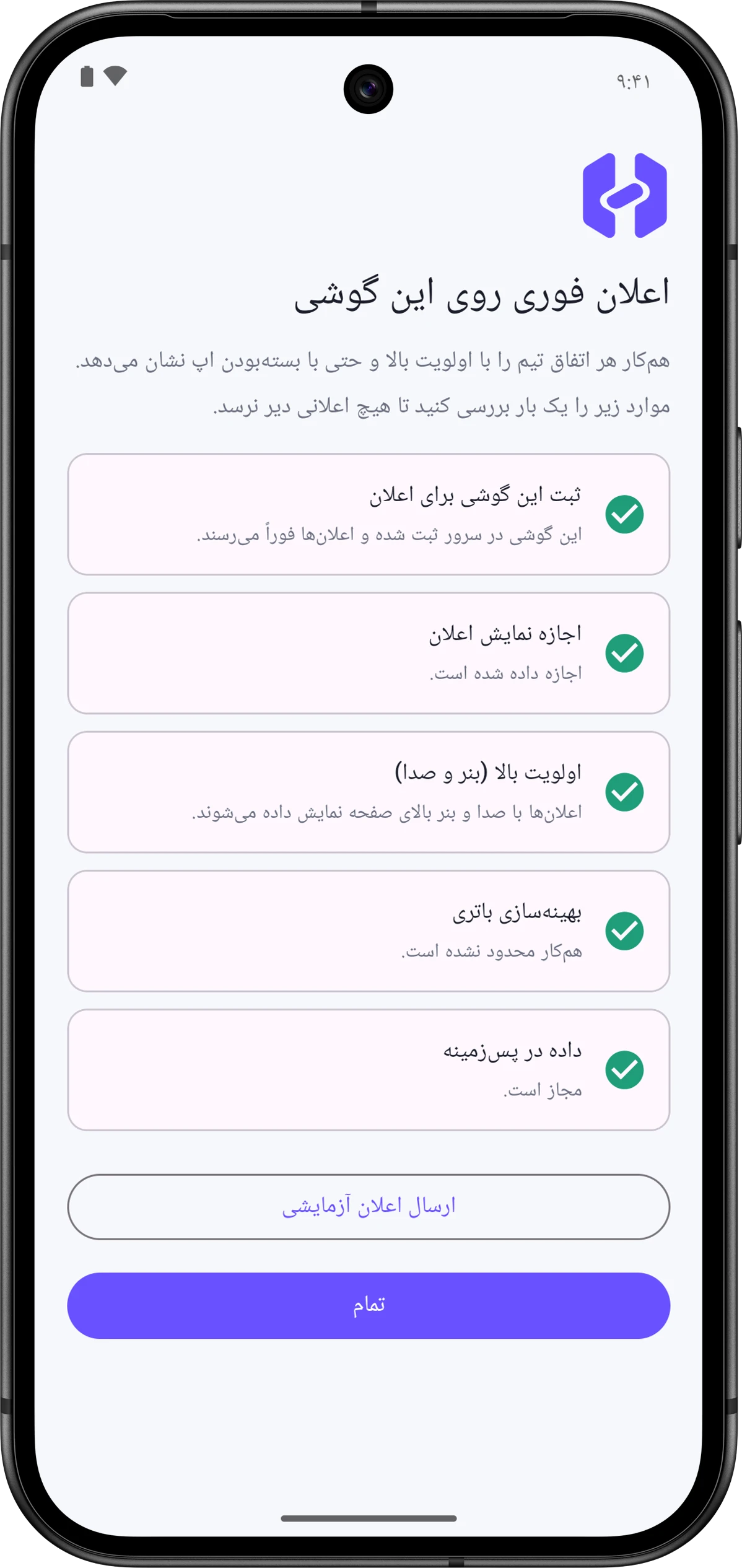
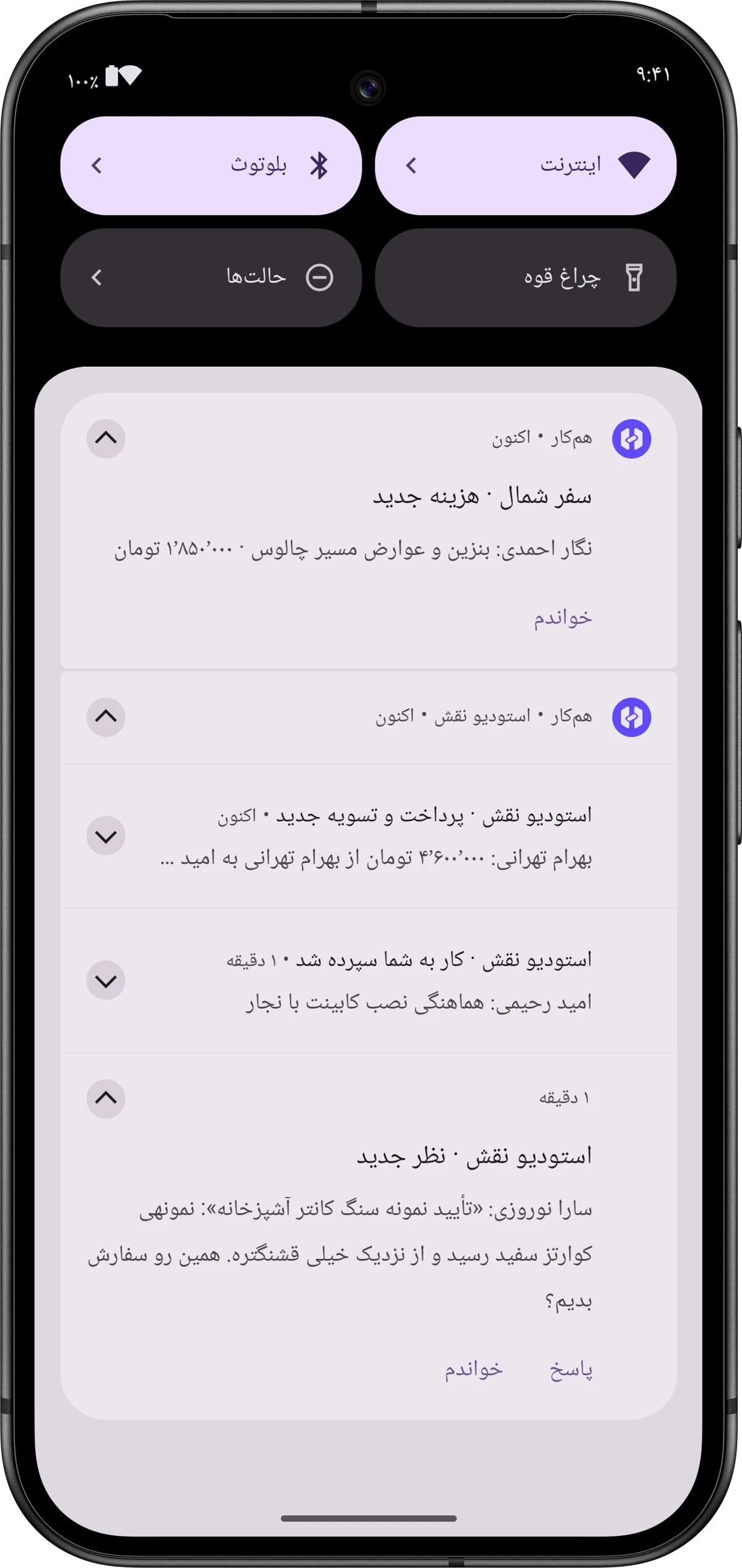
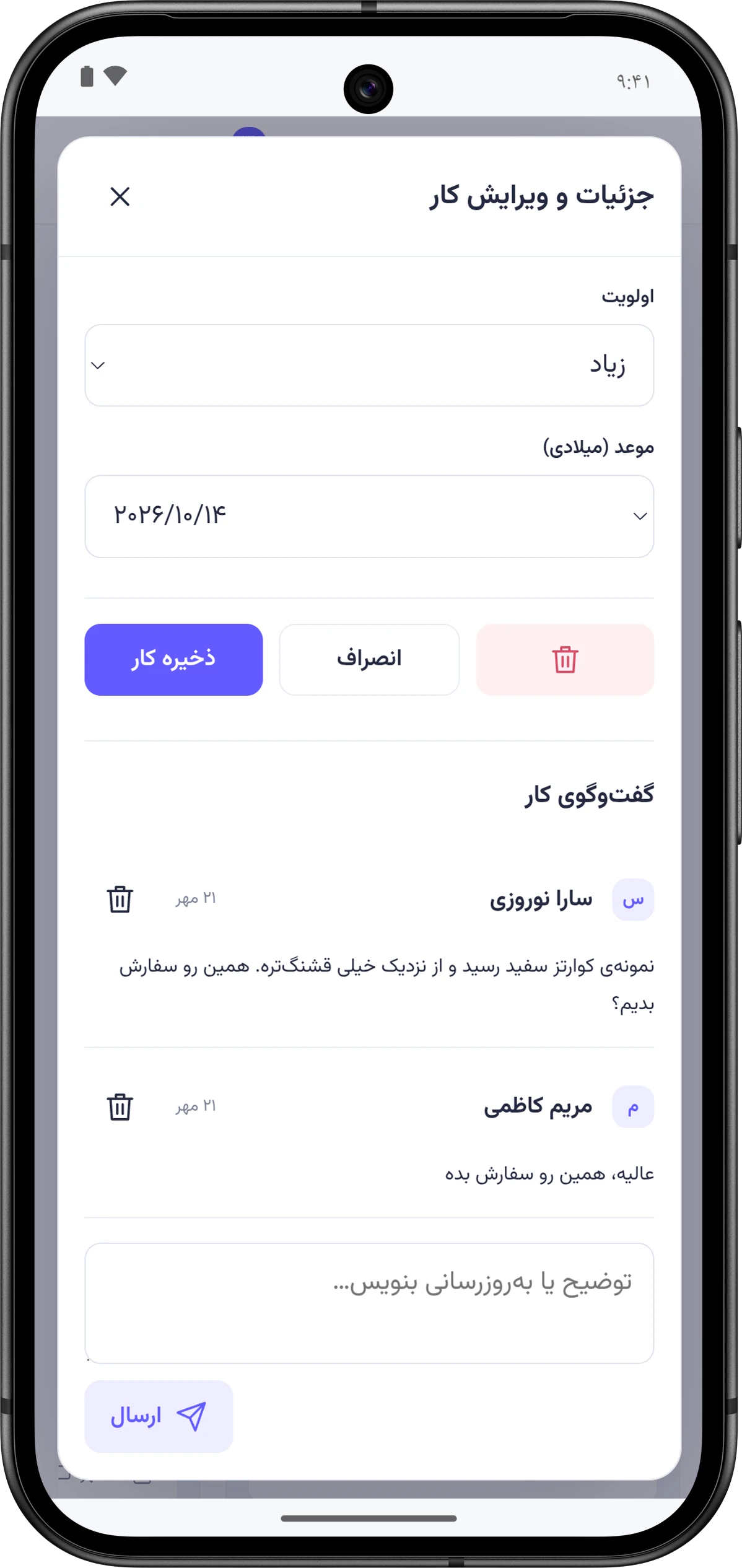
Maryam and her colleagues at Naghsh Studio run an apartment renovation, a café design and an office fit-out at the same time. Each project’s tasks, material purchases and the workshop cash live in one team, and each person chooses which kinds of events they hear about.
Read the full story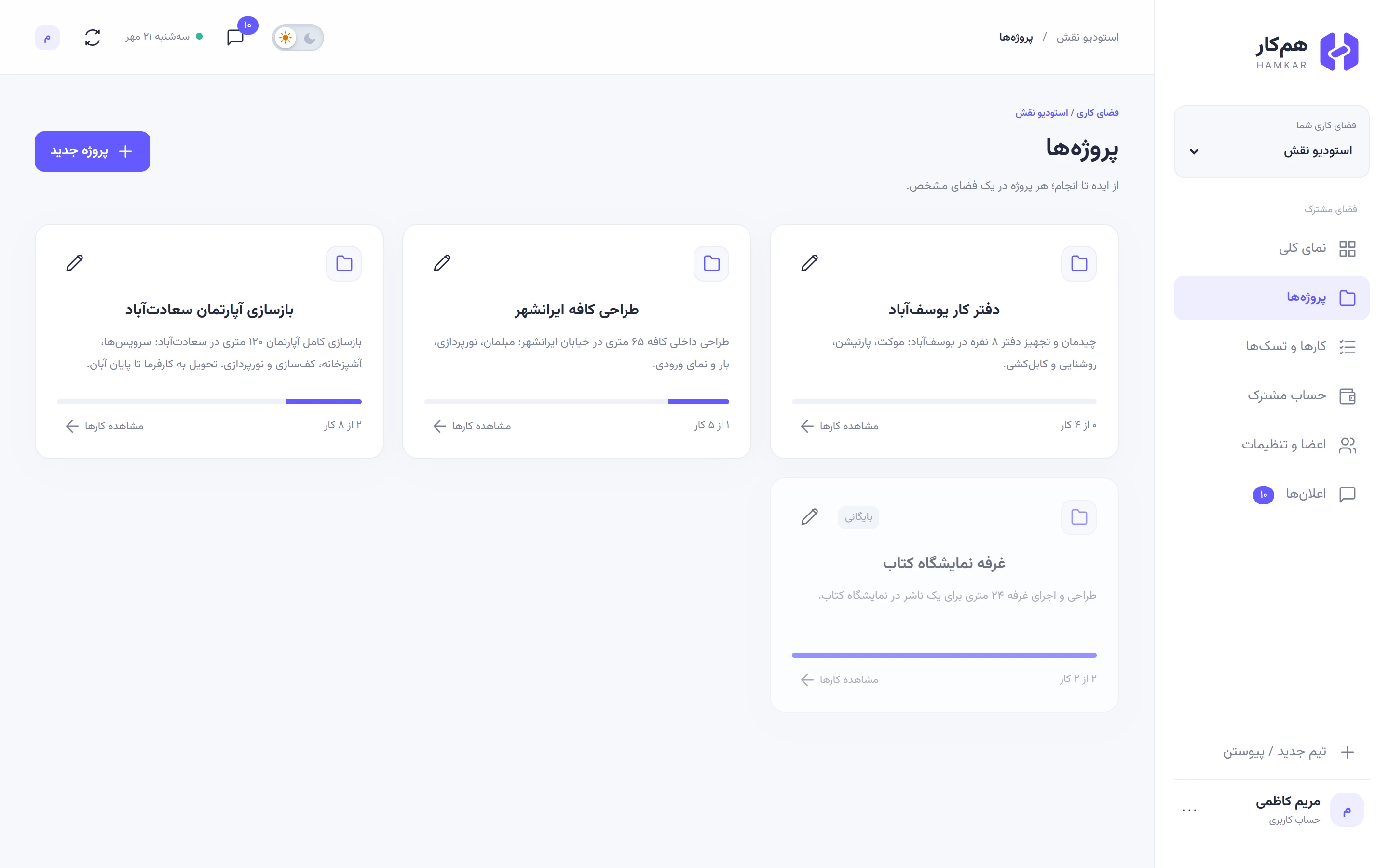
When partners spend from the same account, every deposit and withdrawal is recorded with a name and a note. At the end of the month it’s clear who put in what and who took out what.
Read the full story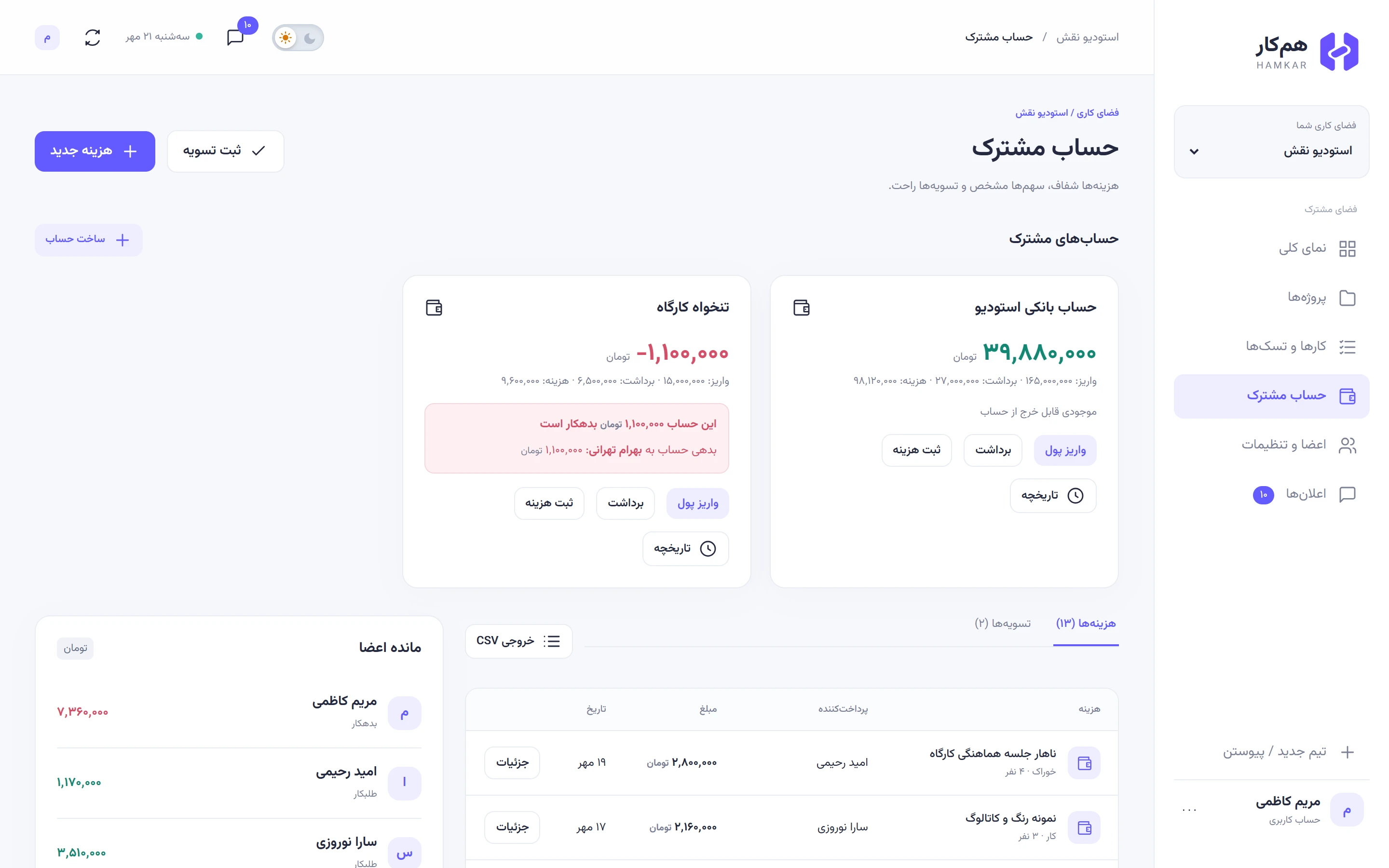
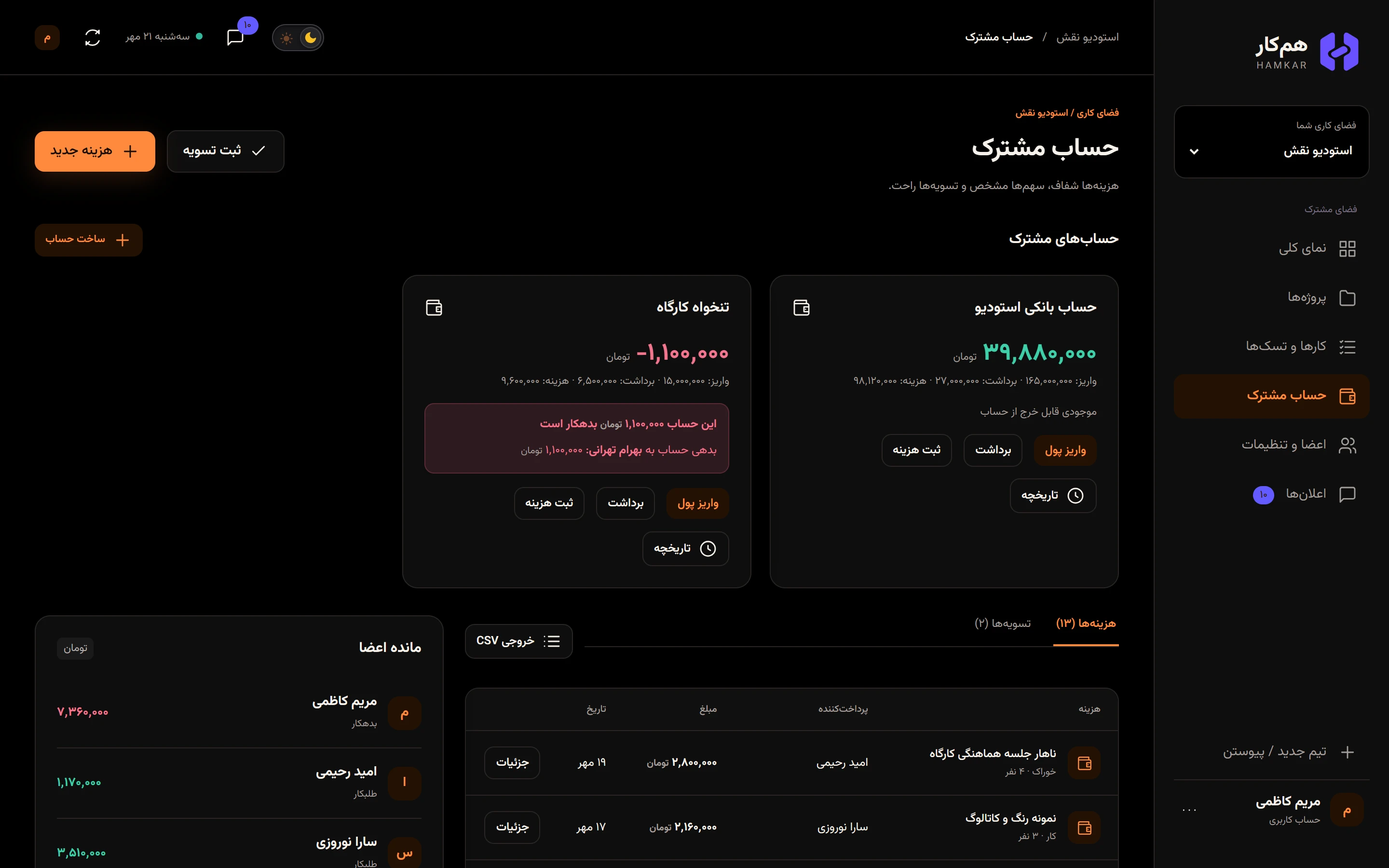
One friend paid for the villa, another for fuel, a third for groceries. Each logs their cost as it happens, and at the end Hamkar says who should pay whom, and how much.
Read the full story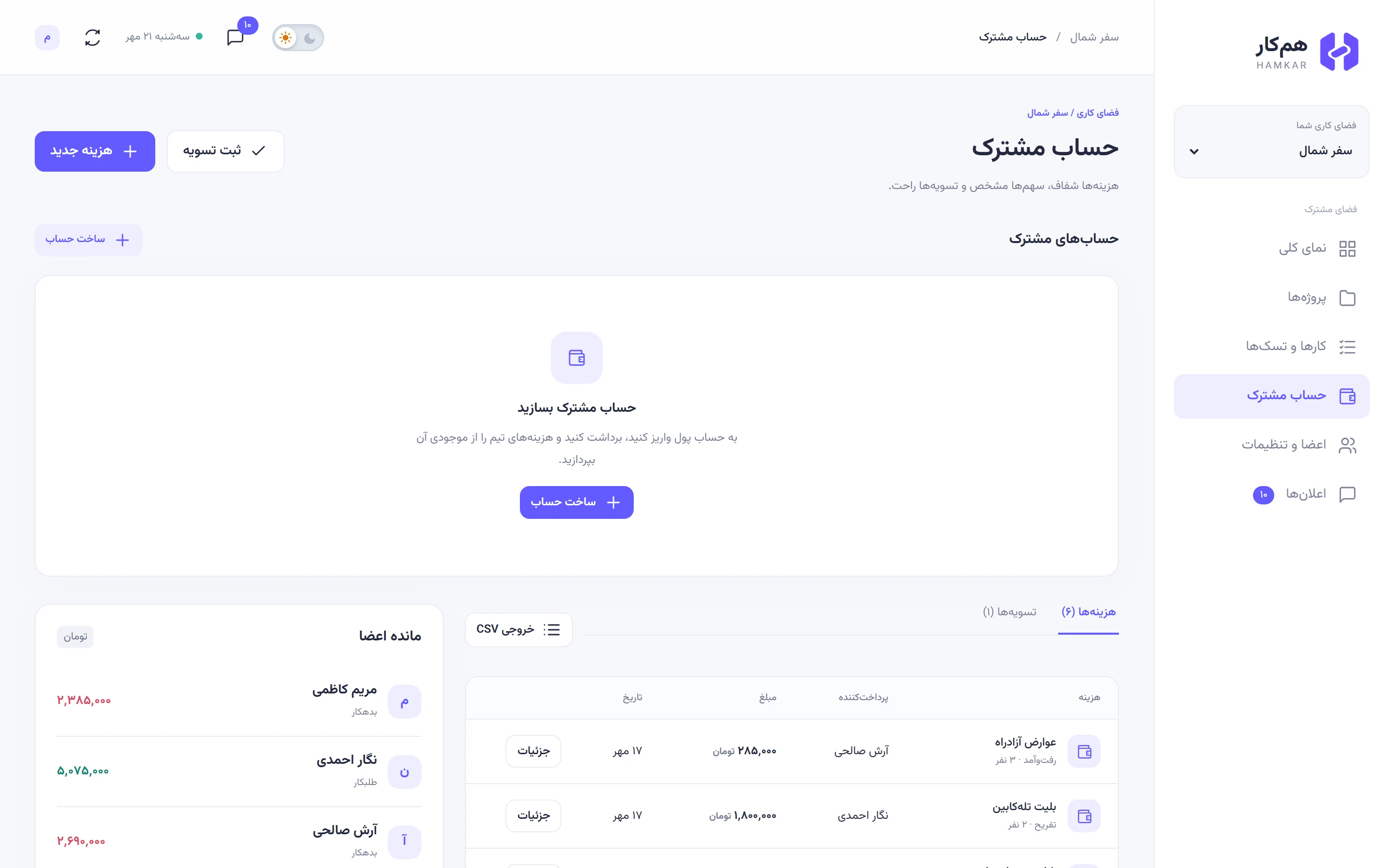
From creating a team to settling up at the end of the month, step by step, with real screenshots of the web app and the Android app.
Yes, through the web app. Open Hamkar in Safari, tap Share, then “Add to Home Screen” and it sits next to your other apps. There is no separate iOS app yet.
Open the “Notifications on this phone” screen in the Android app. Anything that isn’t right has its own fix button. On Xiaomi, Huawei, Oppo and some other brands, also turn on “Autostart” for Hamkar.
They stay. Your name remains in the money section marked as a former member, so nobody’s balance breaks and the others can still settle up with you.
On the sign-in screen, choose “Forgot your password?” and enter your email. If email is switched on for the server, a reset link arrives. If nothing arrives, ask whoever runs the Hamkar server to create the link for you.
Not yet. Download the installer from this site. The web app and the Android app share one account and are always in sync.
Yes. For example one team for work and one for a trip with friends. You switch teams from the list at the top of the sidebar, and on your phone each team’s notifications are grouped separately.
Signing up takes a minute. Then send the invite code to everyone else.