Installing the Android app
The Android app is the Hamkar web app inside an app, plus instant notifications even when the app is closed, replying from a notification, photographing receipts and saving exports to the Download folder.
Before you install
Section titled “Before you install”- Version: 1.0.0
- Requires: Android 8 or later
- Size: about 2 MB
- Language: Persian
- The app isn’t on Google Play. You get its installer (APK) from this site.
- Instant notifications need Google Play services on the phone. On phones without them, the app checks for new notifications itself every 15 minutes.
Download and install
Section titled “Download and install”-
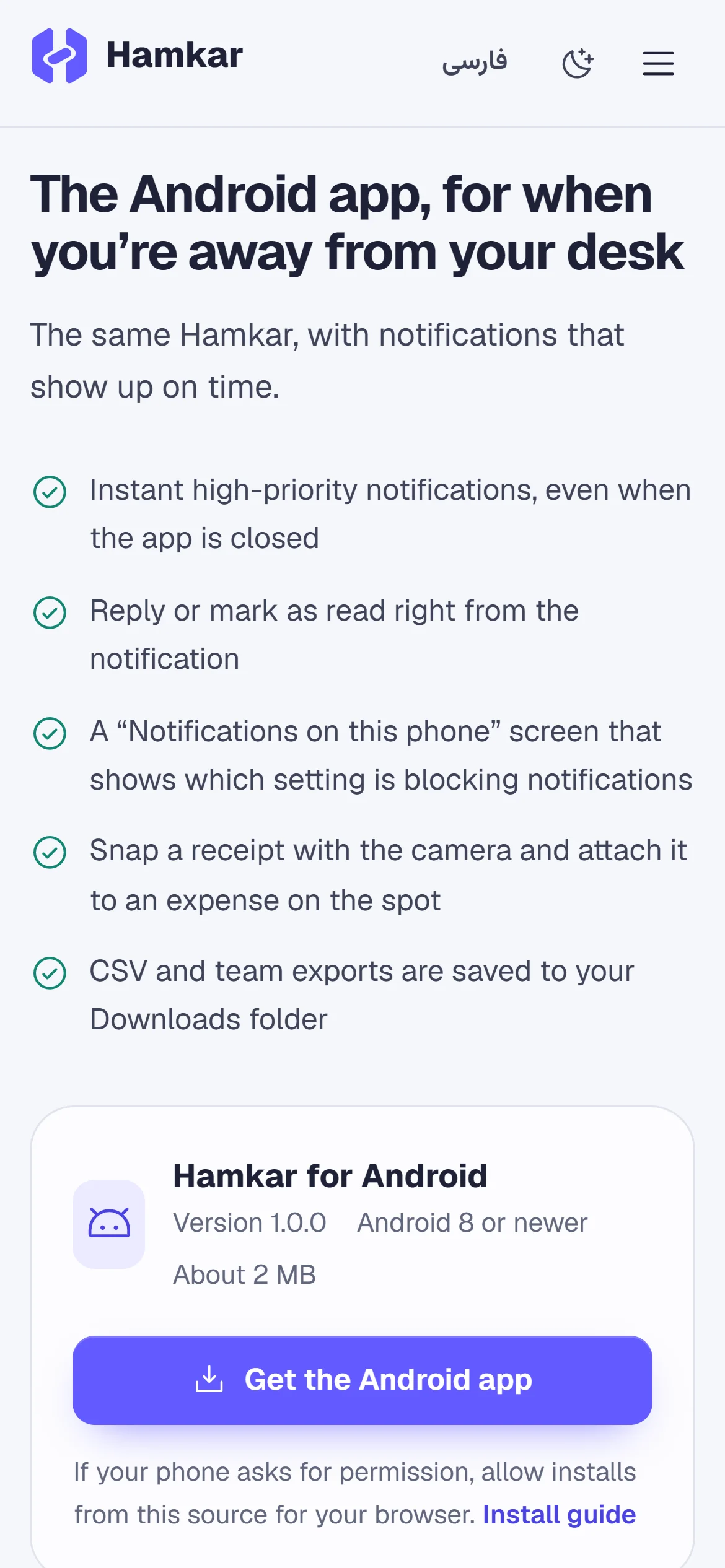
Open this page on your Android phone and tap Download Hamkar 1.0.0.
-
If your browser warns that this type of file can be harmful, confirm the download. The warning appears for any APK downloaded outside Google Play.
-
When it’s done, open the file from the download notification or the Download folder.
-
If the phone says installs from this source aren’t allowed, tap “Settings” and turn on permission to install apps from this source for that browser (Chrome, for example). Then press Back to return to the installer.
-
Tap “Install”. Google Play Protect may also ask you to confirm; since the app doesn’t come from Google Play, that’s expected.
-
When installation finishes, tap “Open”.
The first time you open it
Section titled “The first time you open it”-
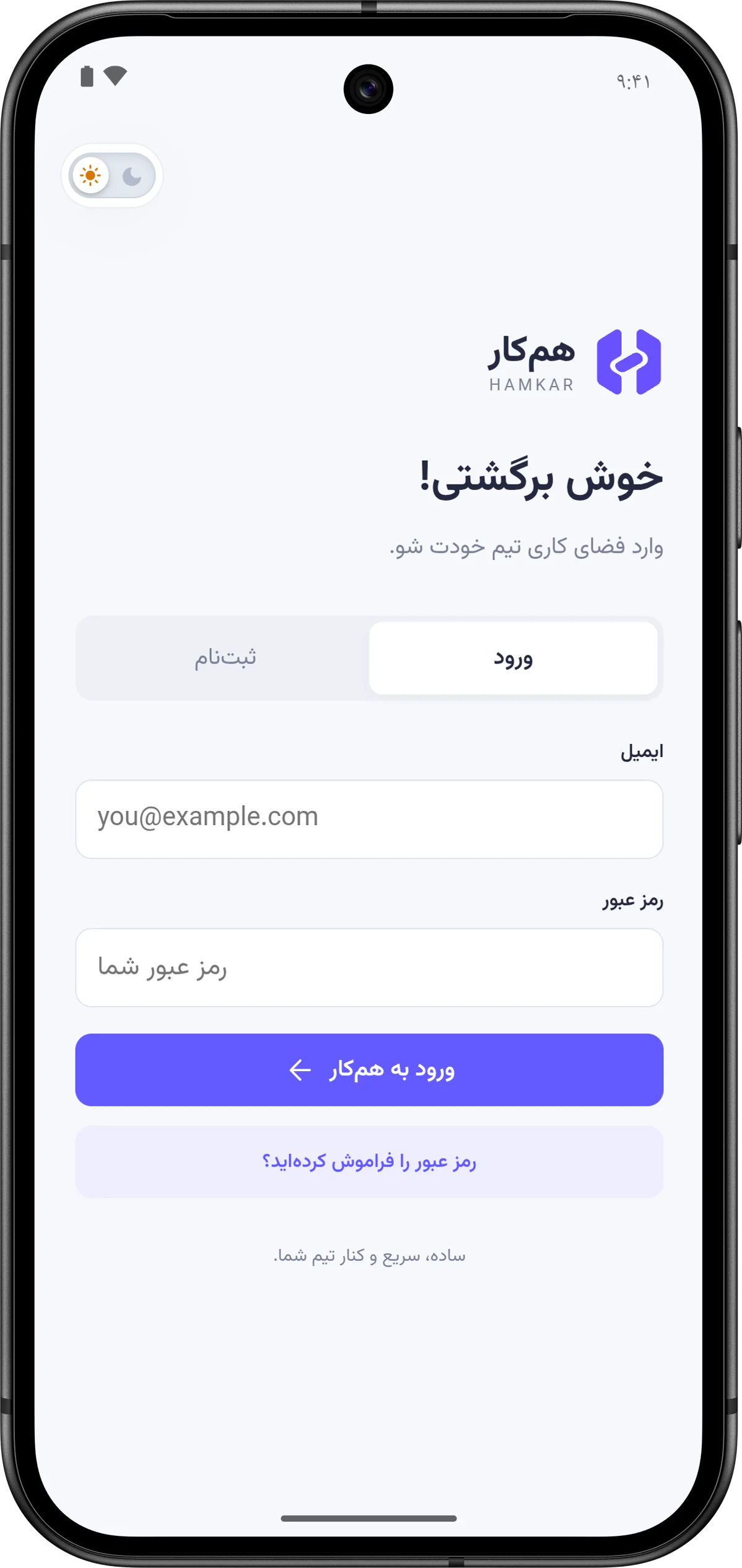
The splash screen with the Hamkar mark appears, and a moment later the sign-in page.
-
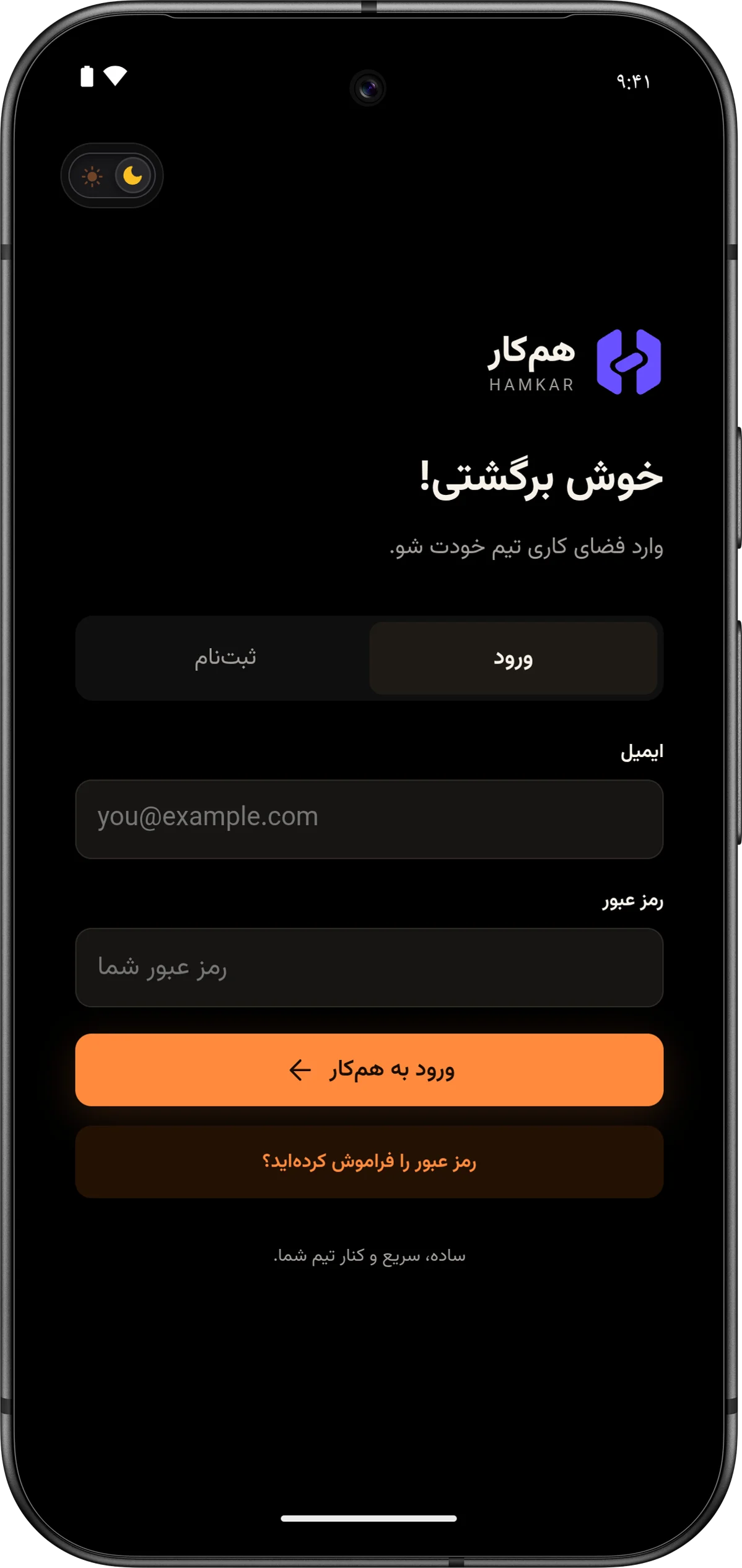
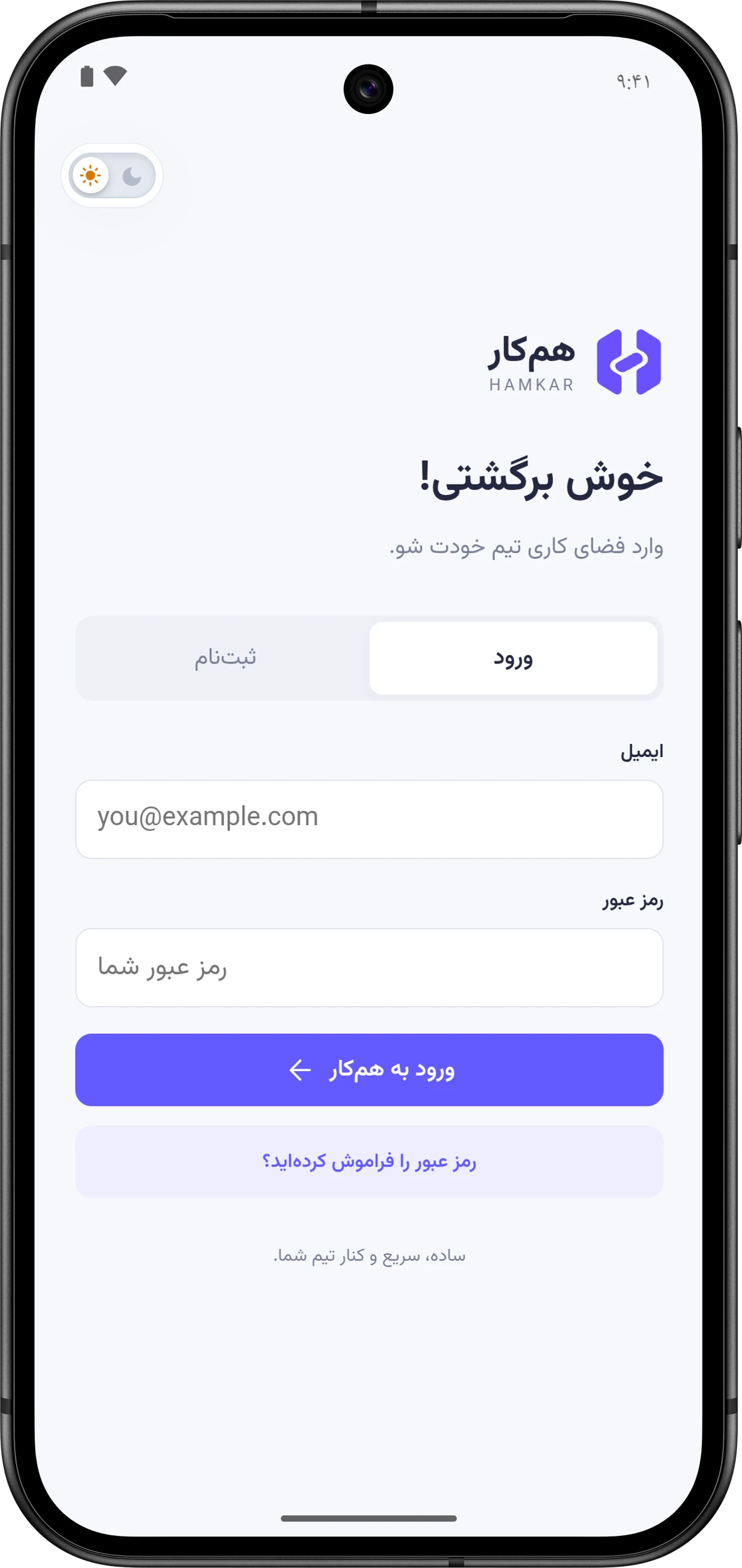
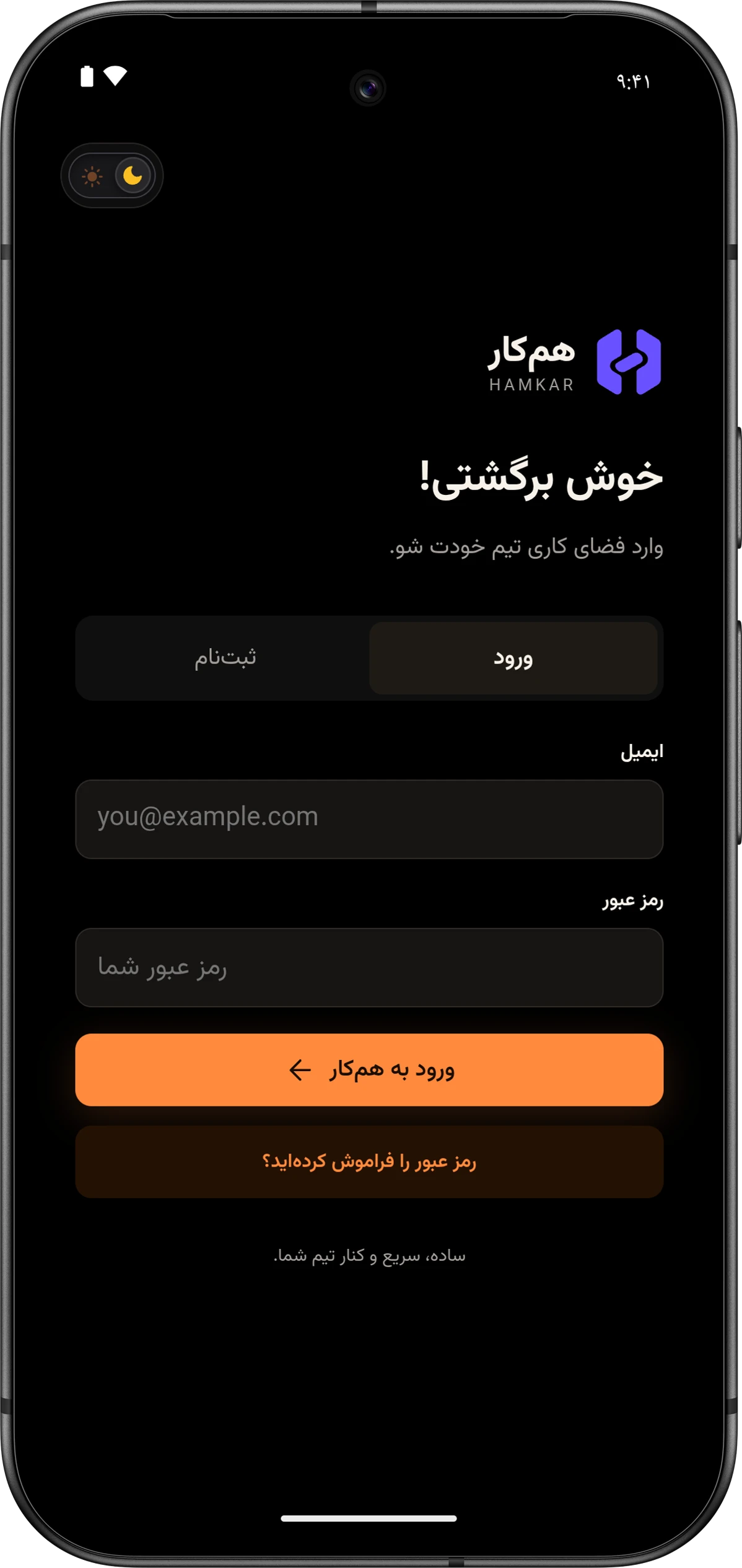
Sign in with the same email and password you use on the web, or create an account on the Sign upثبتنام tab.
-
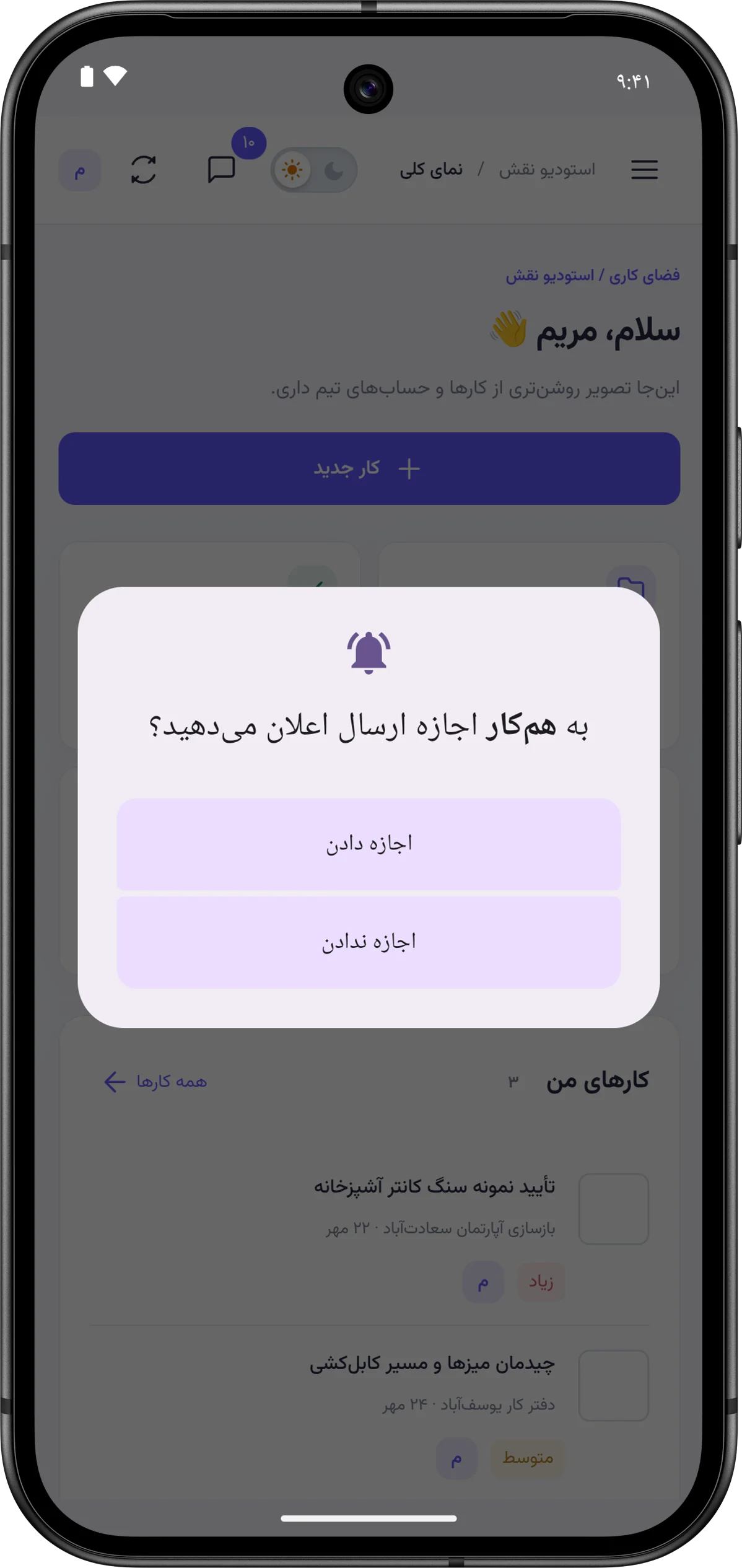
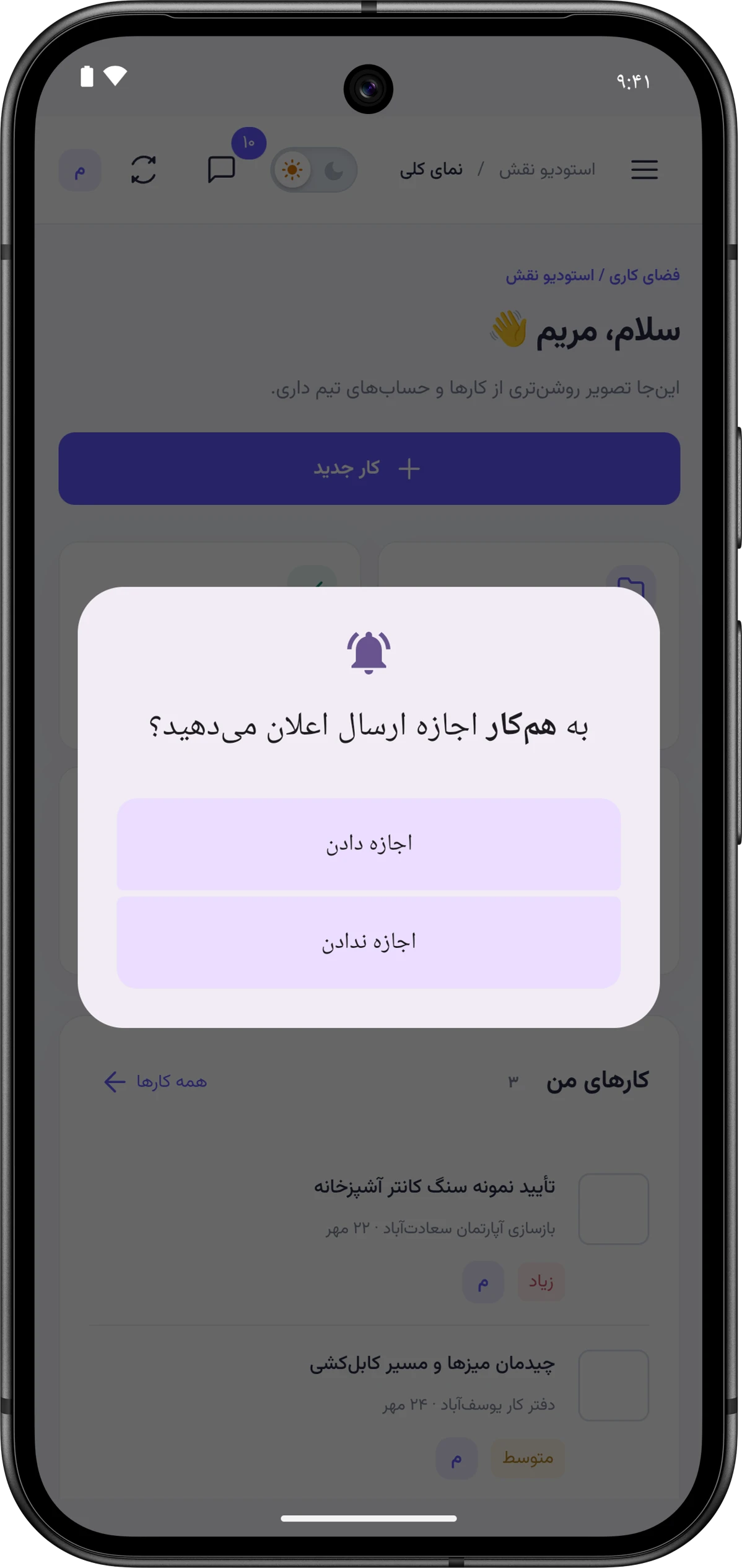
On Android 13 and later, the phone asks once whether Hamkar may send notifications. Tap “Allow”. Without this permission no notification can be shown.
-
The Notifications on this phoneاعلان روی این گوشی screen opens once on its own. Go through it so notifications aren’t delayed, then tap Doneتمام. The phone check screen
After you sign in, the app registers the phone for notifications on the server. From then on your teams’ notifications reach the phone.
Updating the app
Section titled “Updating the app”When a new version comes out, download the new file from this site and install it like the first time. It installs over the old version; you don’t need to uninstall first. Your team data lives on the server, so reinstalling loses nothing.