Recording shared expenses
Whenever someone spends money for the team, record it as an expense and Hamkar works out everyone’s share. All money features are on the Shared financesحساب مشترک page.
Two kinds of expense
Section titled “Two kinds of expense”The Paid fromمحل پرداخت field in the expense form says where the money came from:
- “A member paid personally (split the cost)” («پرداخت شخصی عضو (تقسیم بدهی)»): one person paid out of their own pocket and the cost is split between several people. The payer is owed the amount, and everyone with a share owes their part.
- One of the team’s shared accounts: the money came out of the petty cash or the team bank account. This kind of expense has no personal shares; it only lowers that account’s balance. See Shared accounts for the full story.
Record an expense one person paid
Section titled “Record an expense one person paid”-
On the Shared financesحساب مشترک page, tap New expenseهزینه جدید.
-
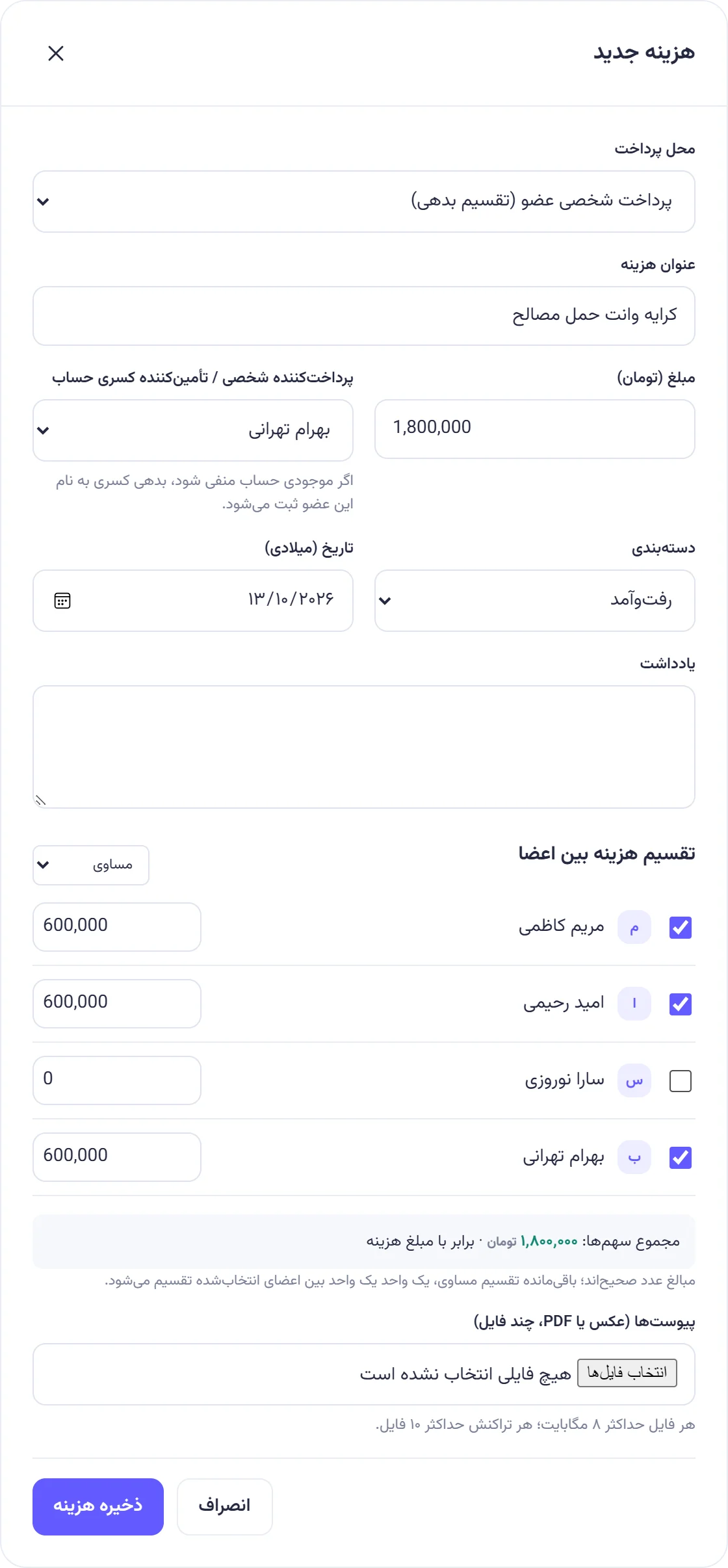
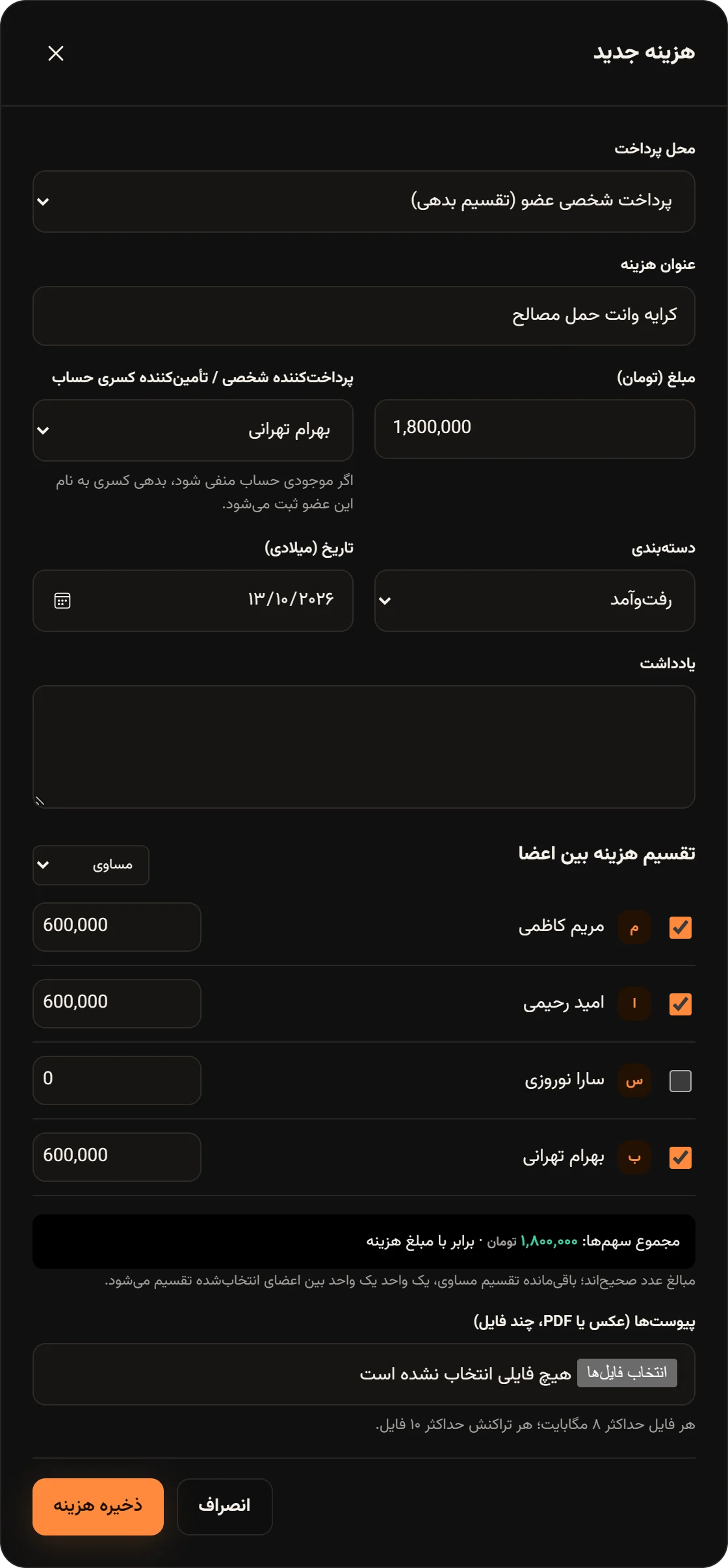
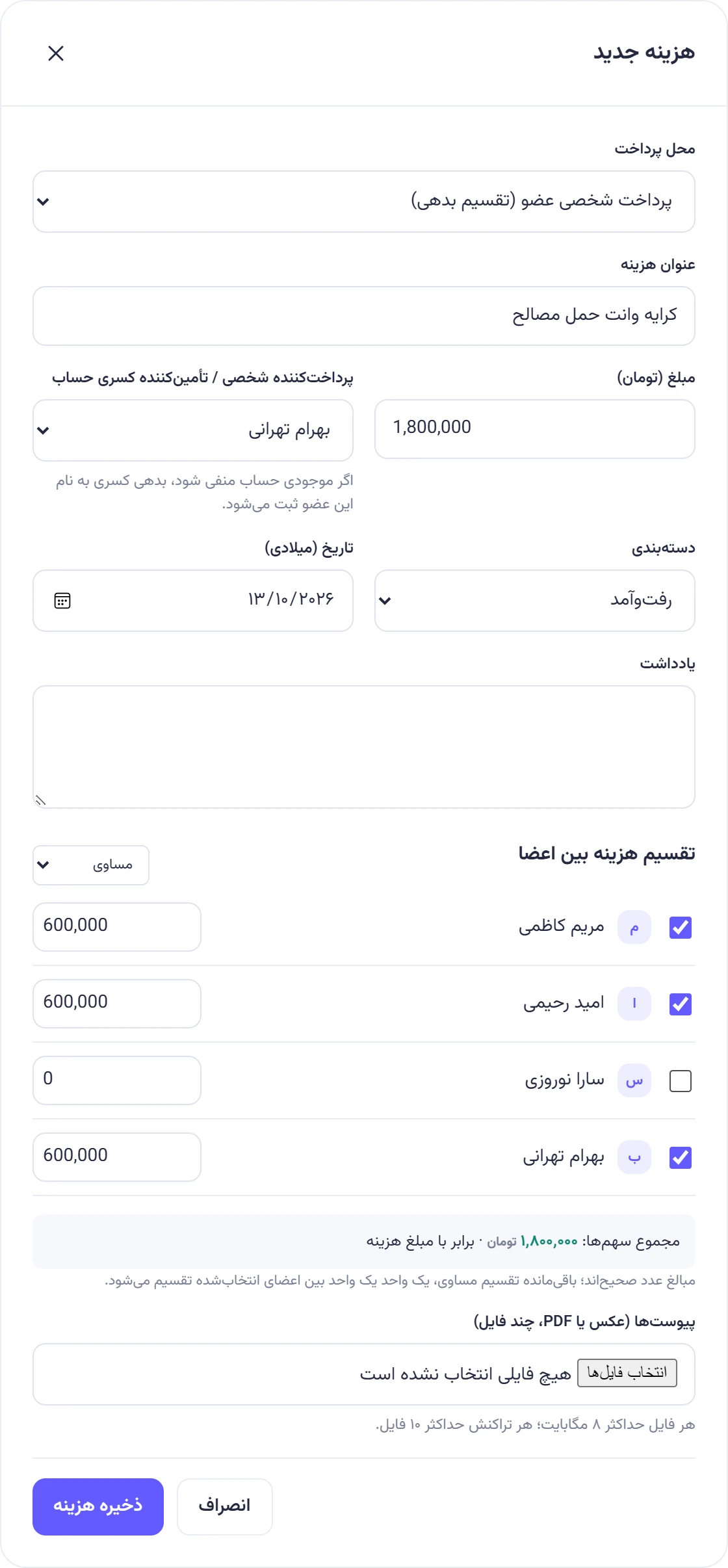
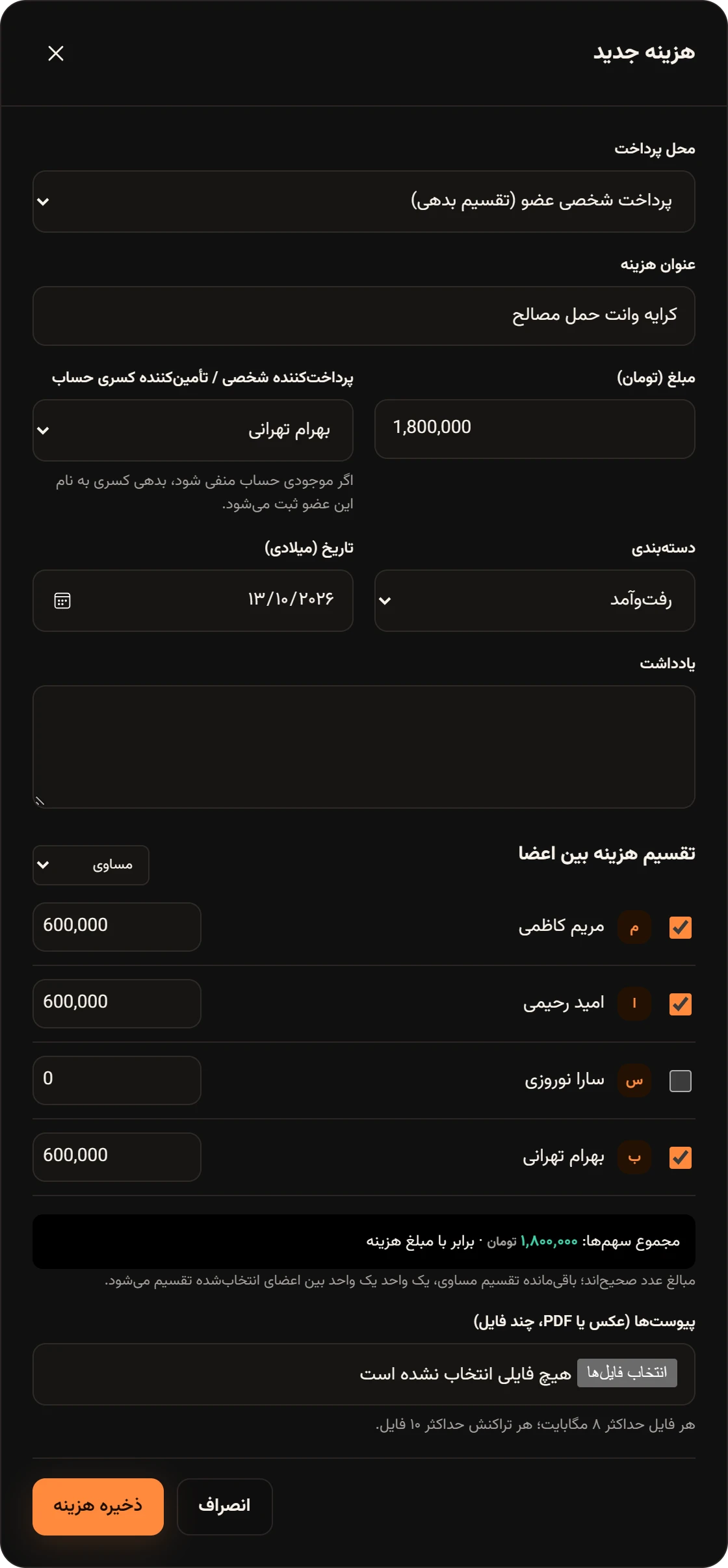
Set Paid fromمحل پرداخت to “A member paid personally” («پرداخت شخصی عضو (تقسیم بدهی)»).
-
Enter the Expense titleعنوان هزینه and the amount. You can type Persian or English digits; thousands separators are added for you.
-
Choose who paid. The field is labeled “Personal payer / covers account shortfall” («پرداختکننده شخصی / تأمینکننده کسری حساب»).
-
Check the Categoryدستهبندی and Date (Gregorian)تاریخ (میلادی). Add a Noteیادداشت if useful.
-
Under Split between membersتقسیم هزینه بین اعضا, tick everyone who shares this cost:
- With Equalمساوی, Hamkar divides the amount evenly.
- With Custom amountsمبلغ دلخواه, you type each person’s share.
The line under the list must say equals the expense amountبرابر با مبلغ هزینه. If it shows something else, the shares don’t add up to the amount.
-
If you have a receipt, choose it under Attachmentsپیوستها (عکس یا PDF، چند فایل). Comments and files
-
Tap Save expenseذخیره هزینه.
The other members get a New expenseهزینه جدید notification with the title and amount, and Member balancesمانده اعضا update right away.
Example: Bahram paid 1,800,000 toman for a van to haul materials and split it equally between himself, Maryam and Omid. Each share came to 600,000 toman, so Bahram is owed 1,200,000 and Maryam and Omid each owe 600,000.
Equal splits and remainders
Section titled “Equal splits and remainders”Amounts are always whole numbers. If the amount doesn’t divide evenly, the remainder is handed out one unit at a time to the first people in the list. For example, 100 split three ways becomes 34, 33 and 33.
An expense paid from a shared account
Section titled “An expense paid from a shared account”-
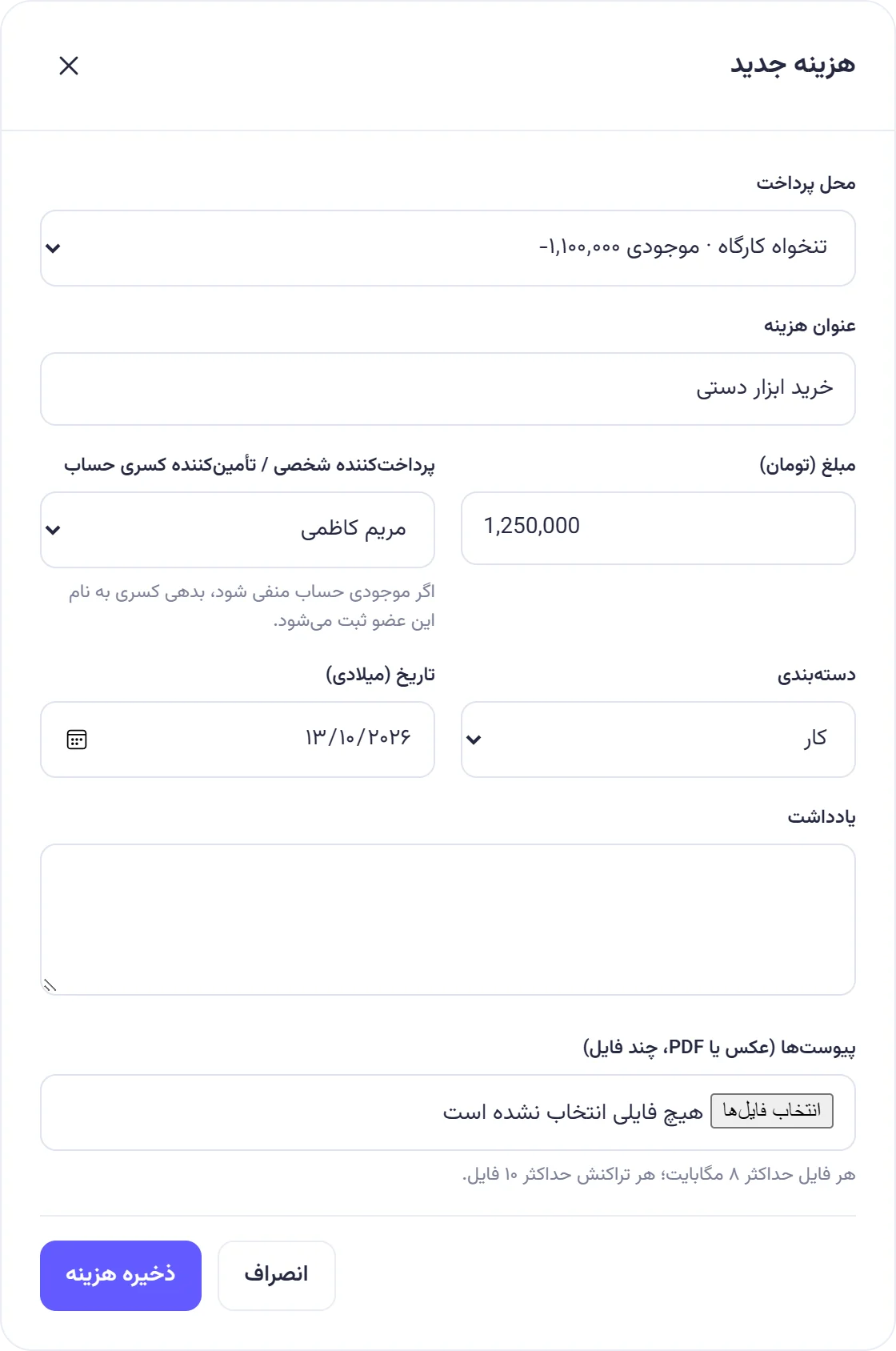
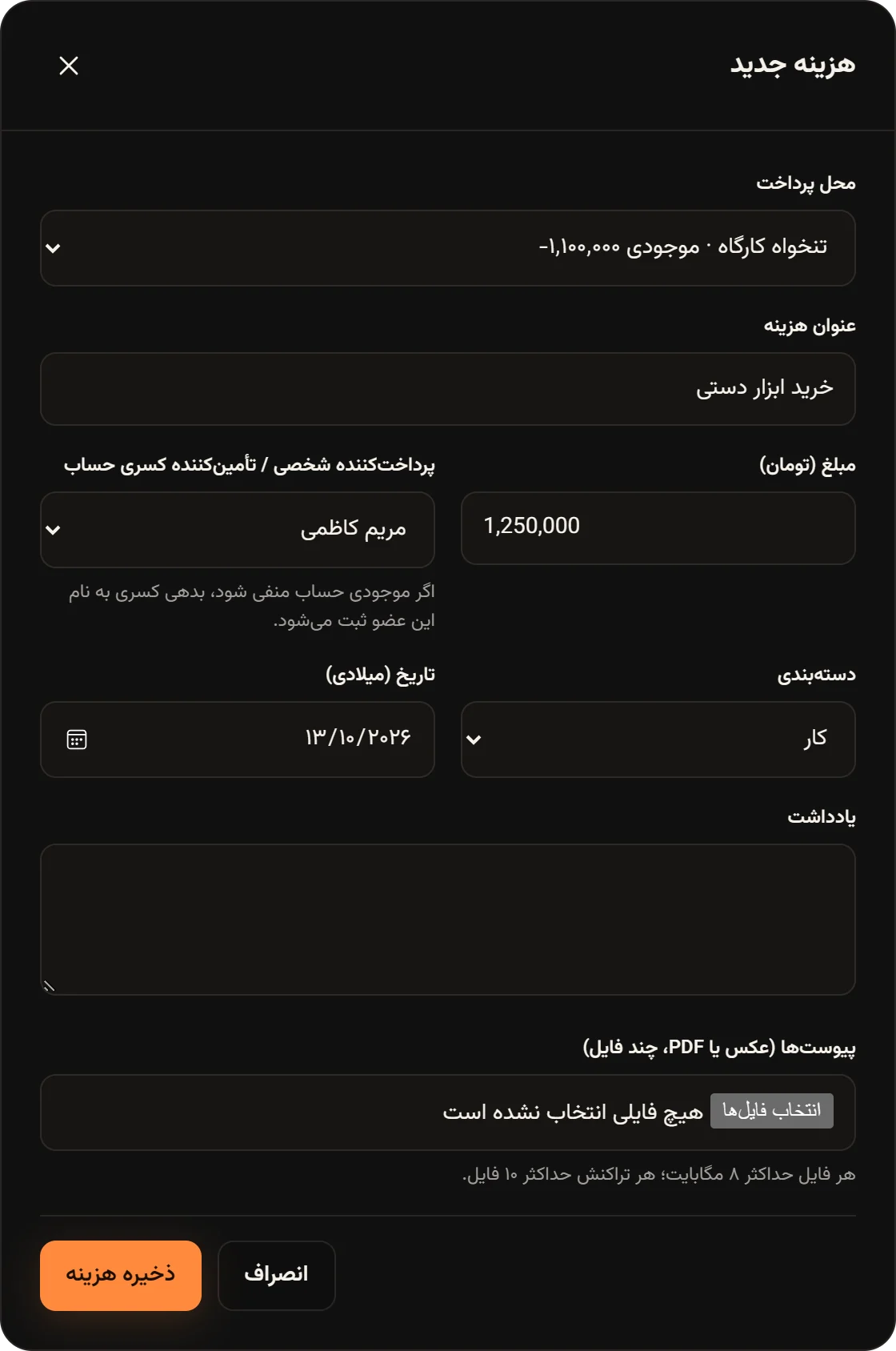
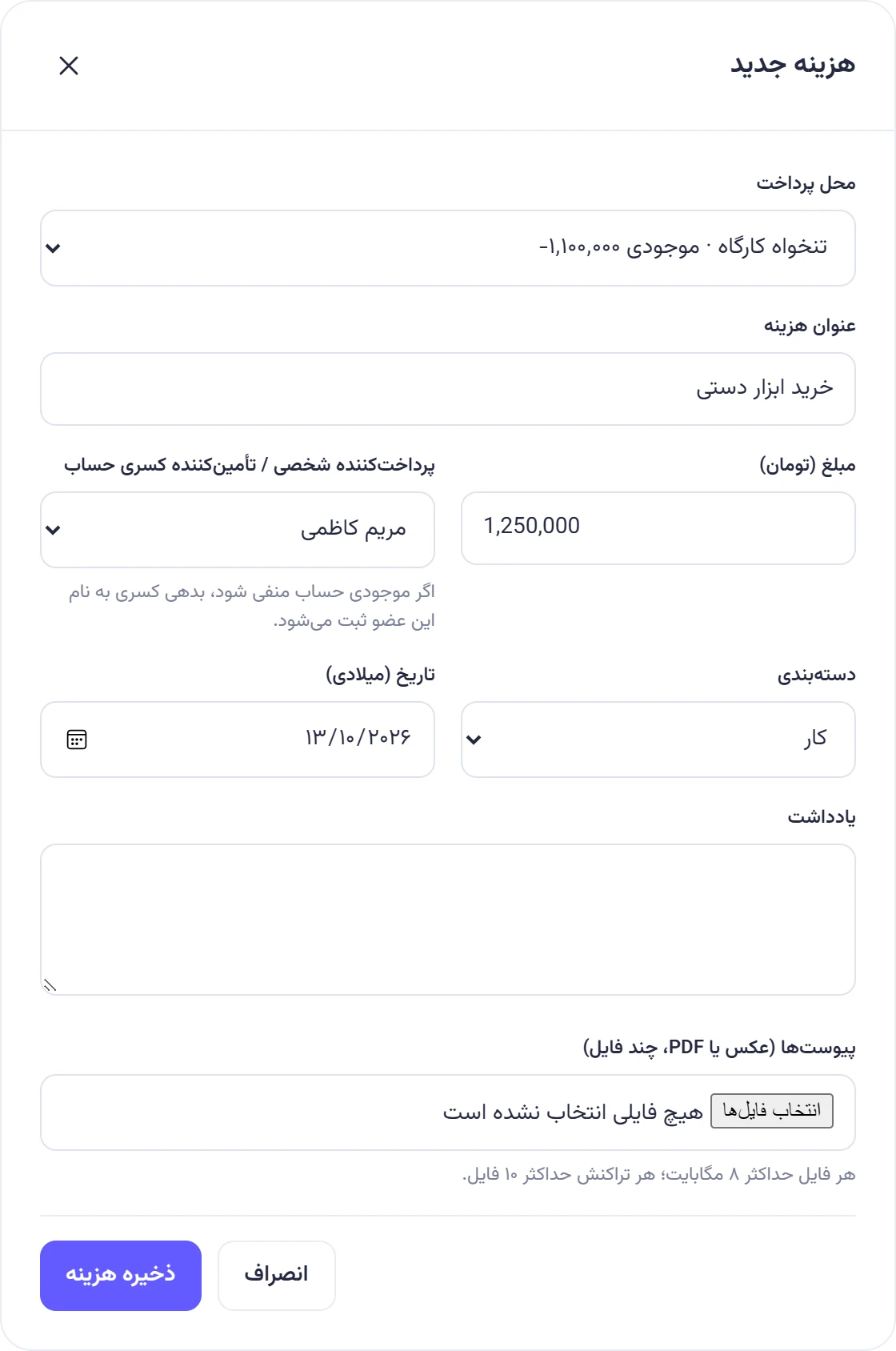
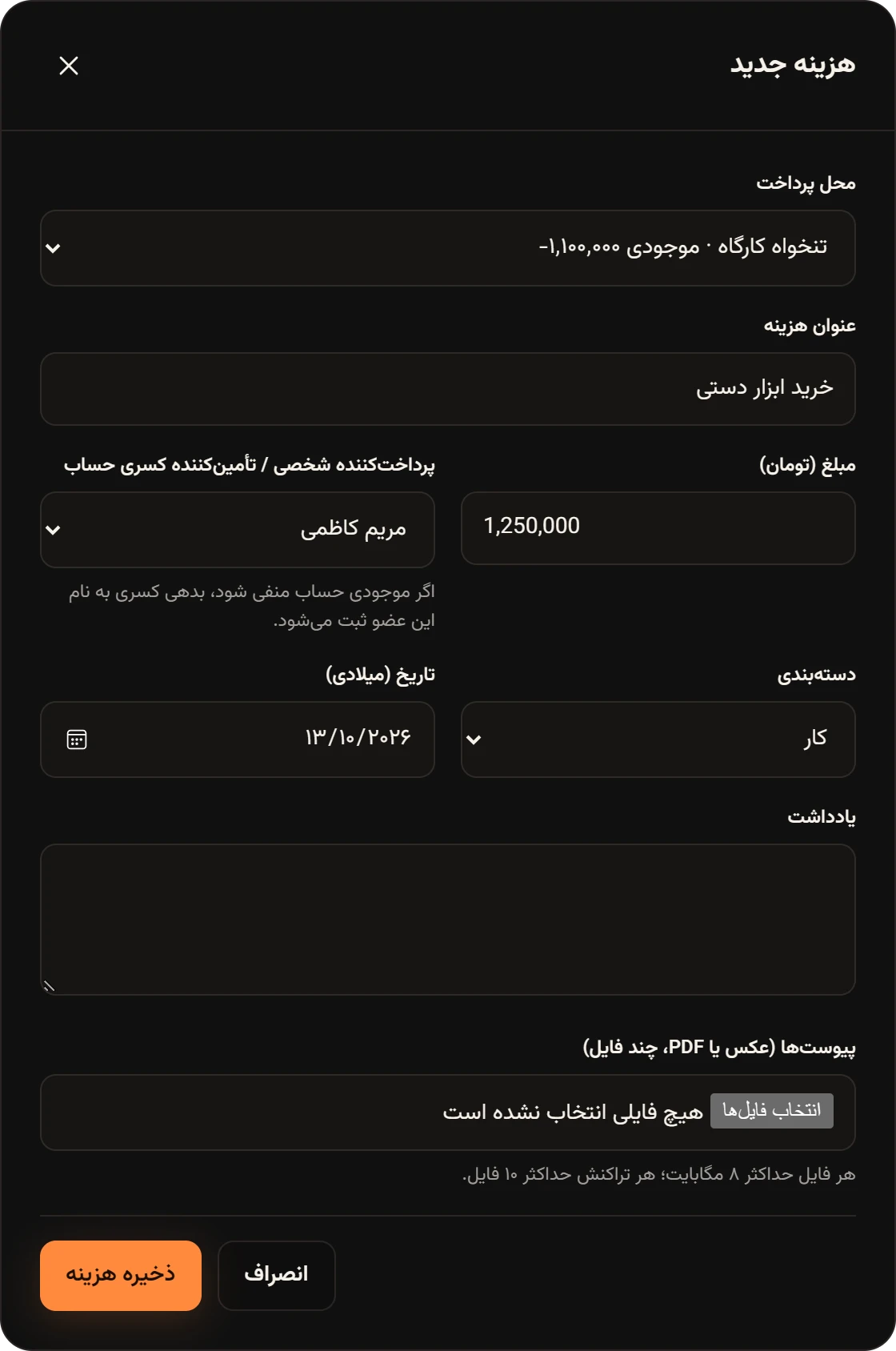
On the account’s card at the top of the page, tap Record expenseثبت هزینه. Or, in the New expenseهزینه جدید form, choose the account under Paid fromمحل پرداخت. Each account’s current balance is shown next to its name.
-
Enter the title, amount, category and date. The split section disappears, because this expense has no personal shares.
-
In the payer field, choose the person who covered any shortfall out of their own pocket if the account didn’t have enough.
-
Tap Save expenseذخیره هزینه.
View, edit and delete
Section titled “View, edit and delete”In the Expensesهزینهها list, each expense has a Detailsجزئیات button. The Expense detailsجزئیات هزینه window shows the amount, payer, date, category, note, Member sharesسهم اعضا and attachments. For an expense paid from an account, it shows the account and who covered the shortfall.
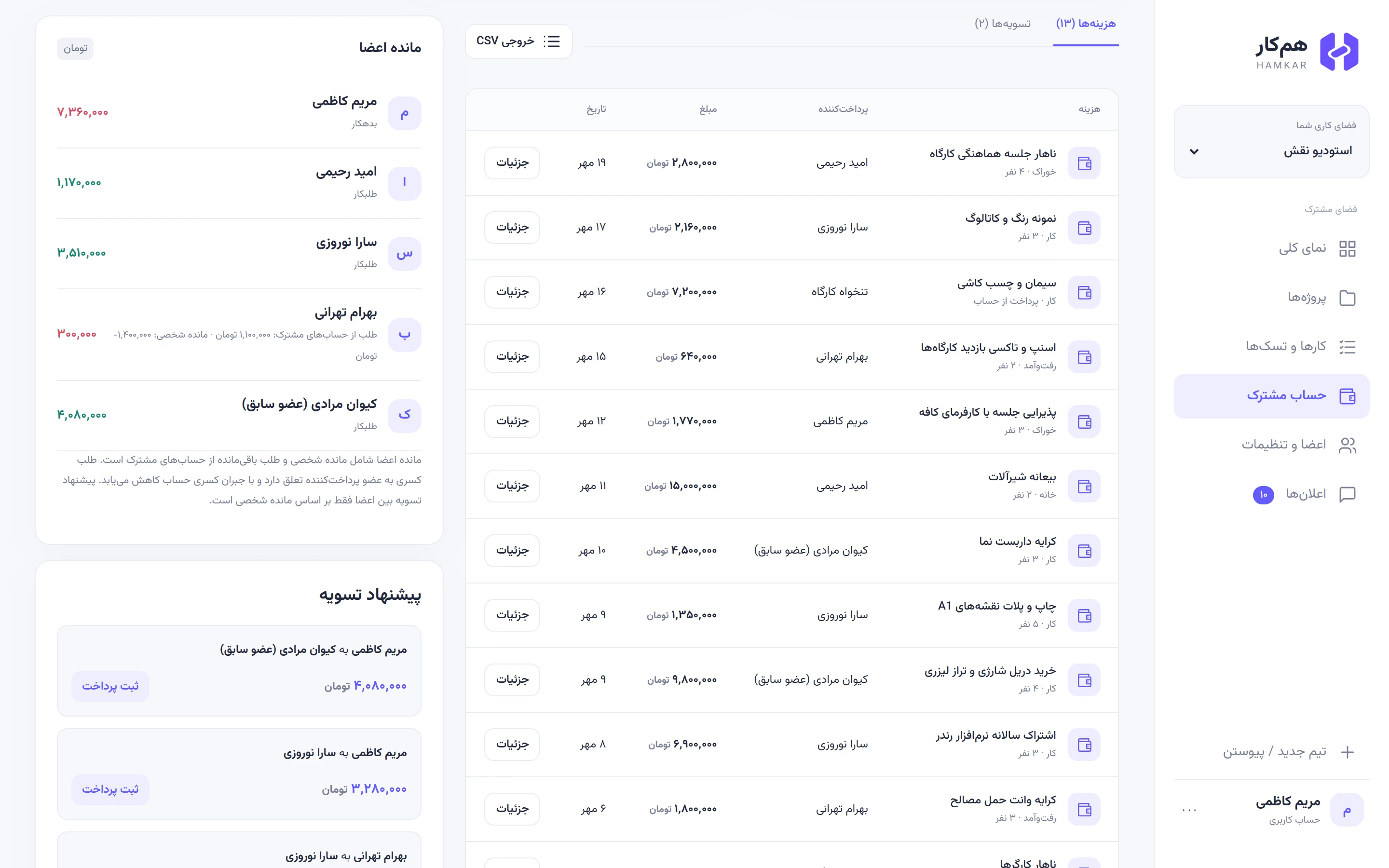
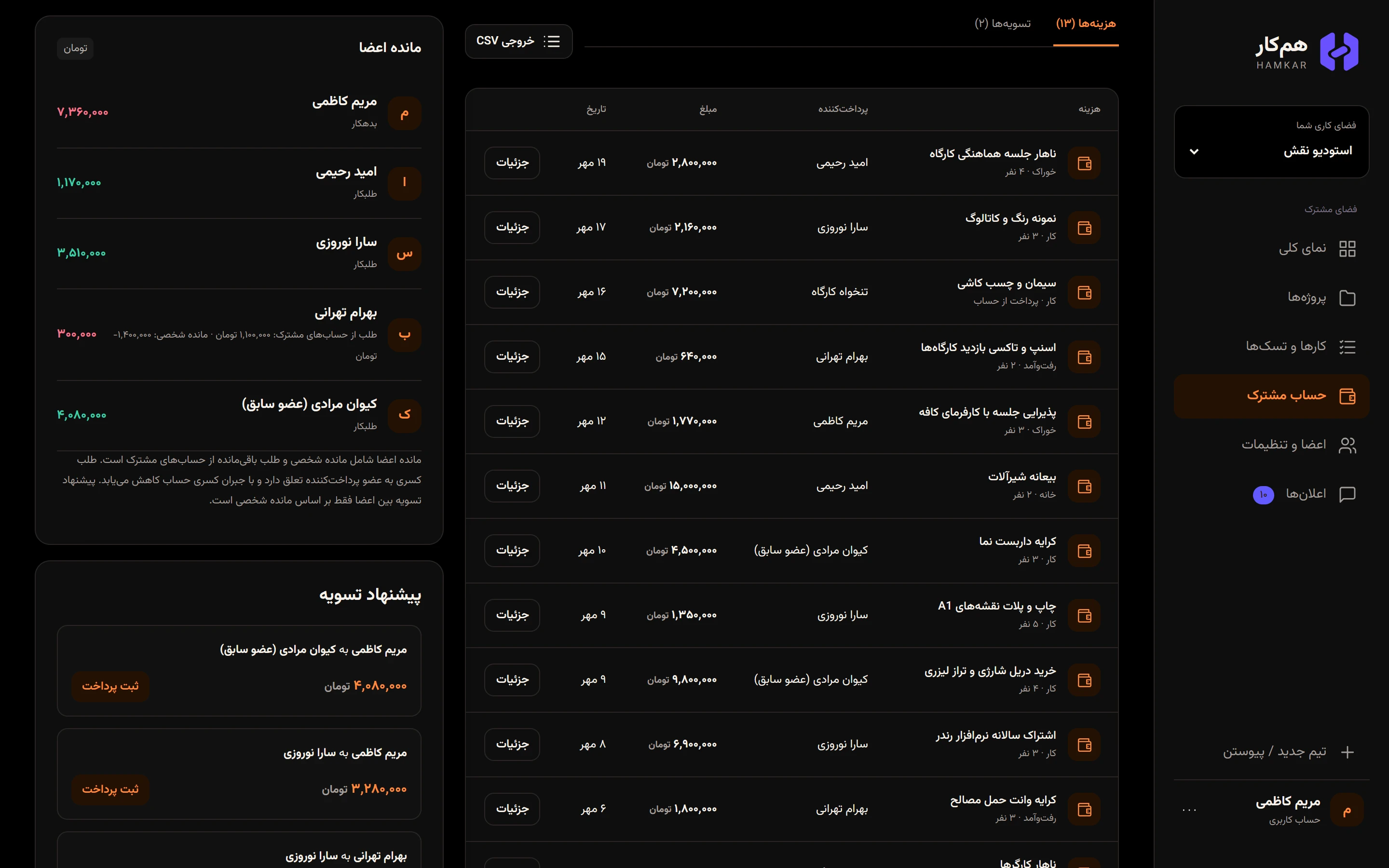
If you recorded the expense or you’re an admin, the bottom of that window also has Edit expenseویرایش هزینه and Delete expenseحذف هزینه.
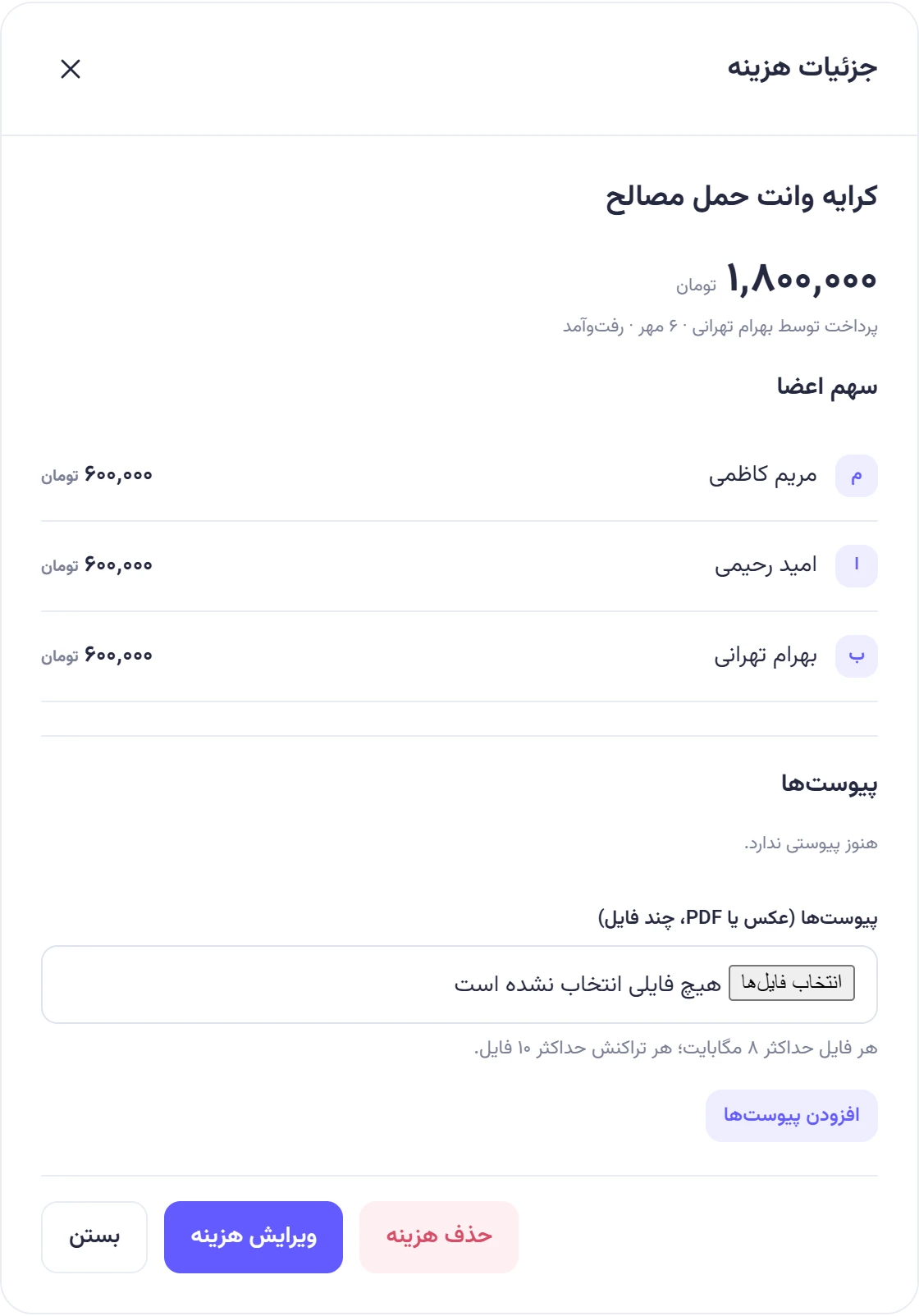
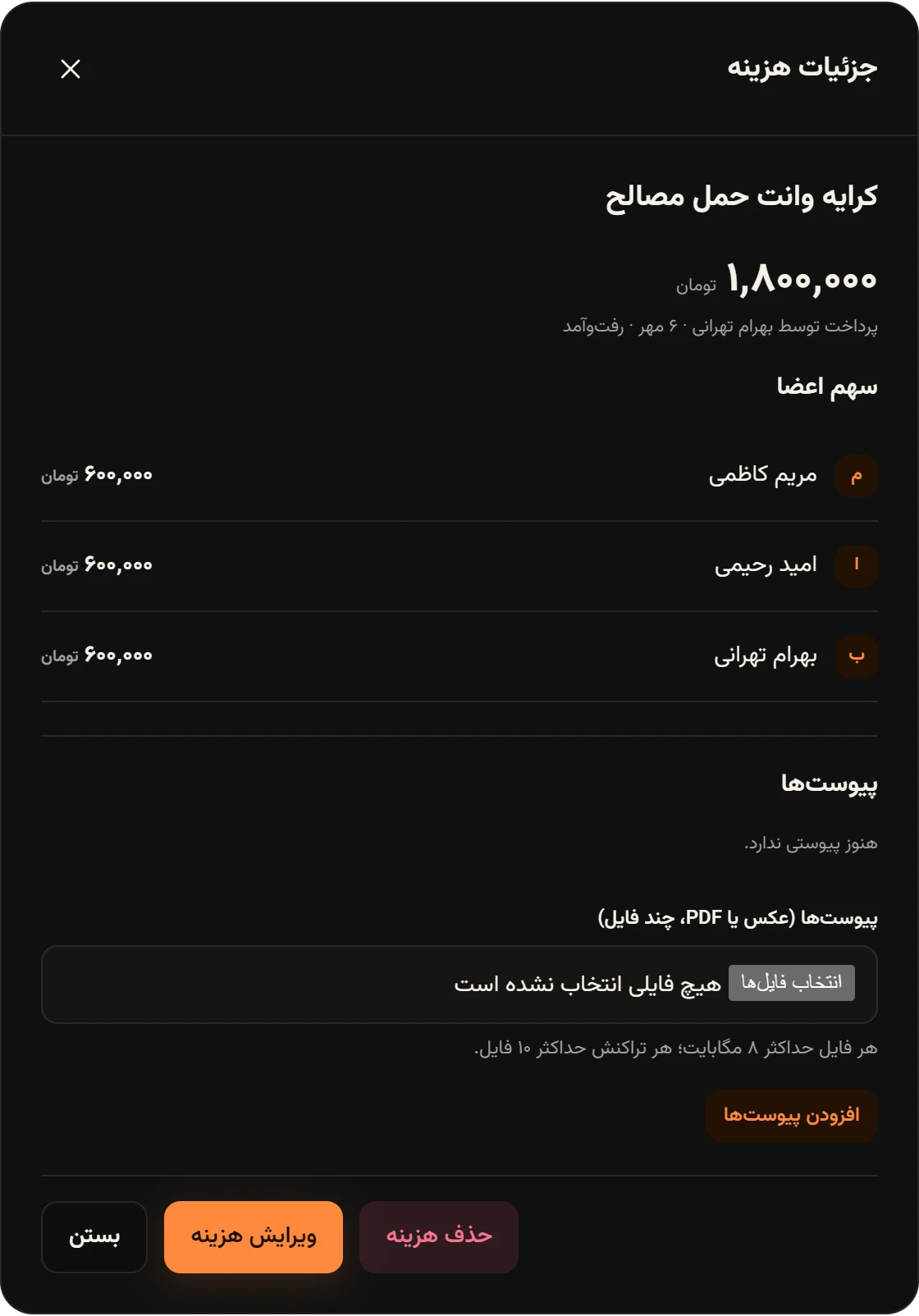
- Editing recalculates the balances, and the others get an Expense editedویرایش هزینه notification.
- Deleting removes the expense and its shares and recalculates the balances. Settlements already recorded are not deleted with it.
At Naghsh Studio, Bahram accidentally recorded the van rental a second time the next morning. Omid, an admin, deleted the duplicate from Detailsجزئیات and the balances were right again.
Amount and date rules
Section titled “Amount and date rules”- An amount is a whole number above zero, up to 1,000,000,000,000 units. If your money uses decimals, pick the smaller unit as the team currency.
- Dates are entered on a Gregorian calendar and shown in lists in the Persian calendar, with day and month only.
- Categories: Foodخوراک, Transportرفتوآمد, Homeخانه, Workکار, Funتفریح and Otherسایر.