Live updates and sync
You don’t need to reload to see what your teammates are doing. As long as a Hamkar page is open and visible, changes arrive on their own.
What updates live
Section titled “What updates live”When a teammate changes a task, project, expense, settlement, account or member, every open page of a member of that team does the following:
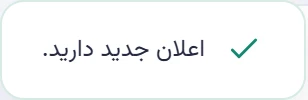
- The notification count on the bell and in the menu updates, and a short message “You have a new notification.” («اعلان جدید دارید.») appears.
- If you have that team open, its data refreshes and the current page, such as the task board or the balances, is redrawn.
- If you have the window of a task open and someone comments on it, the new comment quietly joins the discussion.

Your own actions don’t come back to you, since you already saw them on your screen. When several changes arrive at once, Hamkar applies them together so the page doesn’t jump repeatedly.
When you’re in the middle of typing
Section titled “When you’re in the middle of typing”Hamkar won’t rearrange the page under your hands. If a window is open or you’re typing in a field, it shows a banner at the top instead: New changes from teammatesتغییر جدید از همتیمیها, with the text “Your page may be out of date” («صفحه شما ممکن است قدیمی باشد.»).


- Tap Refreshبروزرسانی when you’re ready.
- Or just close the window; the changes are applied once it closes.
On Members & settingsاعضا و تنظیمات and Notification settingsتنظیمات اعلان, the data refreshes in the background but the page isn’t redrawn, so forms aren’t disturbed. To see the latest state there, tap the Refreshبهروزرسانی button in the top bar, or switch to another page and back.
If the connection drops
Section titled “If the connection drops”- When the Hamkar tab goes into the background or the phone locks, the live connection closes. When you come back, it reconnects and refreshes the data.
- On reconnecting, notifications that arrived in the meantime (up to 50) are delivered, so nothing is missed.
- If the live connection fails several times in a row, Hamkar falls back to checking periodically: team data every 30 seconds and notifications every 15 seconds, while the page is visible.
- Whenever in doubt, the Refreshبهروزرسانی button in the top bar fetches the latest data.
Hamkar has no offline mode. Without internet you can’t view or record anything, and if the connection drops while you work, saving shows an error. Save again once you’re back online.
Web and Android together
Section titled “Web and Android together”The web app and the Android app use the same server, so they always show the same data:
- The Android app opens the same web page. While the app is open, changes arrive live in the same way.
- When the app is closed, a phone notification tells you, and tapping it opens the app on that item. Notifications on Android
- Read status is stored on the server. Mark a notification as read on your phone and it’s read on the web too. Reading it on the web, however, doesn’t remove a notification that already appeared in your phone’s notification shade.
- Each team’s notification settings belong to your account and apply on every device.
- Light or dark theme, and the team you last opened, are kept per device.
When you’re removed or a team is deleted
Section titled “When you’re removed or a team is deleted”If an admin removes you from a team or deletes the team while you have Hamkar open, you’ll see “You were removed from this team.” («شما از این تیم حذف شدید.») or “This team was deleted by an admin.” («این تیم توسط مدیر حذف شد.») and Hamkar opens one of your other teams.