Profile, password and theme
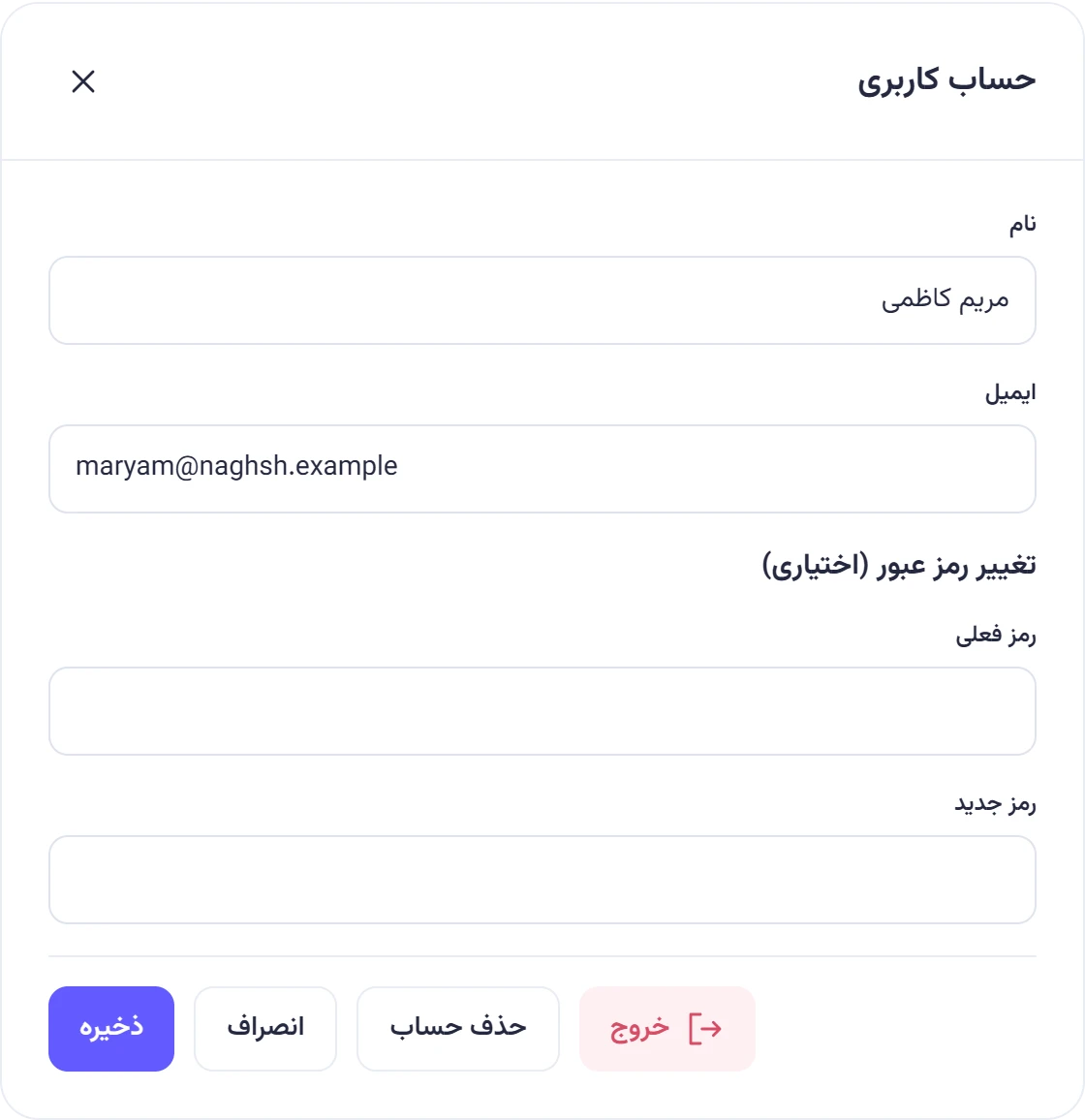
Your personal settings are in the Profileحساب کاربری window. To open it, tap your name at the bottom of the menu.
Change your name
Section titled “Change your name”-
In Profileحساب کاربری, change Nameنام (2 to 80 characters).
-
Tap Saveذخیره.
Your new name shows in all your teams, including next to your earlier tasks, expenses and comments.
The email address is shown here but can’t be changed.
Change your password
Section titled “Change your password”-
In Profileحساب کاربری, under Change password (optional)تغییر رمز عبور (اختیاری), enter your Current passwordرمز فعلی.
-
Enter the New passwordرمز جدید, 10 to 72 bytes. (Persian letters count as two bytes each.)
-
Tap Saveذخیره.
When you change your password:
- The device you changed it on stays signed in.
- Every other device and browser is signed out. You’ll need to sign in there again with the new password.
- Phones that were signed out don’t get phone notifications until you sign in on them again.
- Any password recovery links made earlier stop working.
If the current password is wrong you’ll see “The current password is incorrect.” («رمز عبور فعلی نادرست است.») After several wrong tries in a row you’ll have to wait a few minutes. If you can’t remember your current password, sign out and use password recovery.
Light and dark theme
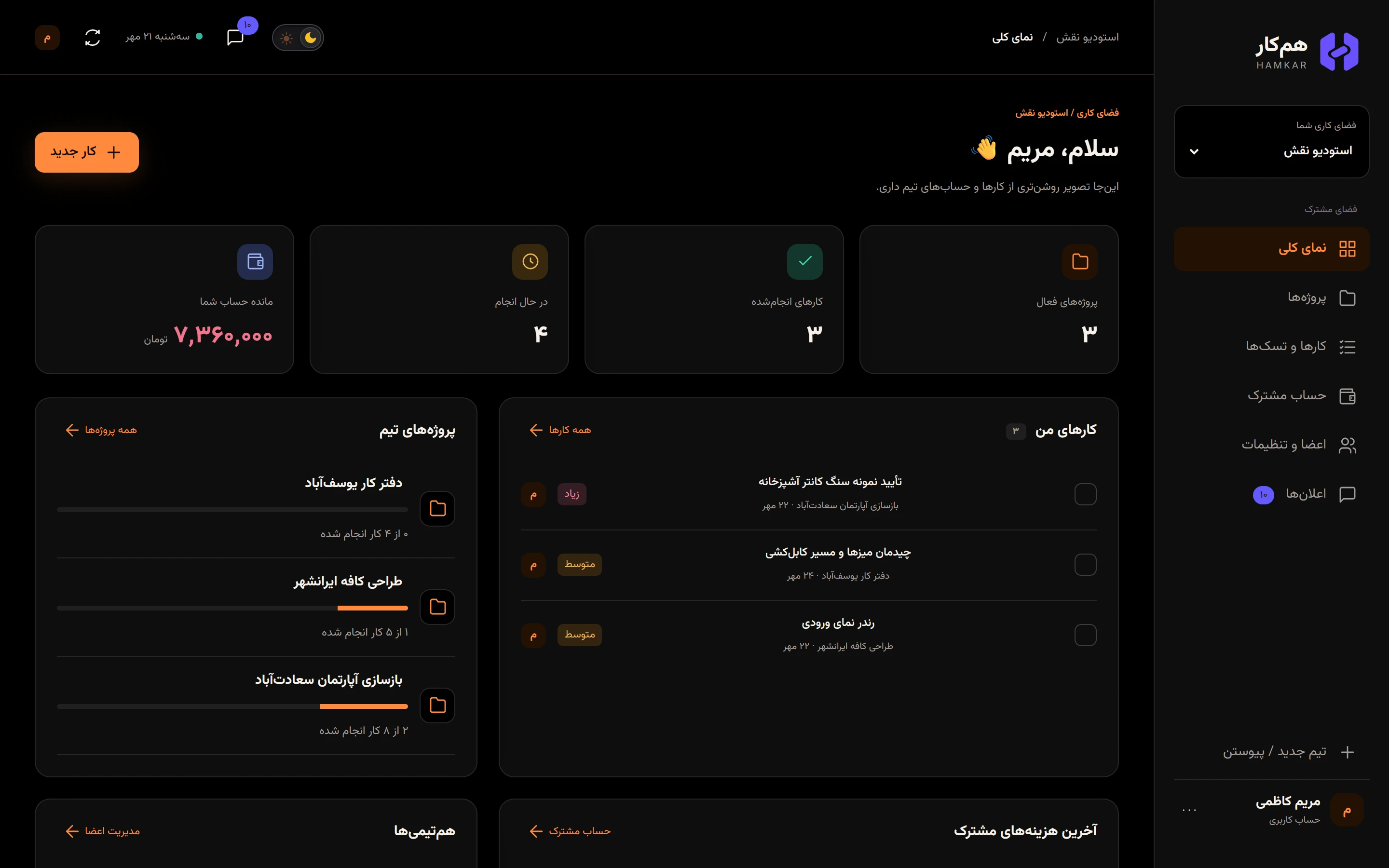
Section titled “Light and dark theme”The sun and moon switch in the top bar changes the theme. On the sign-in and welcome screens, the same switch sits in a corner of the page.
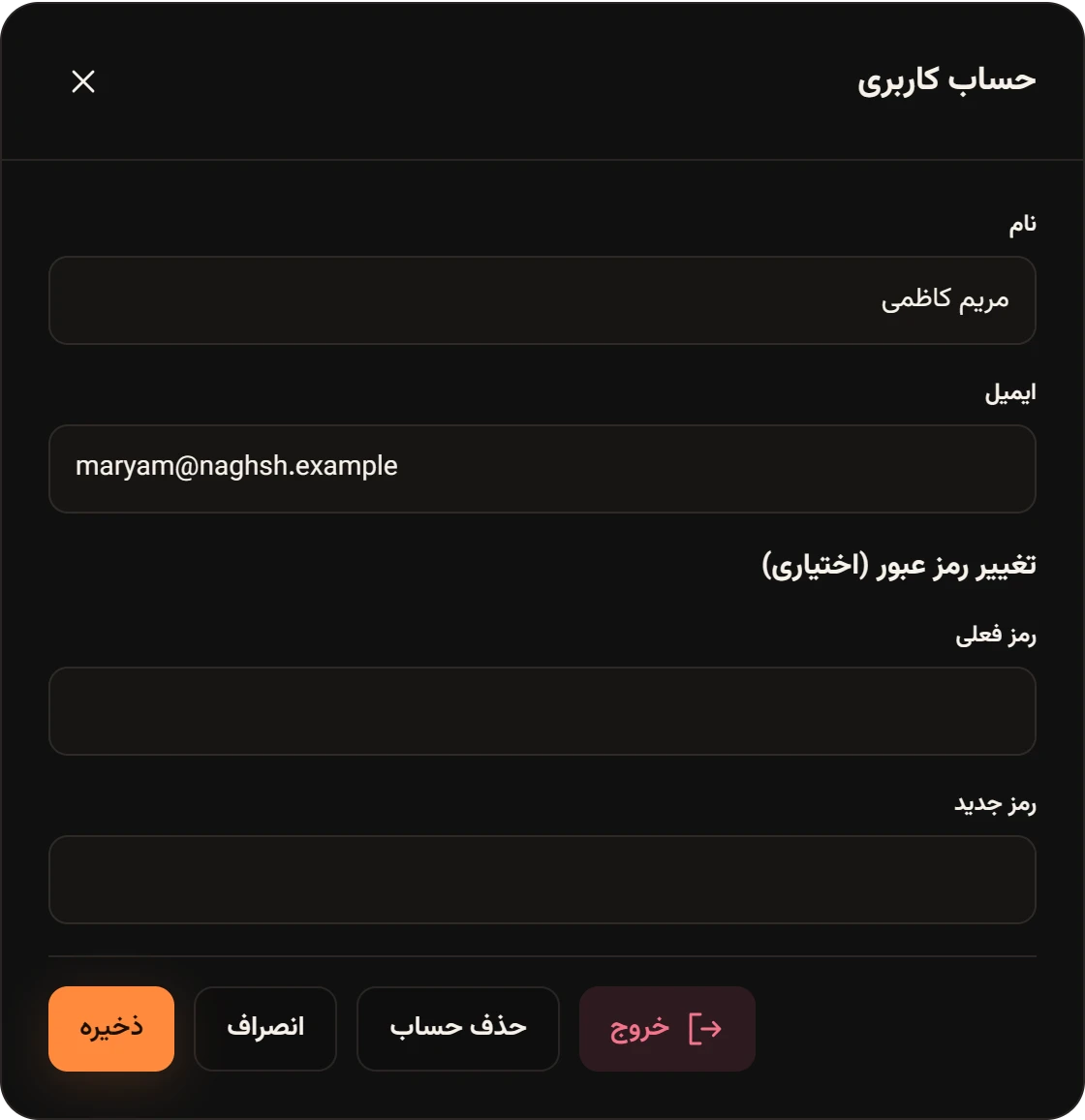
- The light theme has a light background with a purple accent; the dark theme has a pure black background with an orange accent.
- Your choice is saved on that device and browser, not on your account.
- The default is light; it doesn’t follow your system’s dark mode setting.
- In the Android app, the phone’s status bar and navigation bar change with the theme too.
Sign out
Section titled “Sign out”In Profileحساب کاربری, tap Sign outخروج. If you’re not in any team yet, the Sign outخروج از حساب button is at the bottom of the welcome screen.
Signing out ends this device’s sign-in and turns off browser notifications for this browser. In the Android app it removes the phone’s notification registration and clears Hamkar notifications from the shade. Your other devices stay signed in.