Sign up and sign in
You need an account to use Hamkar. Creating one takes about a minute, and there is no email confirmation step.
Create an account
Section titled “Create an account”-
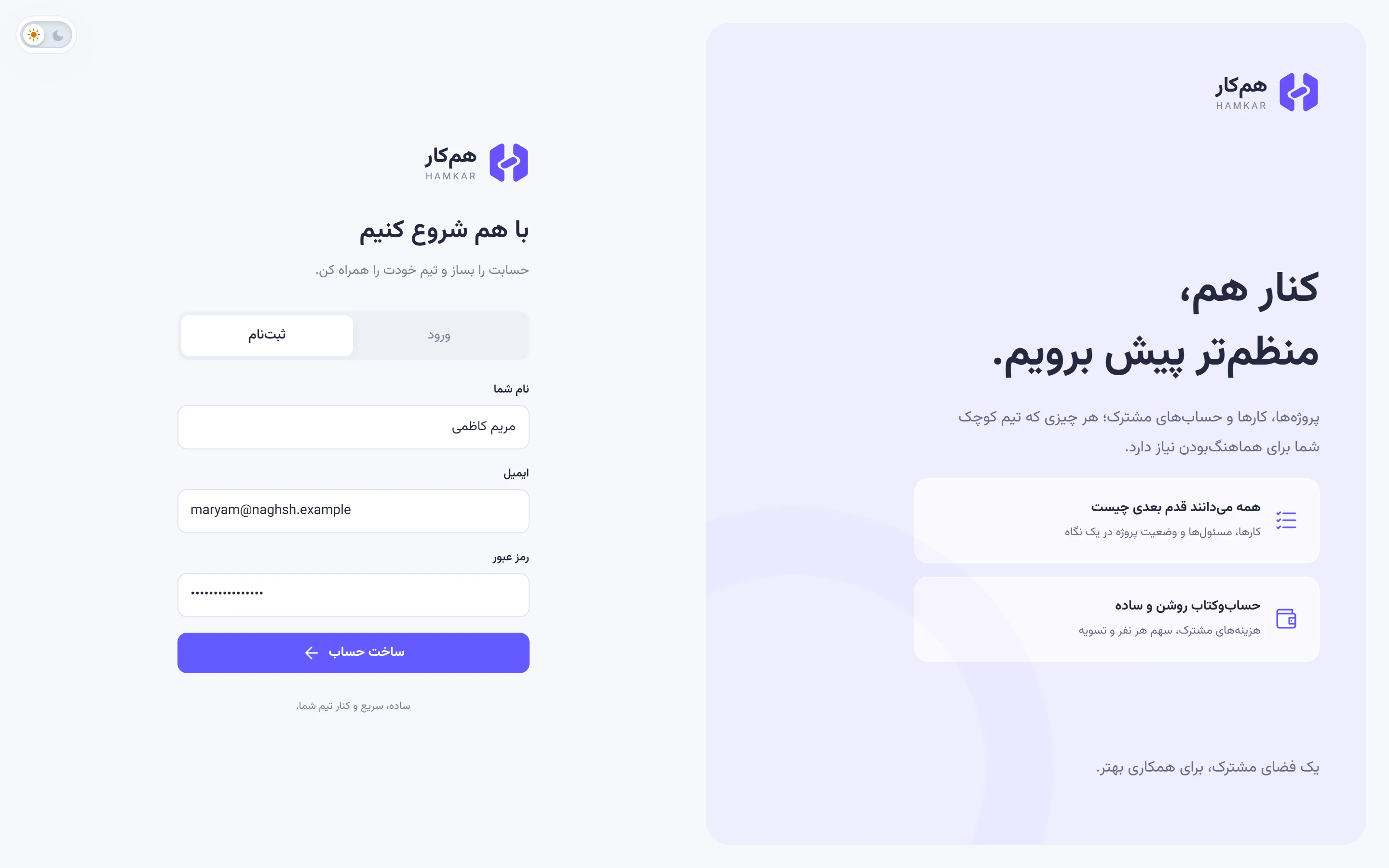
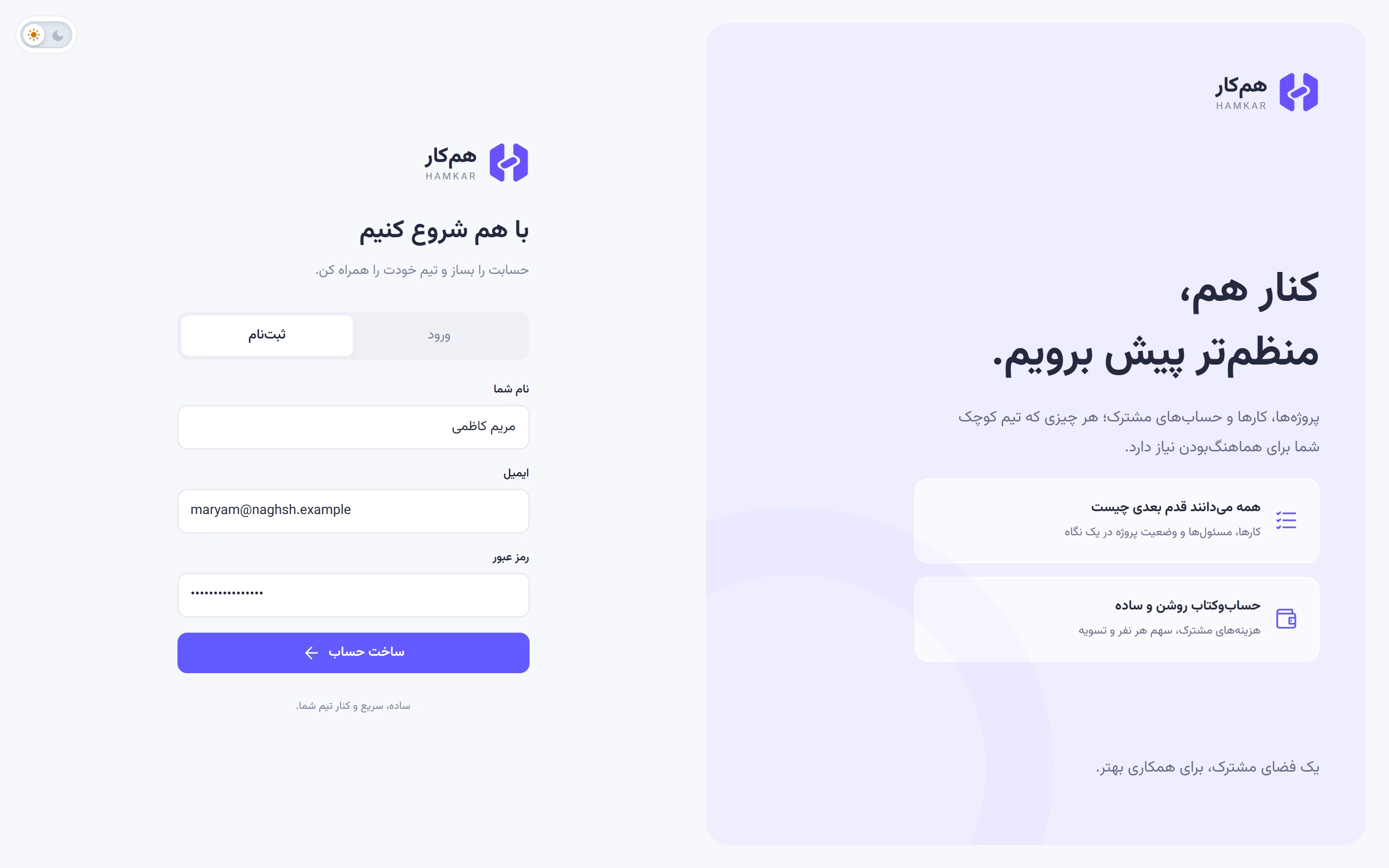
Open h.alavi.vip (or the Android app) and tap the Sign upثبتنام tab.
-
Fill in three fields:
- Your nameنام شما: 2 to 80 characters. Your teammates see you by this name.
- Emailایمیل: used to sign in. You can’t change it later.
- Passwordرمز عبور: at least 10 characters.
-
Tap Create accountساخت حساب. You are signed in right away.
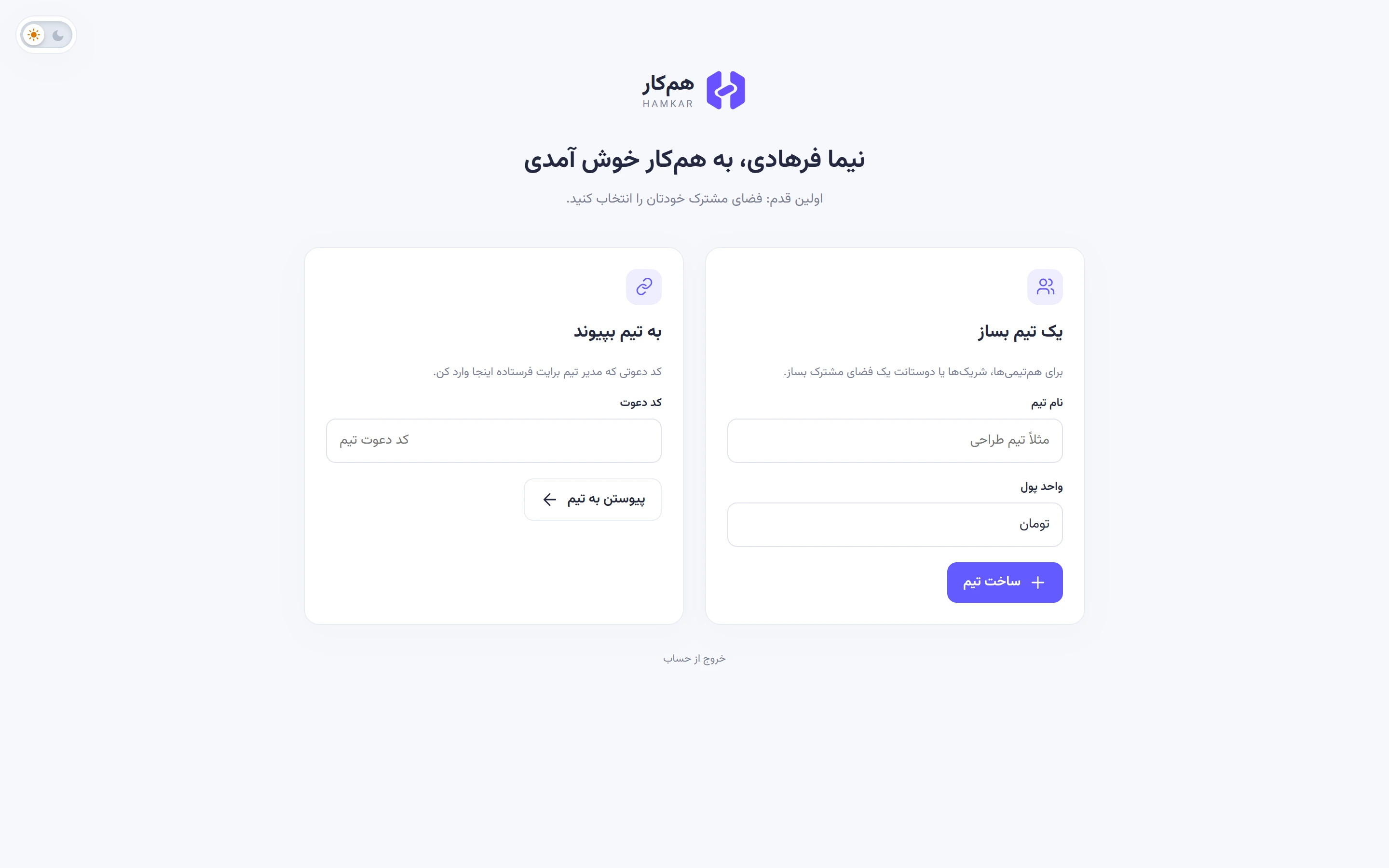
Since you aren’t in a team yet, a welcome screen opens with two cards: Create a teamیک تیم بساز and Join a teamبه تیم بپیوند. Continue with Create a team and invite people.
About passwords
Section titled “About passwords”- Password length is counted in bytes and must be between 10 and 72 bytes. Each Persian letter takes two bytes, so a password made only of Persian letters hits the limit sooner. The simplest choice is a password of Latin letters and digits.
- If the email is already registered, you’ll see “This email is already registered.” («این ایمیل قبلاً ثبت شده است.») Sign in instead, or recover the password.
Sign in
Section titled “Sign in”-
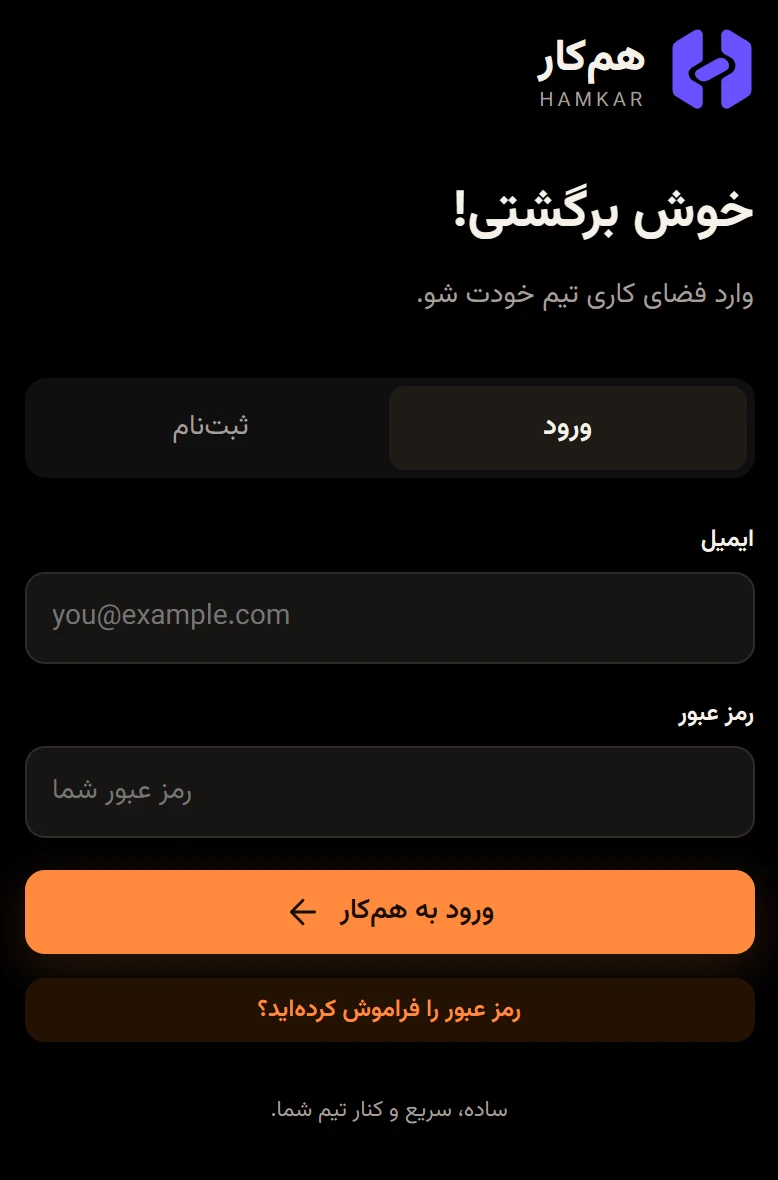
Open the Sign inورود tab.
-
Enter your email and password and tap Sign in to Hamkarورود به همکار.
Hamkar opens the team you last chose on this device.
If you get the password wrong several times in a row, you’ll see “Too many failed attempts. Try again in 15 minutes.” («تعداد تلاشهای ناموفق زیاد است. ۱۵ دقیقه دیگر تلاش کنید.») Wait 15 minutes and try again. Only failed attempts count; a successful sign-in never locks you out.
Forgot your password
Section titled “Forgot your password”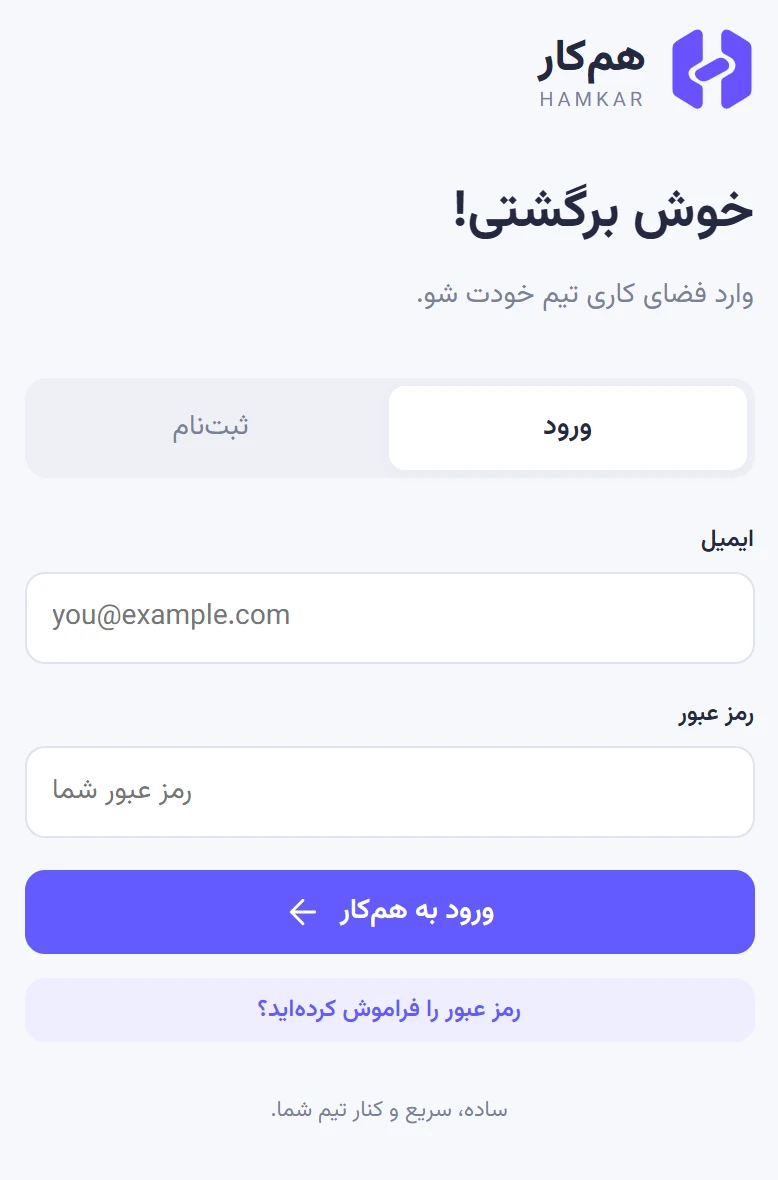
-
On the Sign inورود tab, tap Forgot your password?رمز عبور را فراموش کردهاید؟
-
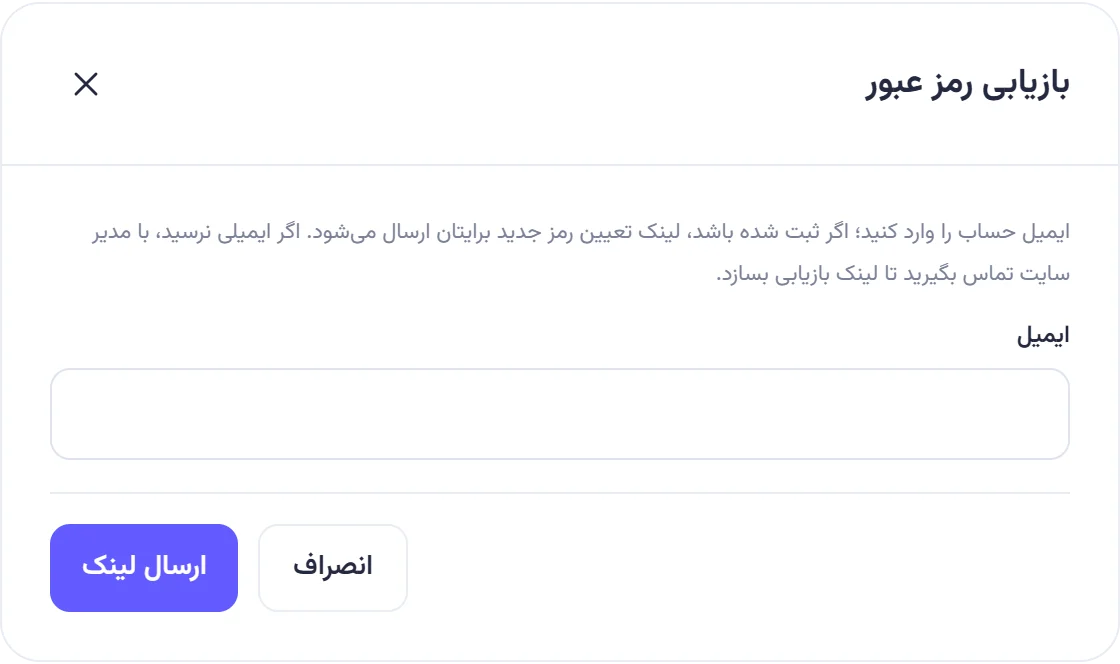
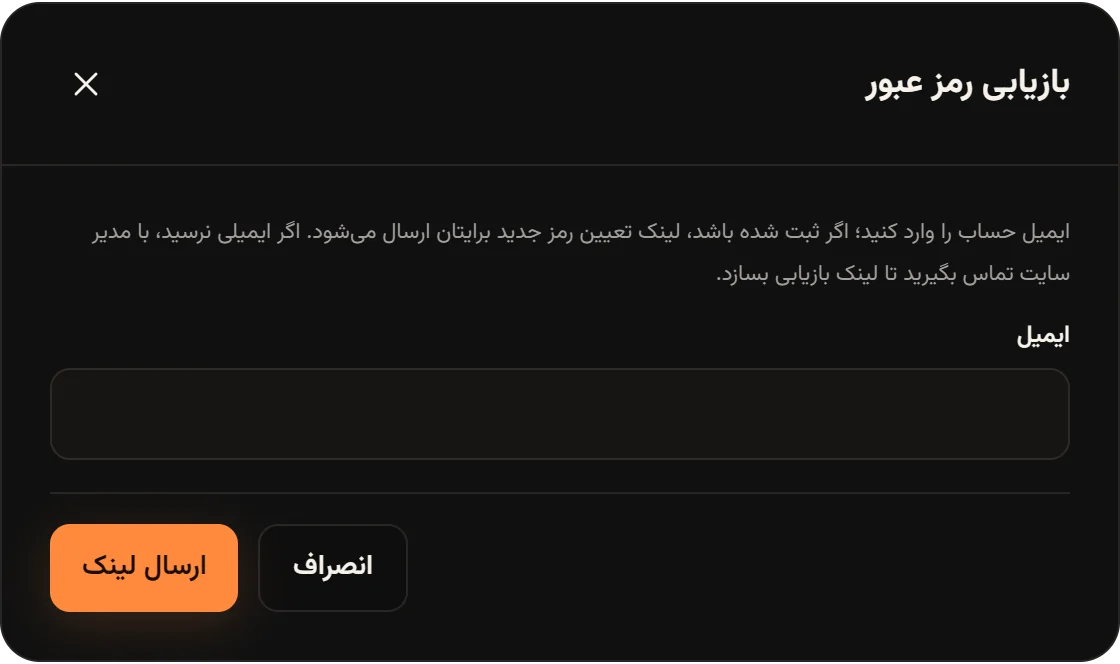
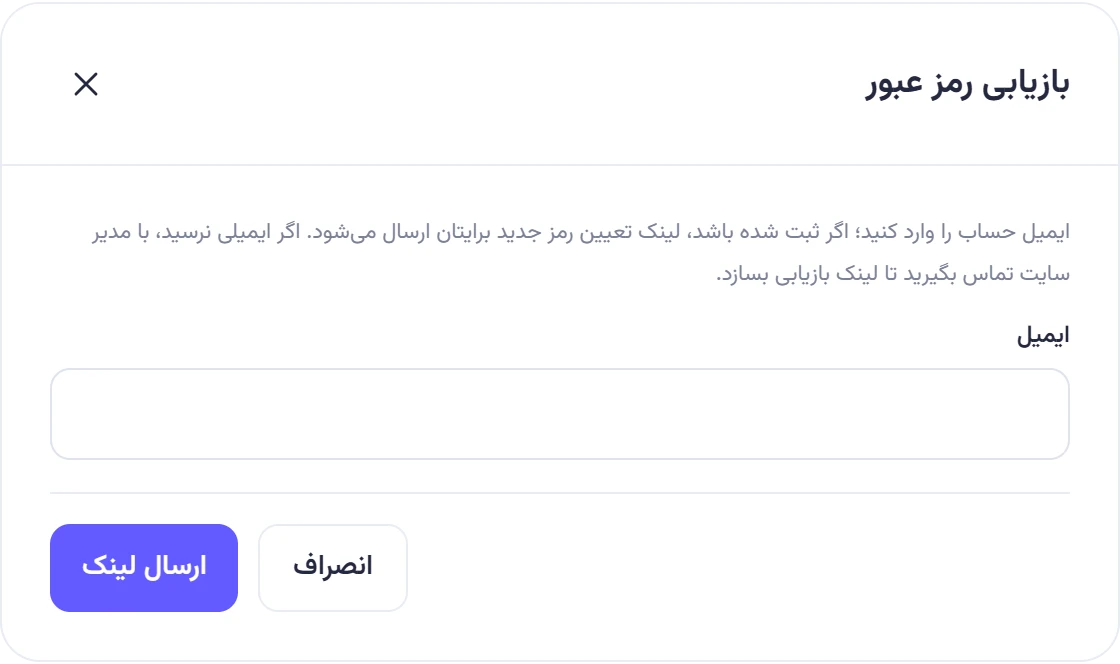
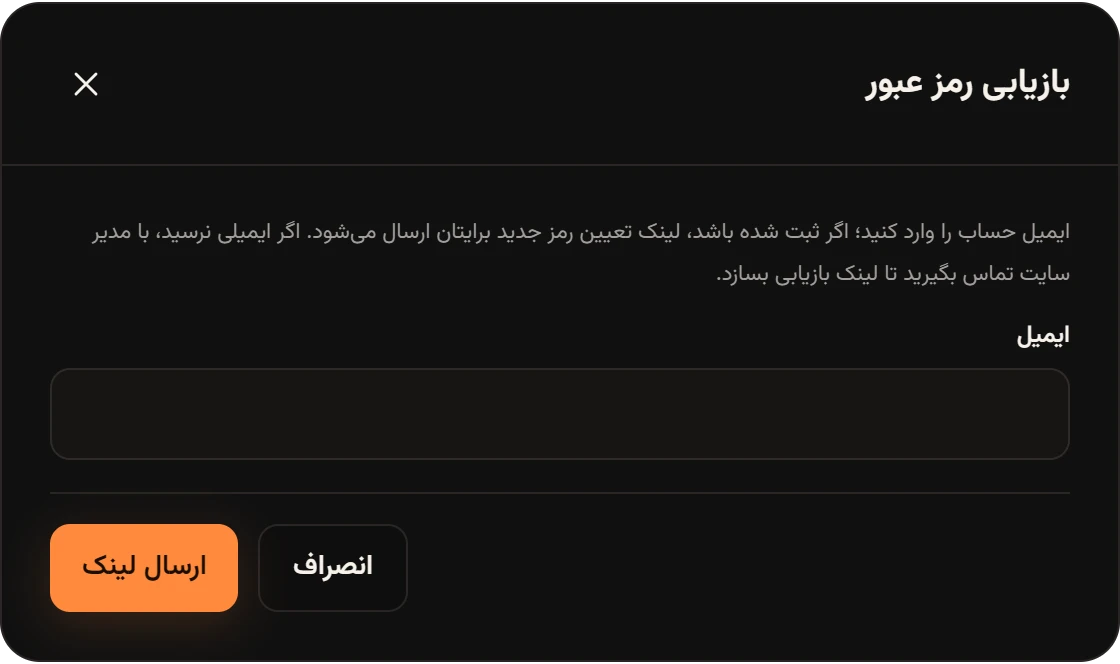
Enter your account email and tap Send linkارسال لینک.
-
Open the link from the email. It works for one hour. If you have the Hamkar Android app, the link opens inside the app.
-
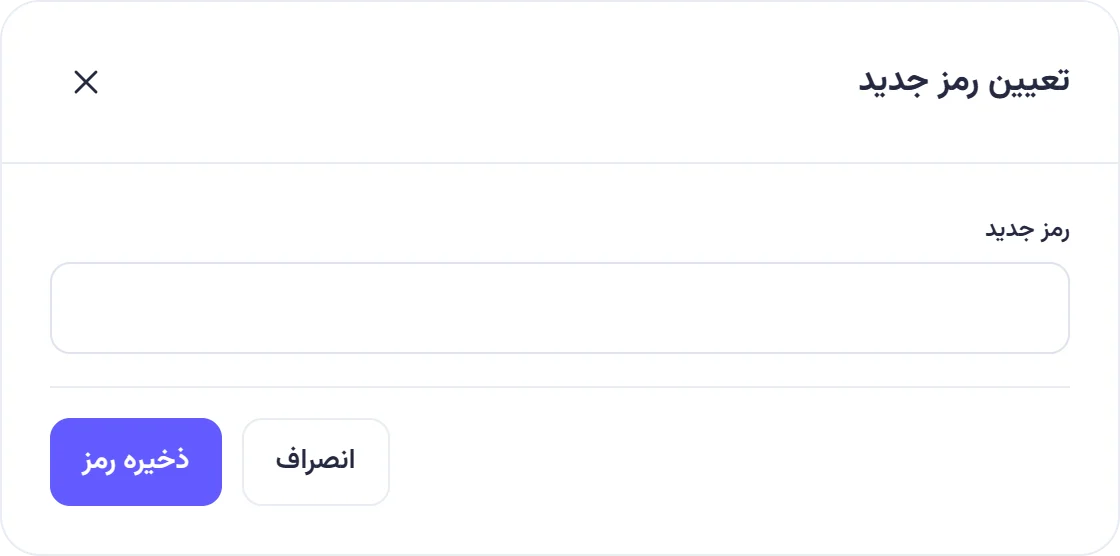
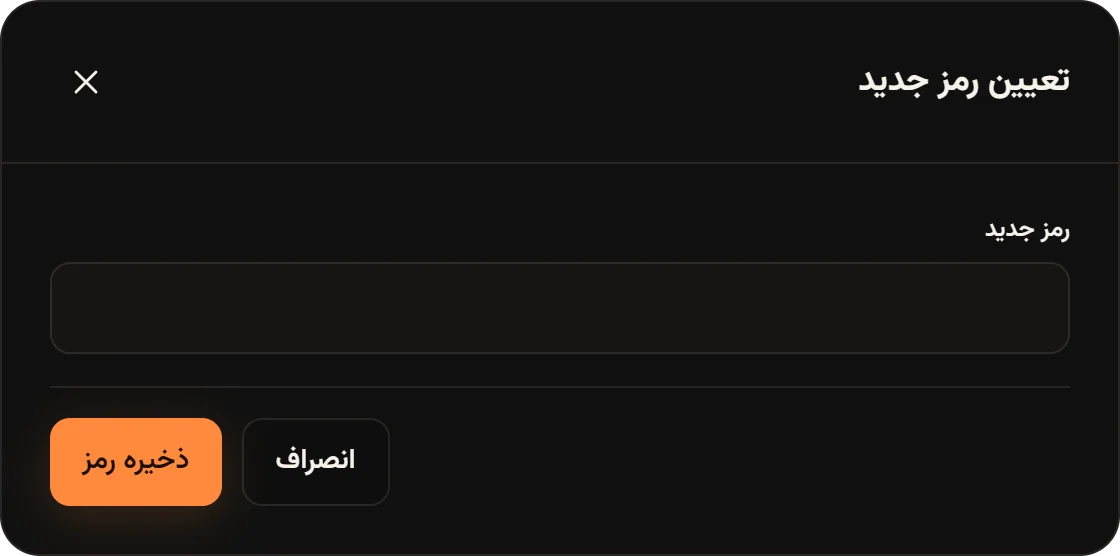
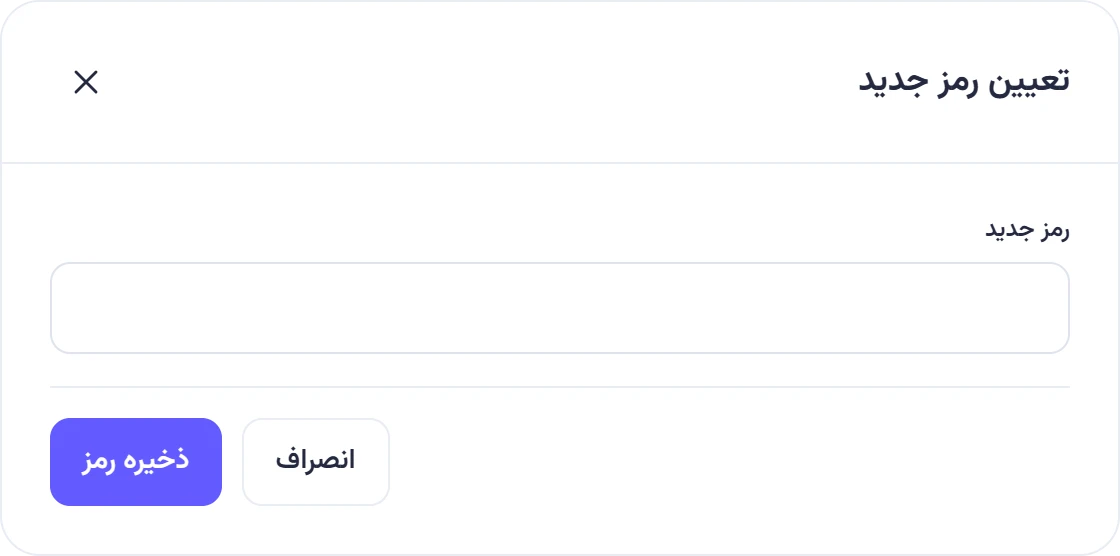
In the Set a new passwordتعیین رمز جدید window, type your new password and tap Save passwordذخیره رمز.
-
Sign in with the new password.
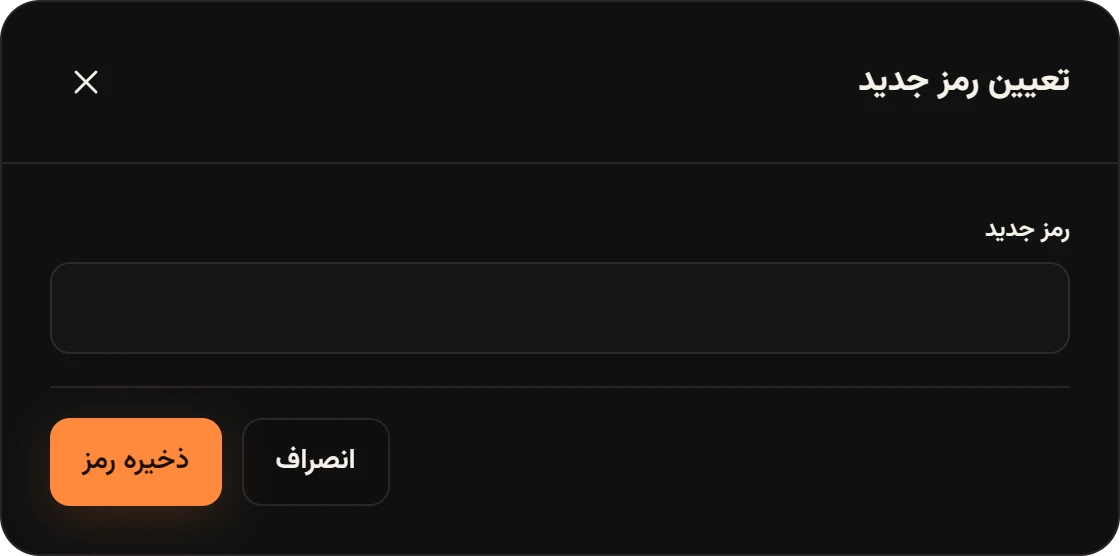
Setting a new password signs out every device that was signed in to this account, and any older recovery links stop working. For security, Hamkar sends at most one link per email address every 10 minutes, and shows the same message whether or not the address is registered.
How long you stay signed in
Section titled “How long you stay signed in”Each device or browser has its own sign-in, and it stays valid for 180 days after you last used it. Every time you open Hamkar, the 180 days start over. A sign-in only ends when:
- you tap Sign outخروج,
- your password is changed somewhere else, or reset with a recovery link,
- you delete your account, or
- you don’t use Hamkar on that device for 180 days.
When a sign-in has ended, you’ll see “Your session has ended; sign in again.” («نشست شما پایان یافته؛ دوباره وارد شوید.») and the sign-in page opens.