Team settings, export and deleting a team
Team settings live on the Members & settingsاعضا و تنظیمات page. Members can see them, but only admins can change them.
Team name and currency
Section titled “Team name and currency”-
In Team detailsمشخصات تیم, change the Team nameنام تیم or the Currencyواحد پول.
-
Tap Save changesذخیره تغییرات. You’ll see “Settings saved.” («تنظیمات ذخیره شد.»)
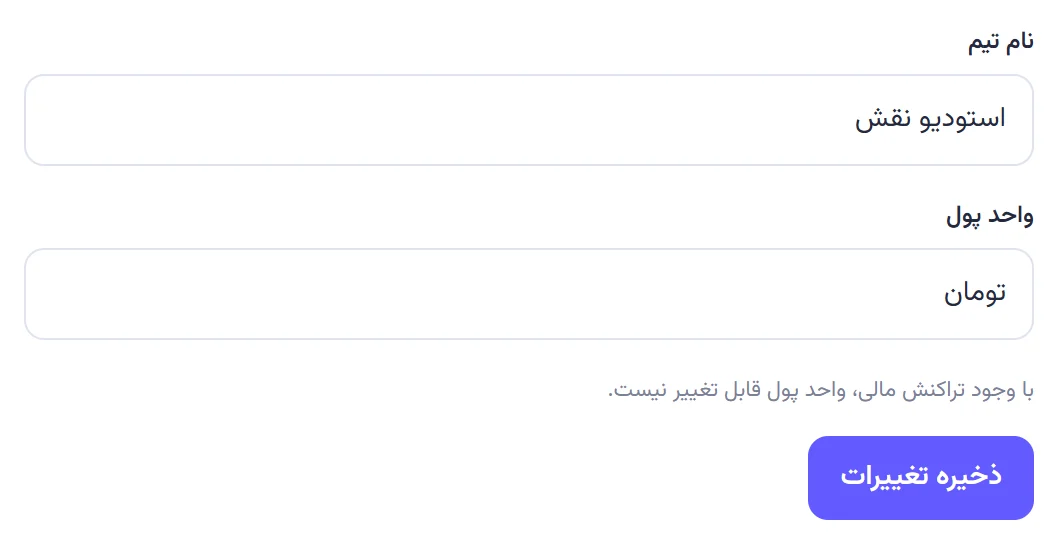
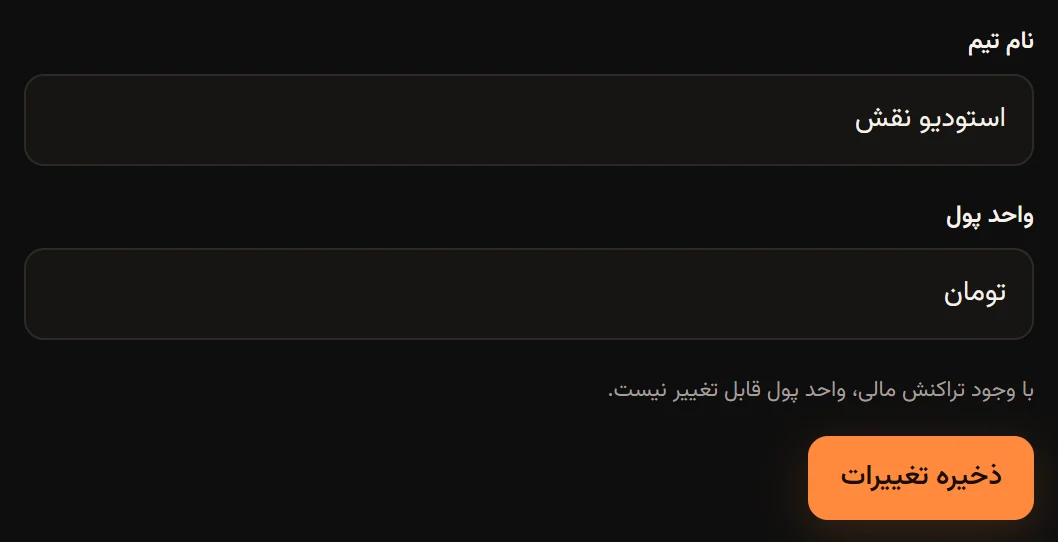
- The team name is 2 to 100 characters; the currency label is 1 to 20.
- The currency can only change until the first expense, settlement, deposit or withdrawal is recorded. After that you’ll see “The currency can’t change once transactions exist.” («پس از ثبت تراکنش، واحد پول قابل تغییر نیست.») Hamkar doesn’t convert amounts, so each team has one currency.
- Every save sends the other members a Team details changedتغییر مشخصات تیم notification, even if nothing changed.
Negar Ahmadi first created her team as «شمال» (North) and renamed it «سفر شمال» (North trip) once the destination was settled. All of the team’s data stayed in place.
Full team export
Section titled “Full team export”Any member, not just admins, can keep a copy of all the team’s data.
-
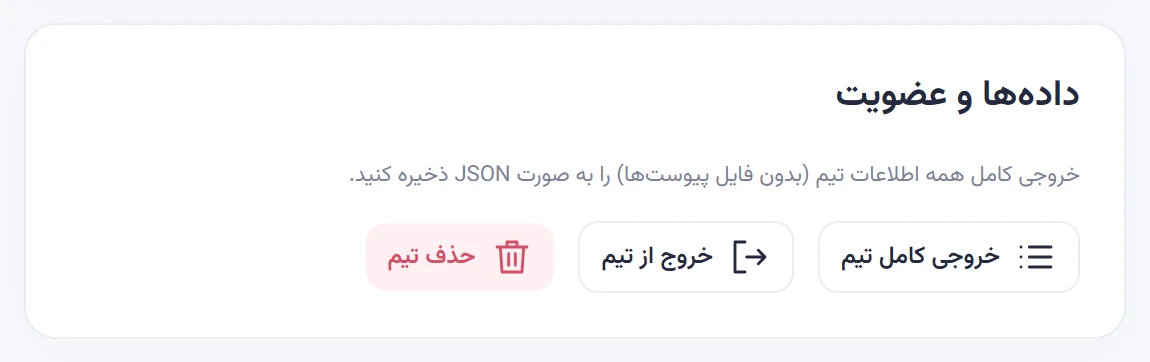
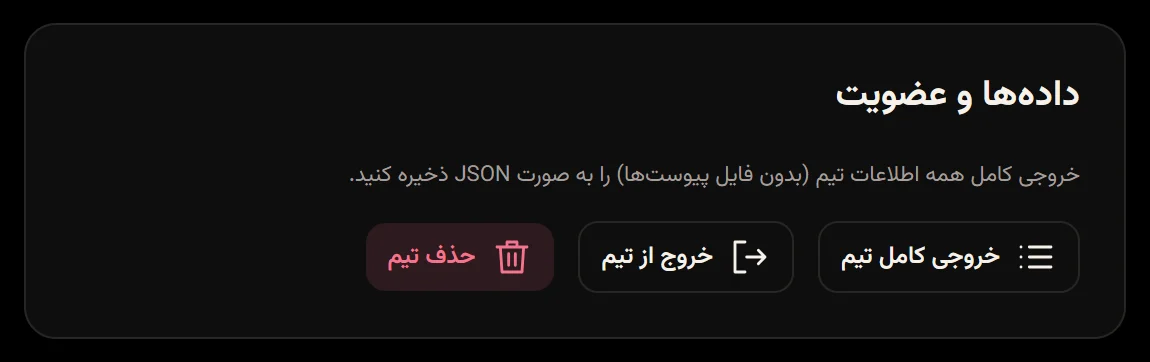
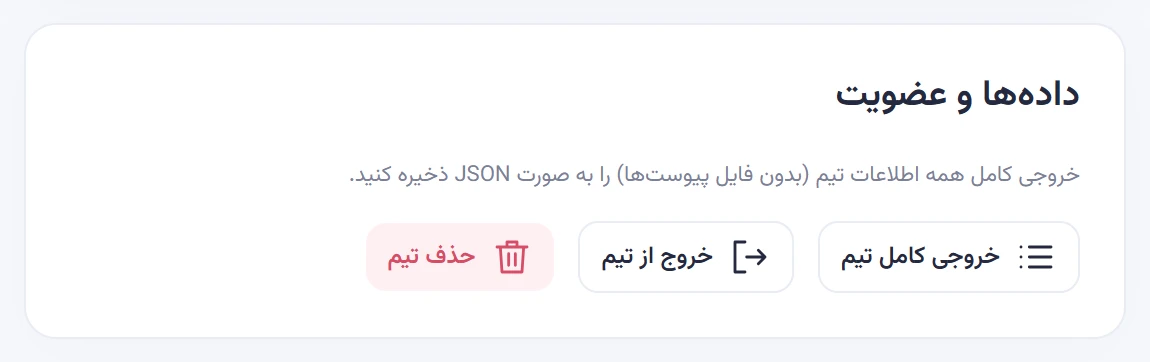
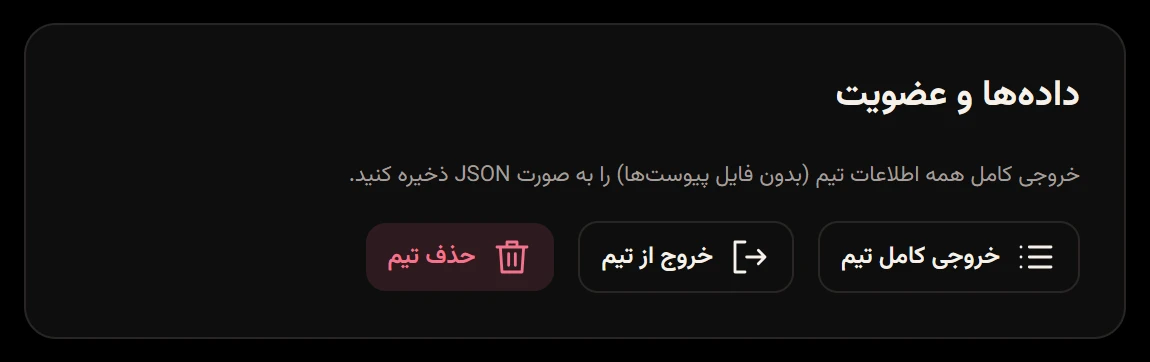
In Data and membershipدادهها و عضویت, tap Full team exportخروجی کامل تیم.
-
A file named like
hamkar-team-12-2026-10-13.jsonis saved, and you’ll see “The full team export is ready.” («خروجی کامل تیم آماده شد.») In the Android app it goes to the Download/Hamkar folder.
The JSON file contains the team details and members, projects, tasks, comments, expenses with each person’s share, settlements, balances and suggested settlements, shared accounts, and deposits and withdrawals. For attachments it only lists the file name, type and size, not the files themselves. The invite code is only included when an admin downloads the export.
JSON is good for safekeeping and for other programs. For a spreadsheet you can open in Excel, use CSV export.
Delete a team
Section titled “Delete a team”Only admins can delete a team, and it can’t be undone.
-
If you need the team’s data, download the Full team exportخروجی کامل تیم first. Attachments aren’t in the export; if you need them, open and save each one before deleting.
-
In Data and membershipدادهها و عضویت, tap Delete teamحذف تیم.
-
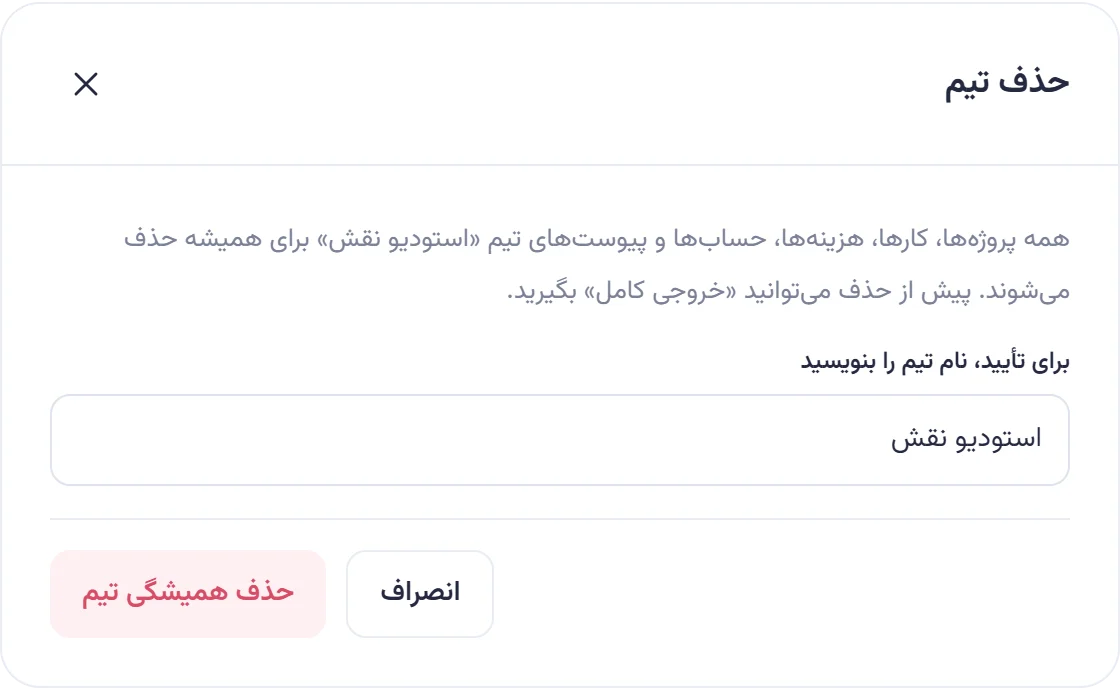
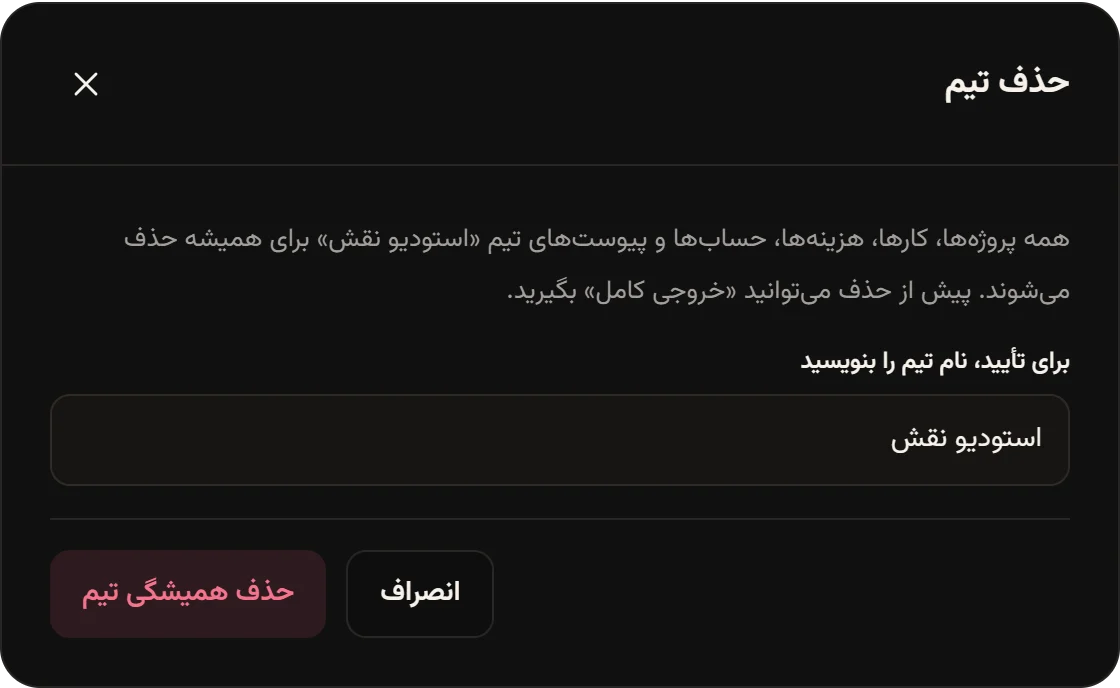
In “Type the team name to confirm” («برای تأیید، نام تیم را بنویسید»), type the team’s name exactly as it appears.
-
Tap Delete team foreverحذف همیشگی تیم.
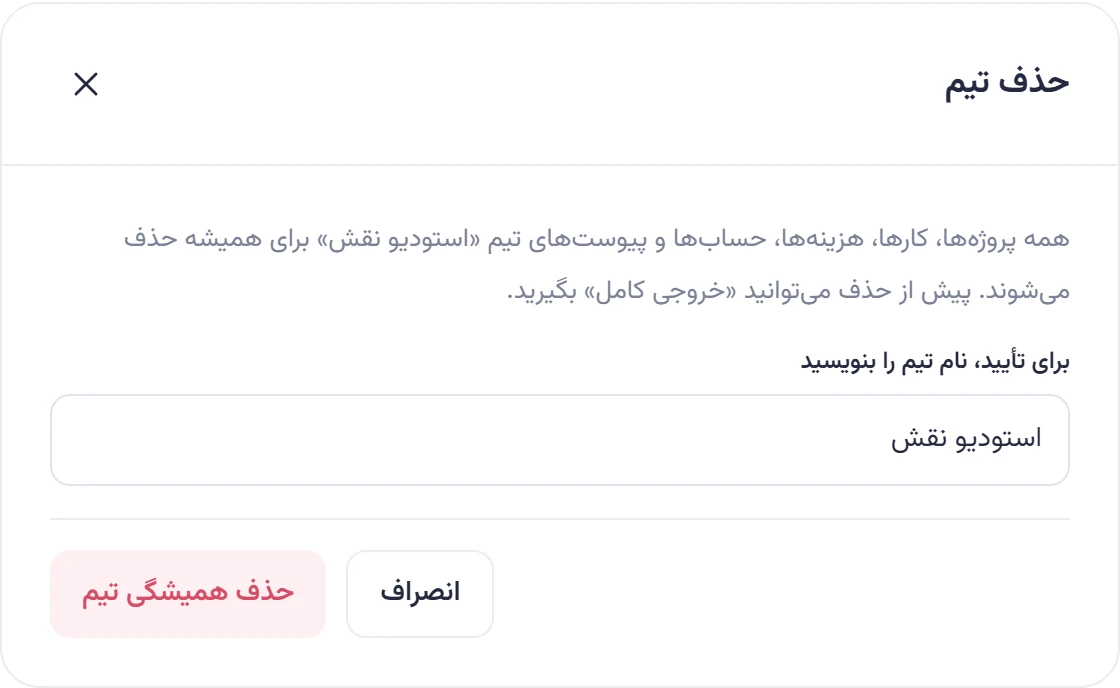
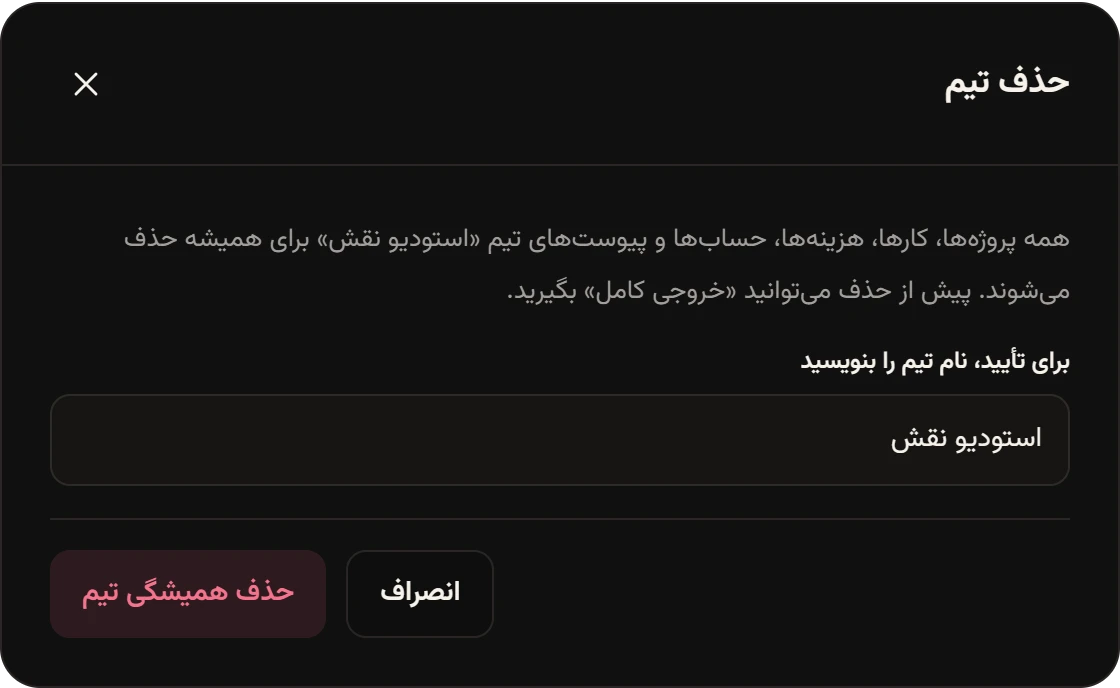
Every project, task, comment, expense, settlement, account, deposit, withdrawal, attachment and notification of that team is deleted permanently. Members who have Hamkar open at that moment see “This team was deleted by an admin.” («این تیم توسط مدیر حذف شد.») Everyone else simply won’t find the team in their list next time. No notification is left in anyone’s inbox.
If the name doesn’t match exactly, you’ll see “Enter the exact team name to confirm.” («برای تأیید، نام تیم را دقیقاً وارد کنید.»)