Troubleshooting
Find your problem in the headings below. Most of the time the answer is one of a few simple causes.
Notifications aren’t arriving
Section titled “Notifications aren’t arriving”Check these first, since they apply to every device:
- Did you do it yourself? Hamkar doesn’t notify you about your own actions.
- Is the event switched off? Check that event’s switch in that team’s Notification settings.
- Is delivery to devices off? If “Send this team’s notifications to phones and browsers” is off, notifications only go to the inbox inside Hamkar.
- Are you still in the team? After you leave or are removed, that team’s notifications stop.
In the Android app
Section titled “In the Android app”-
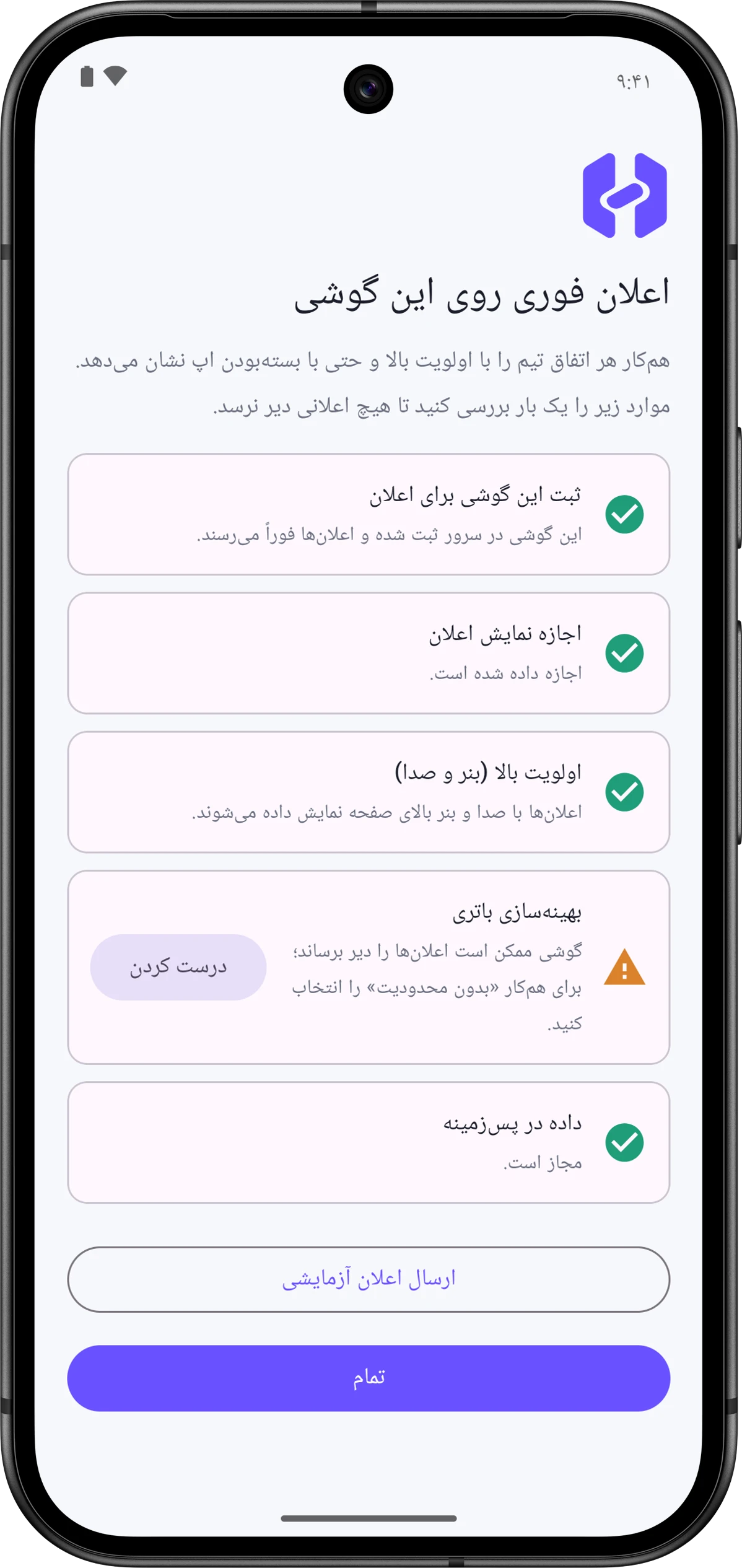
In the app, open Notificationsاعلانها, then Notification settingsتنظیمات اعلان, and tap “Phone notification and battery settings” («تنظیمات اعلان و باتری گوشی»).
-
Fix each orange row with its button, especially notification permission and battery optimization.
-
On Xiaomi, Huawei, OPPO, vivo and a few other brands, turn on Autostart for Hamkar.
-
Tap Send test notificationارسال اعلان آزمایشی.
Each row is explained in The phone check screen. If the phone doesn’t have Google Play services, instant notifications aren’t possible and notifications are checked every 15 minutes instead.
In a browser
Section titled “In a browser”- Browser notifications are turned on separately in each browser. In that browser, go to Notification settingsتنظیمات اعلان and read the status line under This browser’s notificationsاعلان این مرورگر.
- If notification permission is blocked, allow it from the lock icon next to the site address.
- Browser notifications must not be turned off, or in Do Not Disturb, in Windows, macOS or phone settings.
- On iPhone, Hamkar must be opened from the home screen icon, on iOS 16.4 or later.
More in Browser notifications.
I can’t sign in
Section titled “I can’t sign in”- “Email or password is incorrect.” («ایمیل یا رمز عبور نادرست است.») Check the email again. Passwords are case-sensitive.
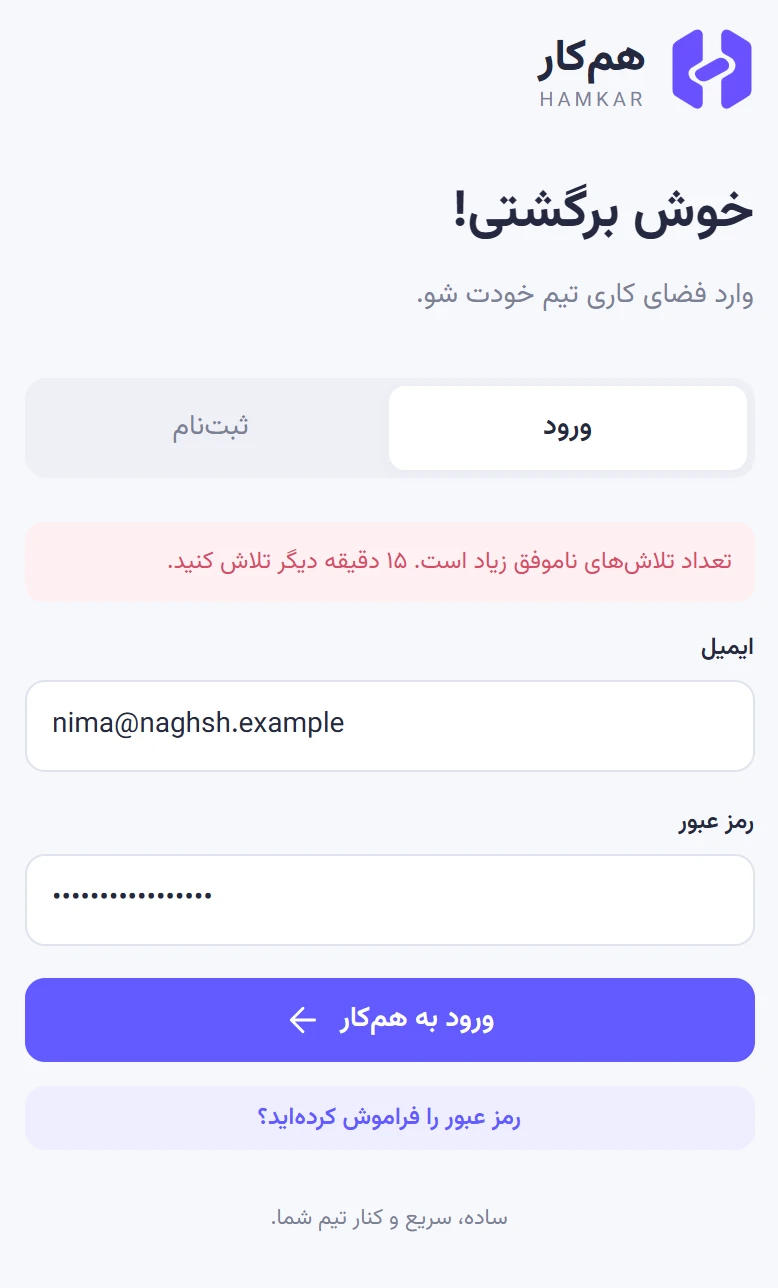
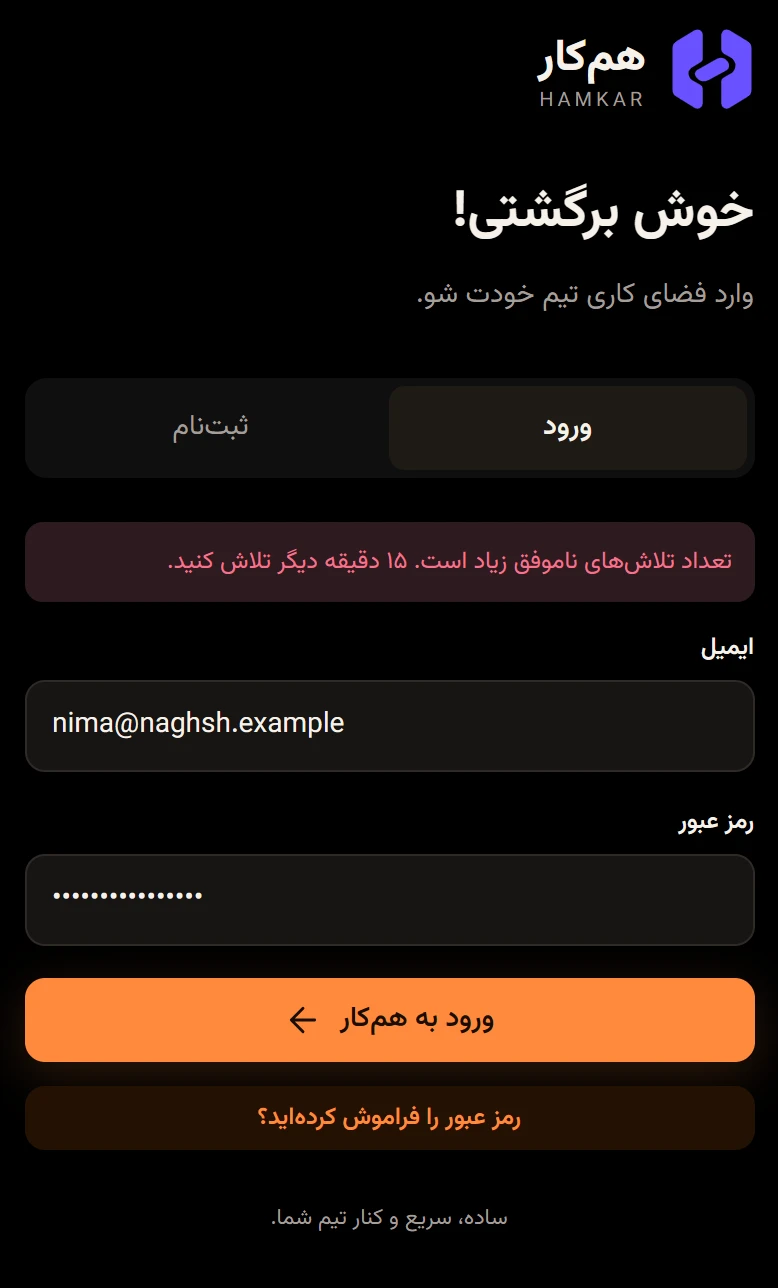
- “Too many failed attempts. Try again in 15 minutes.” («تعداد تلاشهای ناموفق زیاد است. ۱۵ دقیقه دیگر تلاش کنید.») After several wrong passwords, sign-in is blocked for 15 minutes. Wait and try again.
- You forgot your password: use Forgot your password?رمز عبور را فراموش کردهاید؟ If the server doesn’t send email, the person who runs the server can create a one-hour link for you. Sign up and sign in
- You were suddenly signed out: if your password was changed on another device, or reset with a recovery link, all other devices are signed out. Sign in with the new password.
- A new password is rejected: it must be 10 to 72 bytes, and each Persian letter counts as two bytes.
I can’t see a button from the guide
Section titled “I can’t see a button from the guide”It’s almost always a permission. See Roles and permissions. The usual cases:
- Invite code, role changes, removing members, deleting or renaming the team: admins only.
- Editing or deleting an expense, deleting a settlement, deposit or withdrawal, adding attachments: only the person who recorded it, and admins.
- Deleting a project or task: only its creator, and admins.
- Renaming a shared account: there’s no button on the card; right-click the card, or press and hold it on a phone.
- Editing an expense: tap Detailsجزئیات first; Edit expenseویرایش هزینه is inside that window.
- Editing a settlement, deposit, withdrawal or comment: these can’t be edited at all. Delete and record again.
- Removing a single attachment or a shared account: not possible in the current version.
A task won’t save
Section titled “A task won’t save”- “Create an active project first.” («ابتدا یک پروژه فعال بسازید.») The team has no active project. Create one, or unarchive one.
- “Unarchive the project first.” («ابتدا پروژه را از بایگانی خارج کنید.») The task belongs to an archived project. Untick Archive projectبایگانی پروژه in the project’s edit window.
- Cards won’t move on the board on a phone: dragging only works with a mouse. Change the status in the task window or the table view.
Money problems
Section titled “Money problems”- “The shares must add up exactly to the expense amount.” («مجموع سهمها باید دقیقاً برابر مبلغ هزینه باشد.») The line under the share list should say it equals the expense amount. Fix the shares, or choose Equalمساوی.
- An amount is rejected: it must be a whole number above zero and at most 1,000,000,000,000.
- “The currency can’t change once transactions exist.” («پس از ثبت تراکنش، واحد پول قابل تغییر نیست.») After the first transaction, the currency is fixed.
- “Only the payer, the recipient or a team admin can record this settlement.” («فقط پرداختکننده، دریافتکننده یا مدیر تیم میتواند این تسویه را ثبت کند.») One of the two people in the payment, or an admin, must record it.
- Someone’s balance looks odd: expenses paid from a shared account aren’t split between members; an account shortfall is a claim for whoever covered it; and deleting an expense doesn’t remove earlier settlements. The full explanation is in Balances and settling up.
- A shared account went negative and someone is now owed: an expense or withdrawal larger than the balance was recorded. When the money runs short
A file won’t upload
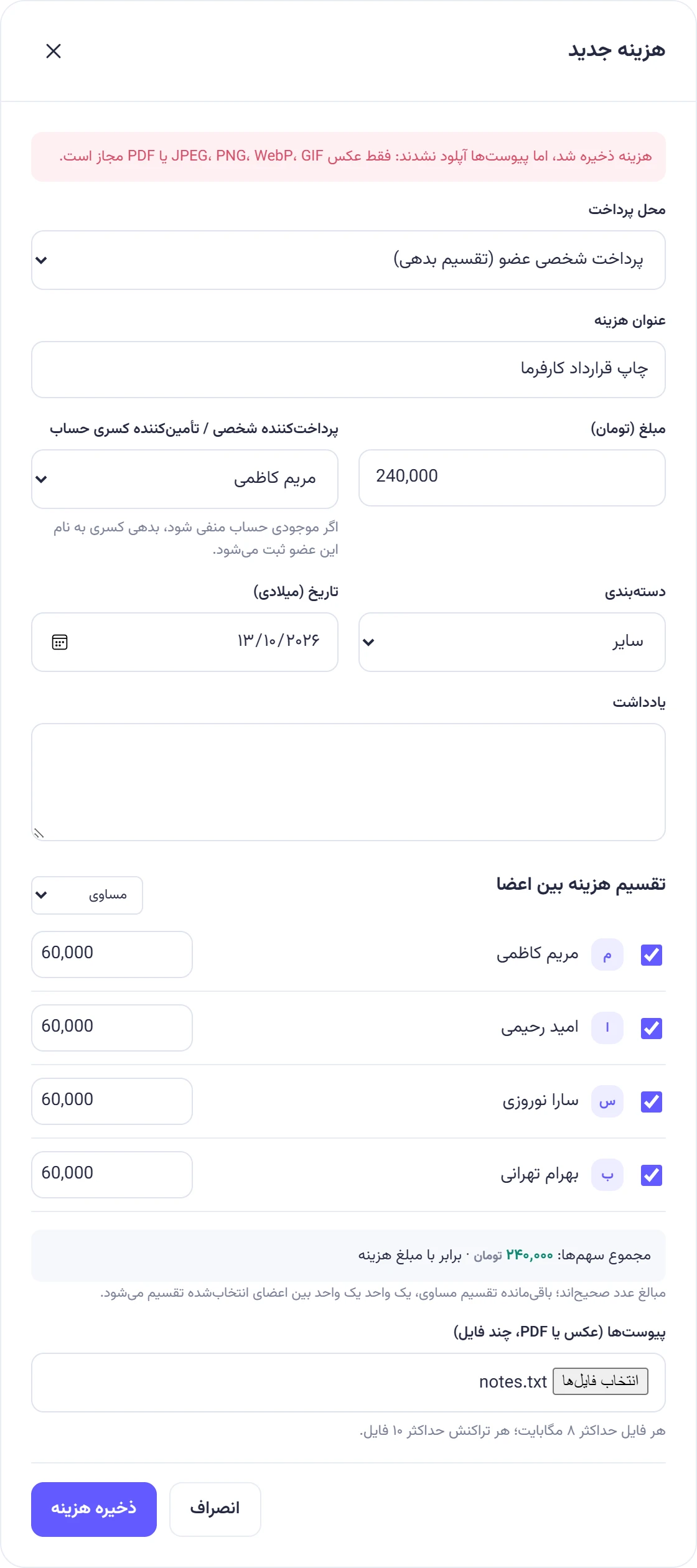
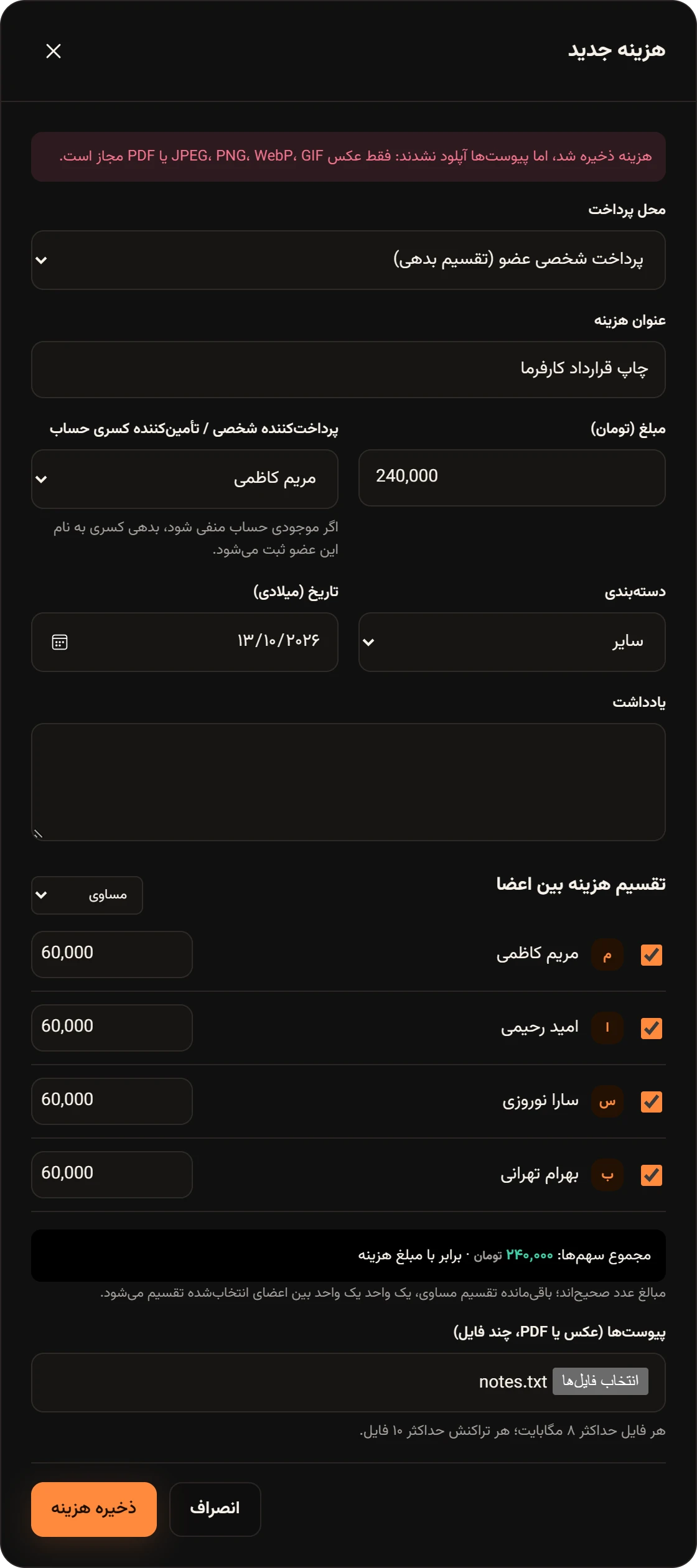
Section titled “A file won’t upload”- Only JPEG, PNG, WebP, GIF images and PDF are accepted.
- Up to 8 MB per file, 10 files per transaction, and 32 MB per upload.
- If you see a message saying the expense was saved but the attachments weren’t uploaded, the transaction is saved. Don’t record it again; just add the files again from Detailsجزئیات.
- On a slow connection, be patient; an upload gets up to 15 minutes.
Other issues
Section titled “Other issues”- The page looks out of date: tap the Refreshبهروزرسانی button in the top bar. If you see the New changes from teammatesتغییر جدید از همتیمیها banner, tap Refreshبروزرسانی on it.
- “We couldn’t reach Hamkar” in the Android app: check the phone’s internet connection and tap Try againتلاش دوباره.
- An attachment won’t open in the Android app: install an image or PDF viewer on the phone.
- You can’t find a CSV file on Android 8 or 9: it’s in
Android/data/vip.alavi.hamkar/files/Download/Hamkar. - You can’t leave a team: if you’re the only member, delete the team; if you’re the only admin, make someone else an admin first.
- Your account won’t delete: if you’re the only admin of a team with other members, make someone else an admin in that team first.
- The APK won’t install: allow installs from unknown sources for the browser you downloaded it with, and make sure the phone runs Android 8 or later. Installing the Android app