Browser notifications
With browser notifications, your team’s events pop up on your computer or phone even when the Hamkar tab is closed. They are turned on separately for each browser and each device.
On an Android phone, the Android app delivers notifications more reliably and uses its own instead of browser notifications.
Turn them on
Section titled “Turn them on”-
Go to Notificationsاعلانها and tap Notification settingsتنظیمات اعلان. (The Enable notificationsفعالسازی اعلان box at the top of the inbox does the same thing.)
-
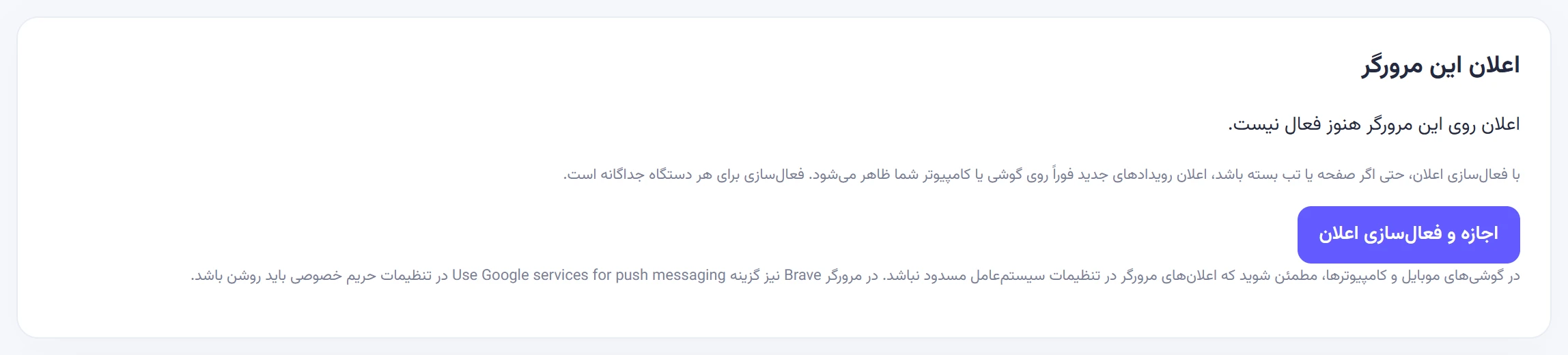
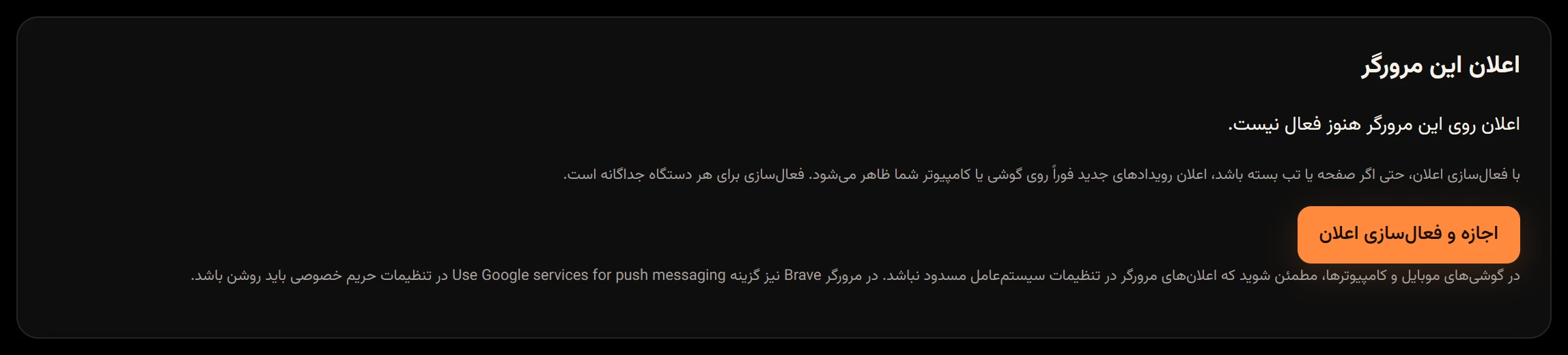
In This browser’s notificationsاعلان این مرورگر, tap “Allow and enable notifications” («اجازه و فعالسازی اعلان»).
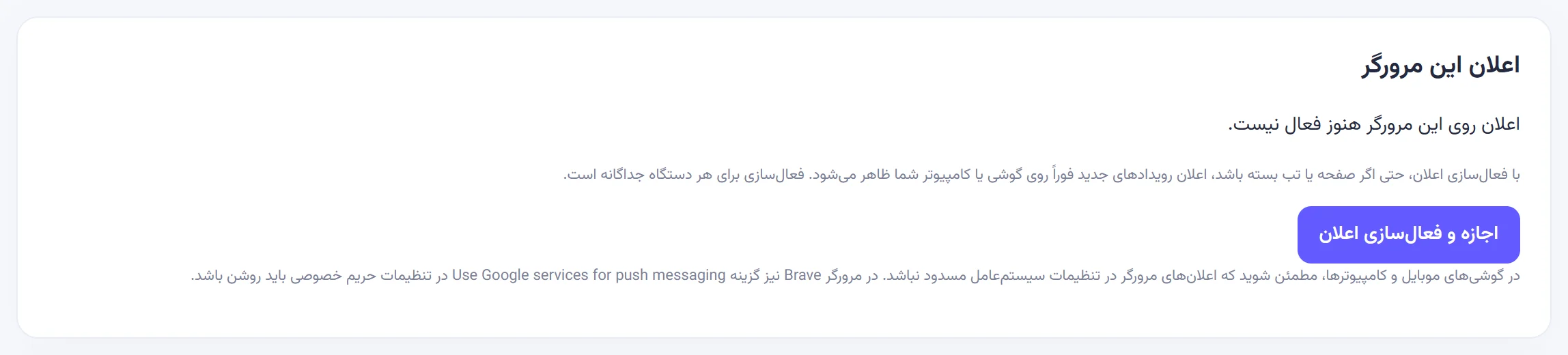
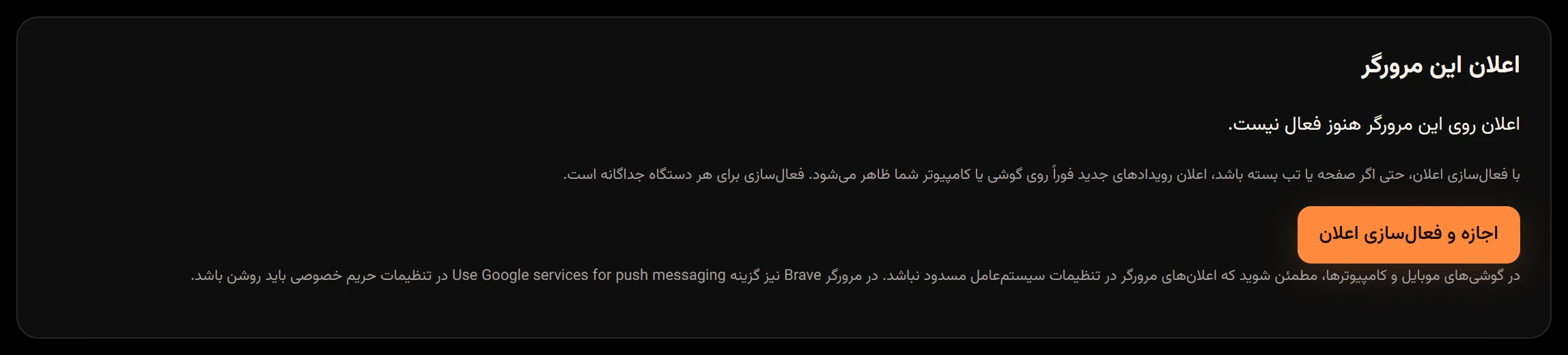
-
The browser asks whether this site may show notifications. Allow it.
-
You’ll see “Browser notifications are on. You’ll get them even with tabs closed.” («اعلان مرورگر فعال شد. حتی با بستن تبها اعلان دریافت خواهید کرد.»)
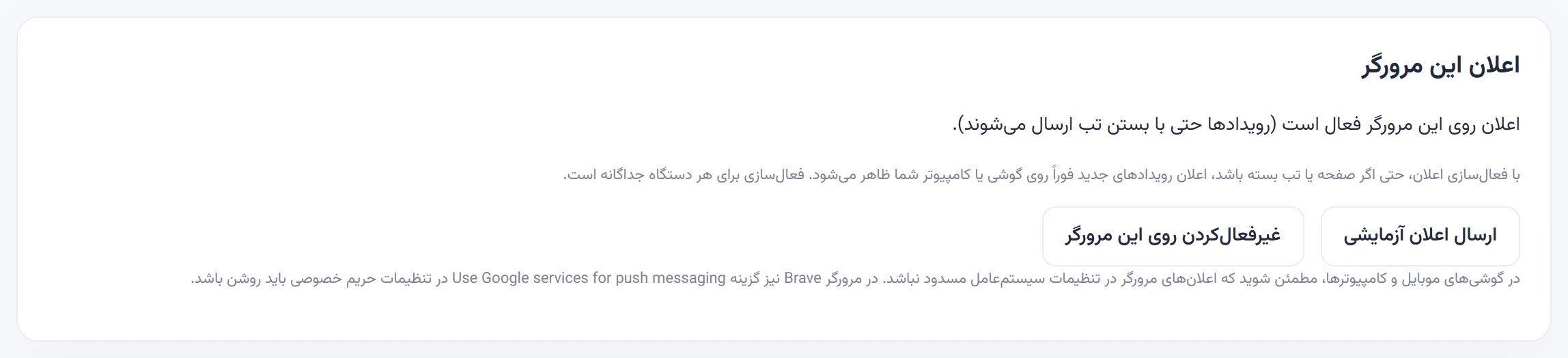
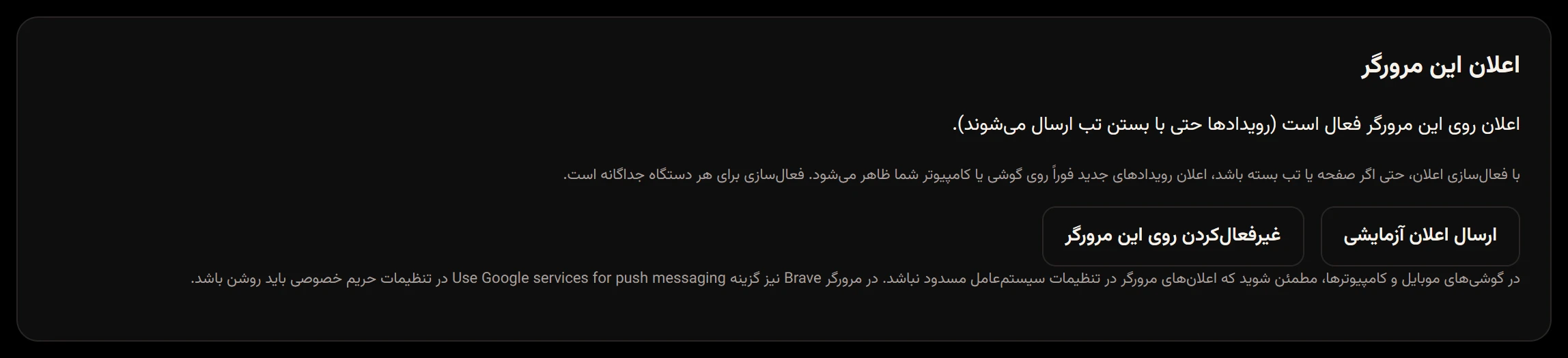
From now on the status line reads “Notifications are on in this browser (sent even with the tab closed).” («اعلان روی این مرورگر فعال است (رویدادها حتی با بستن تب ارسال میشوند).») and two new buttons appear.
Test it
Section titled “Test it”Tap Send test notificationارسال اعلان آزمایشی and close the tab. A notification titled «همکار · تست اعلان» (Hamkar · test notification) should arrive within a few seconds. The test goes to every browser and phone that has notifications on for your account. You can send at most 5 tests every 10 minutes.
Click a browser notification and Hamkar opens (or its open tab comes to the front) on that task or expense.
Turn them off
Section titled “Turn them off”- For this browser: tap “Turn off on this browser” («غیرفعالکردن روی این مرورگر»).
- Signing out with Sign outخروج also turns off this browser’s notifications automatically.
- To stop one team from reaching your browser and phone, switch off “Send this team’s notifications to phones and browsers” («ارسال اعلانهای این تیم به گوشیها و مرورگرها») in that team’s settings. Notification settings
When the button doesn’t work
Section titled “When the button doesn’t work”The status line at the top of the section tells you what’s wrong:
| Message | Means | What to do |
|---|---|---|
| “Notification permission is blocked” («اجازه اعلان مسدود است؛ در تنظیمات سایت در مرورگر آن را مجاز کنید.») | You refused permission earlier | Use the lock icon next to the address to allow notifications for h.alavi.vip, then reload |
| “Browser notifications need HTTPS” («اعلان مرورگر نیاز به ارتباط امن HTTPS دارد.») | The site wasn’t opened over a secure connection | Open the site with https |
| “This browser doesn’t support notifications” («این مرورگر از اعلان پشتیبانی نمیکند.») | The browser has no web notifications | Use an up-to-date Chrome, Edge or Firefox |
Other situations:
- iPhone and iPad: notifications only work on iOS 16.4 or later, and only if you added Hamkar to the home screen and open it from that icon. Install the web app
- Brave: turn on “Use Google services for push messaging” at
brave://settings/privacyand restart the browser. - A message saying the browser couldn’t connect to Google’s notification service (FCM): Chrome and similar browsers get notifications through a Google service. If that service can’t be reached, notifications can’t be turned on. Try Firefox, or check your internet connection.
- Notifications are on but nothing shows up: make sure browser notifications aren’t turned off or in Do Not Disturb in Windows, macOS or your phone’s settings. A browser that is fully closed, or battery restrictions, can delay delivery until the browser runs again.