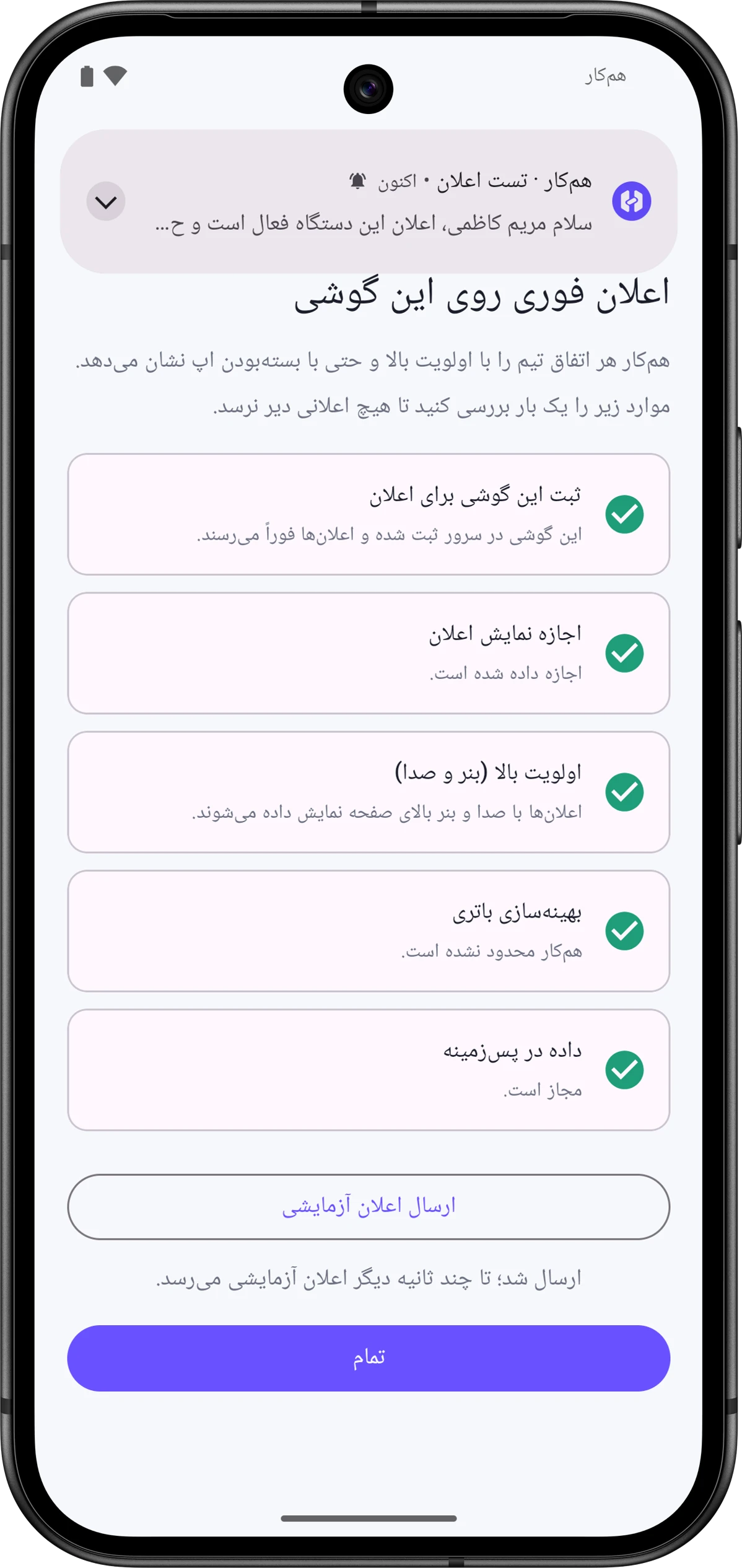
The phone check screen
Android has several settings that can delay notifications or block them entirely. The Notifications on this phoneاعلان روی این گوشی screen checks them all in one place and has a button for each problem.
Opening the screen
Section titled “Opening the screen”- It opens on its own once, after your first sign-in in the app.
- In the app, go to Notificationsاعلانها, then Notification settingsتنظیمات اعلان, and tap “Phone notification and battery settings” («تنظیمات اعلان و باتری گوشی»).
- If the app can’t connect, the error screen also has a Notifications on this phoneاعلان روی این گوشی button.
The rows and how to fix each
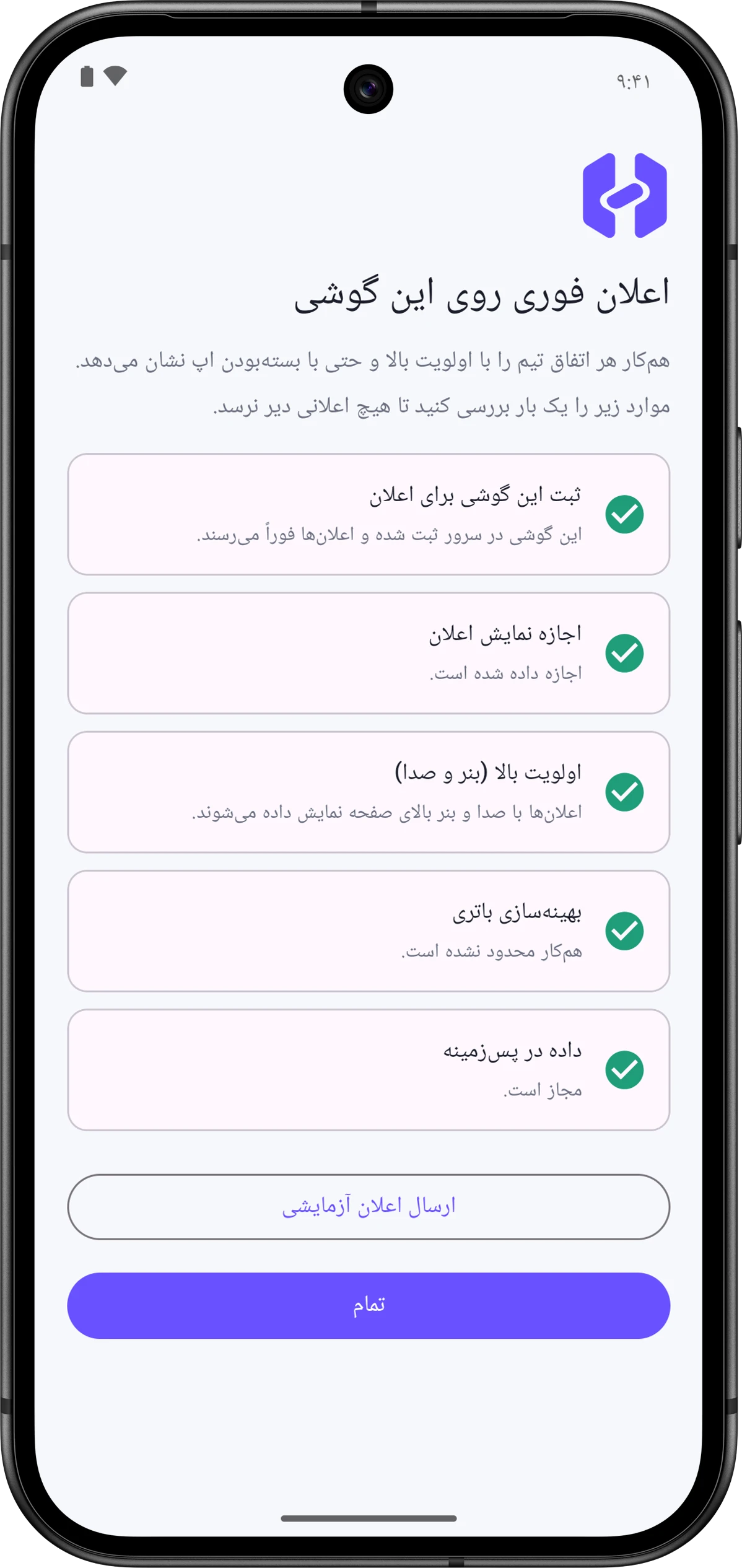
Section titled “The rows and how to fix each”Each row has a mark: a green tick means it’s fine, an orange mark means something is in the way, and a blue mark is information only.
| Row | When it’s fine | When there’s a problem | Button |
|---|---|---|---|
| “Phone registered for notifications” («ثبت این گوشی برای اعلان») | “This phone is registered and notifications arrive right away.” | Not signed in: “Sign in to your account in the app first.” No Google Play: “Google Play services aren’t on this phone; notifications are checked every 15 minutes.” Server not ready: “Sending notifications to phones isn’t enabled on the server yet.” In progress: “Registering…” | Try againتلاش دوباره registers the phone again |
| Permission to show notificationsاجازه نمایش اعلان | “Permission granted.” | “Without this permission no notification is shown.” | Allowاجازه دادن opens Android’s permission prompt or the app’s notification settings |
| “High priority (banner and sound)” («اولویت بالا (بنر و صدا)») | “Notifications show with sound and a banner at the top of the screen.” | “One of the notification categories has been lowered; set it to urgent/high.” | Fixدرست کردن opens that category’s settings |
| Battery optimizationبهینهسازی باتری | “Hamkar isn’t restricted.” | “The phone may deliver notifications late; choose Unrestricted for Hamkar.” | Fixدرست کردن opens Android’s dialog to exempt Hamkar from battery optimization |
| Background dataداده در پسزمینه | “Allowed.” | “Data Saver is on for Hamkar; allow background data use.” | Fixدرست کردن opens the background data settings |
| Autostartاجرای خودکار | Only shown on the brands below; its state can’t be detected | Instructions for turning on autostart | Open settingsباز کردن تنظیمات opens the phone maker’s autostart screen |
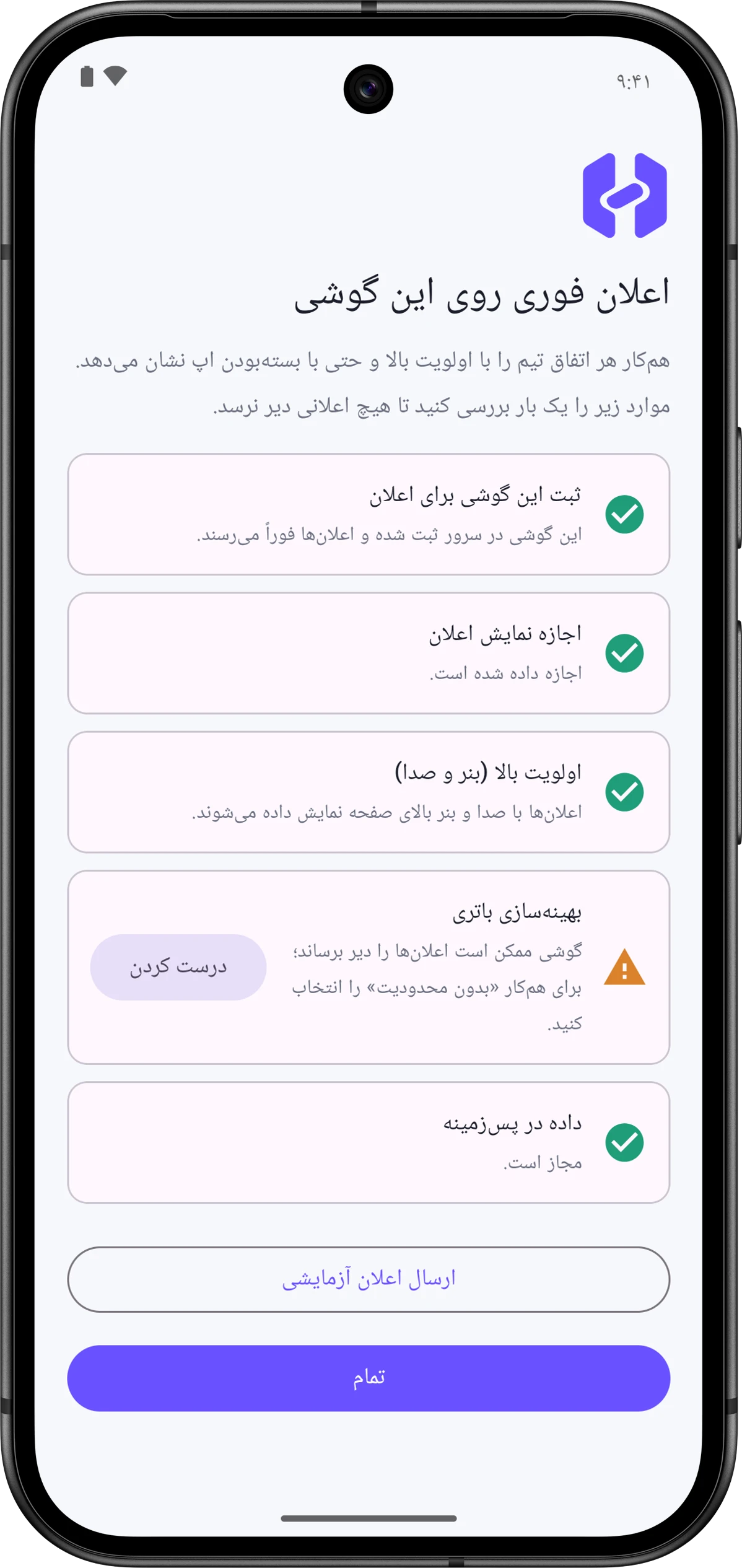
If registering the phone ran into an error, that row shows it, for example “Couldn’t get a notification address from Google’s service.” or “The server wasn’t reachable; it will try again.”
Battery and standby
Section titled “Battery and standby”The row that matters most for timely notifications is Battery optimizationبهینهسازی باتری. To save battery, Android restricts apps that are rarely opened, which can hold notifications back. This row checks two things: that Hamkar is exempt from battery optimization, and that Android hasn’t put the app in its “rarely used” or “restricted” group.
What we recommend:
- Choose “Unrestricted” battery usage for Hamkar.
- Keep both Hamkar notification categories at high priority.
- Turn Data Saver off for Hamkar.
- Open Hamkar now and then; an app that’s never opened counts as rarely used to Android.
Autostart on different brands
Section titled “Autostart on different brands”Some phone makers stop apps from running in the background unless you allow it. The Autostartاجرای خودکار row only appears on phones from these brands:
Xiaomi, Redmi, POCO, Huawei, Honor, OPPO, realme, OnePlus, vivo, iQOO, Meizu, ASUS, Tecno, Infinix and LeTV.
On these phones, use Open settingsباز کردن تنظیمات to turn on Autostart for Hamkar. Then lock Hamkar in the recent apps list so clearing the list doesn’t close it. The names of these options vary a little by brand.
Test notification
Section titled “Test notification”At the bottom, tap Send test notificationارسال اعلان آزمایشی. You’ll see “Sending…” and then “Sent; the test notification will arrive in a few seconds.” («ارسال شد؛ تا چند ثانیه دیگر اعلان آزمایشی میرسد.»), and a notification titled «همکار · تست اعلان» should arrive shortly after. If it doesn’t, fix the orange rows and try again. The button only works while you’re signed in.