Files, camera and other app details
The Android app uses a few of the phone’s own features. This page covers them all.
Photograph a receipt or choose files
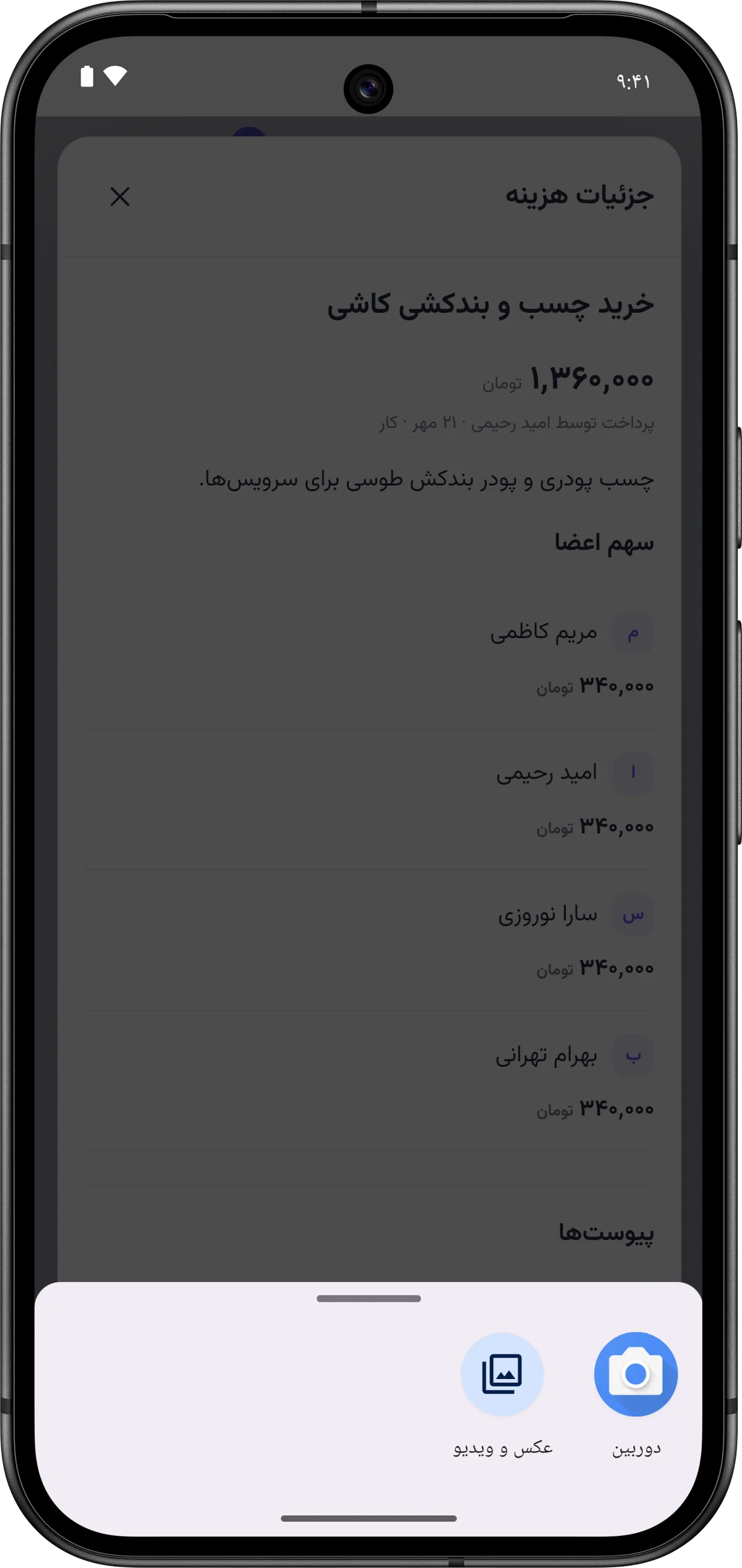
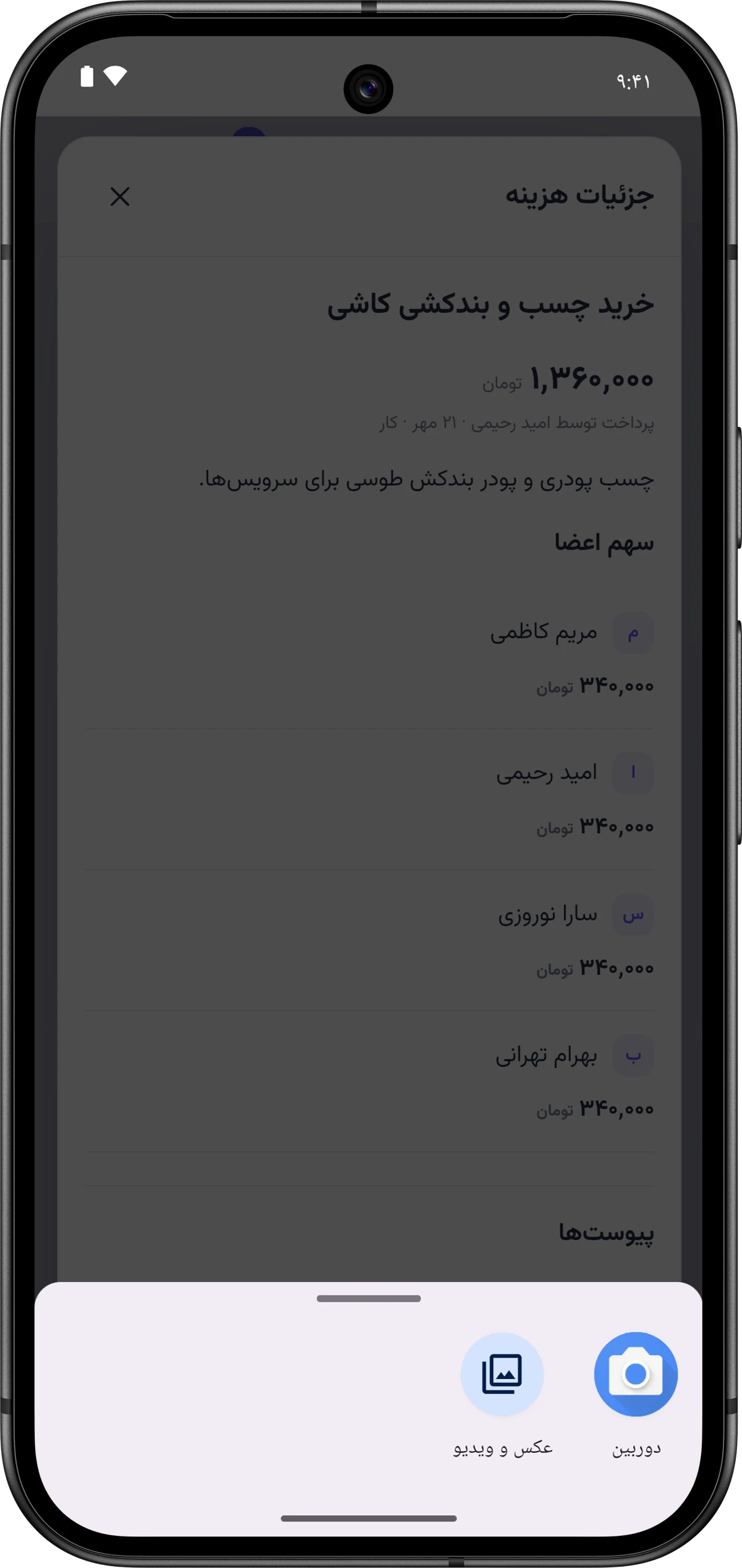
Section titled “Photograph a receipt or choose files”In an expense, settlement, or deposit and withdrawal form, or in the Attachmentsپیوستها section of a details window, tap the file field. Android opens a chooser titled «انتخاب فایل یا عکس» (choose a file or photo):
-
For a new photo, pick the camera, photograph the receipt and confirm the shot.
-
Or pick one or more files at once from the gallery or the phone’s files.
-
Save the form, or tap Add attachmentsافزودن پیوستها.
To take photos, Hamkar uses the phone’s own camera app and doesn’t ask for a separate camera permission. Temporary photos are cleared from the app’s storage after a day. File limits are the same as on the web: images or PDF, up to 8 MB per file and up to 10 files per transaction. Comments and files
Opening attachments
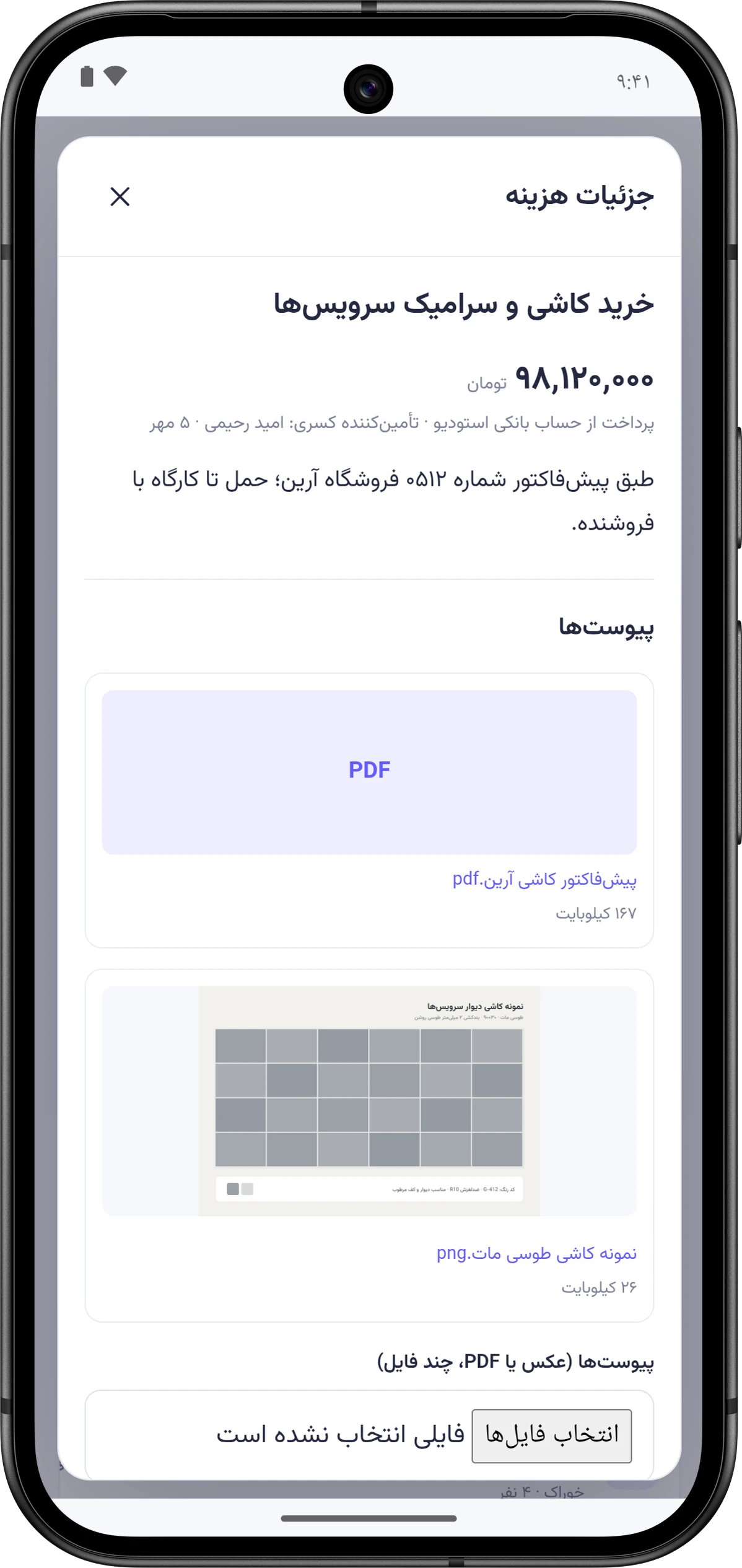
Section titled “Opening attachments”Tap an attachment in a details window. You’ll see “Opening file…” and the file opens in your phone’s image or PDF viewer. If you have no app for that file type, you’ll see “No app was found to open this file.”
Saving exports
Section titled “Saving exports”CSV exports of expenses, settlements and account history, and the full team export, are saved to the phone’s Download/Hamkar folder. A message tells you where the file went, and the phone offers to open it in an app.
On Android 8 and 9 the file goes to the app’s own folder instead: Android/data/vip.alavi.hamkar/files/Download/Hamkar. Exporting to CSV
Theme and status bar
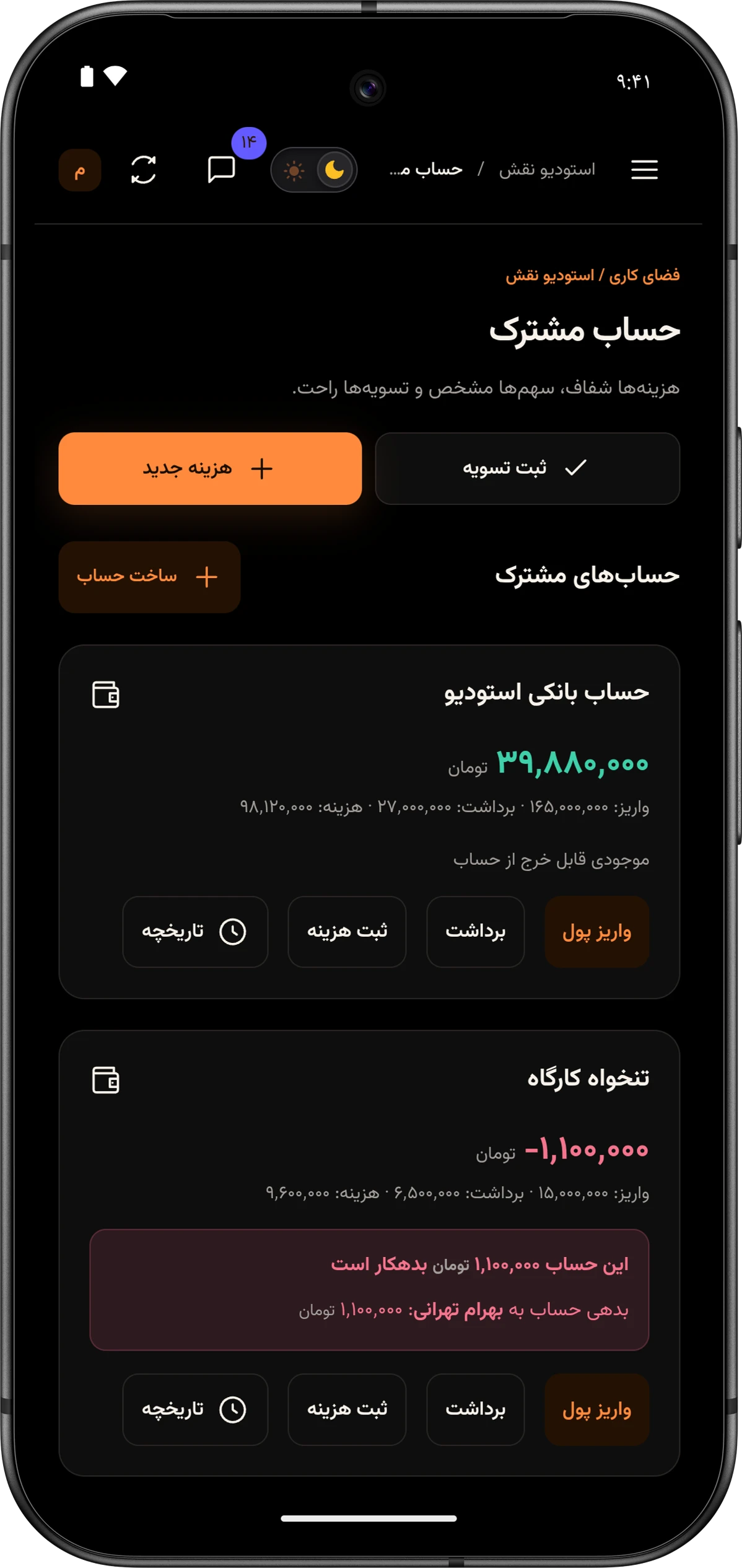
Section titled “Theme and status bar”The app follows Hamkar’s own theme switch. When you switch to the dark theme, the app background and the phone’s status and navigation bars go dark too. The splash screen and the Notifications on this phoneاعلان روی این گوشی screen follow the phone’s own dark mode instead.
Without internet
Section titled “Without internet”If the app can’t load the page, a screen titled «به همکار وصل نشدیم» (we couldn’t reach Hamkar) appears, asking you to check your connection. It has two buttons: Try againتلاش دوباره and Notifications on this phoneاعلان روی این گوشی. The app has no offline mode and can’t show your data without internet.
The Back button
Section titled “The Back button”The phone’s Back button works in this order:
- If a window is open, it closes it.
- If the slide-in menu or a shared account card’s press-and-hold menu is open, it closes it.
- Otherwise it sends the app to the background. The app isn’t closed and opens where you left it next time.
- Links to h.alavi.vip, such as a password recovery link, open inside the app.
- Links to other sites open in your phone’s browser.
Signing out and privacy
Section titled “Signing out and privacy”- Sign outخروج removes the phone’s notification registration and clears Hamkar notifications from the shade.
- The app’s data isn’t included in Android cloud backups or transfers to a new phone. On a new phone, sign in once.
- The app only connects to the server over a secure (HTTPS) connection.
- Firebase analytics and the advertising ID are turned off in the app.