Managing members
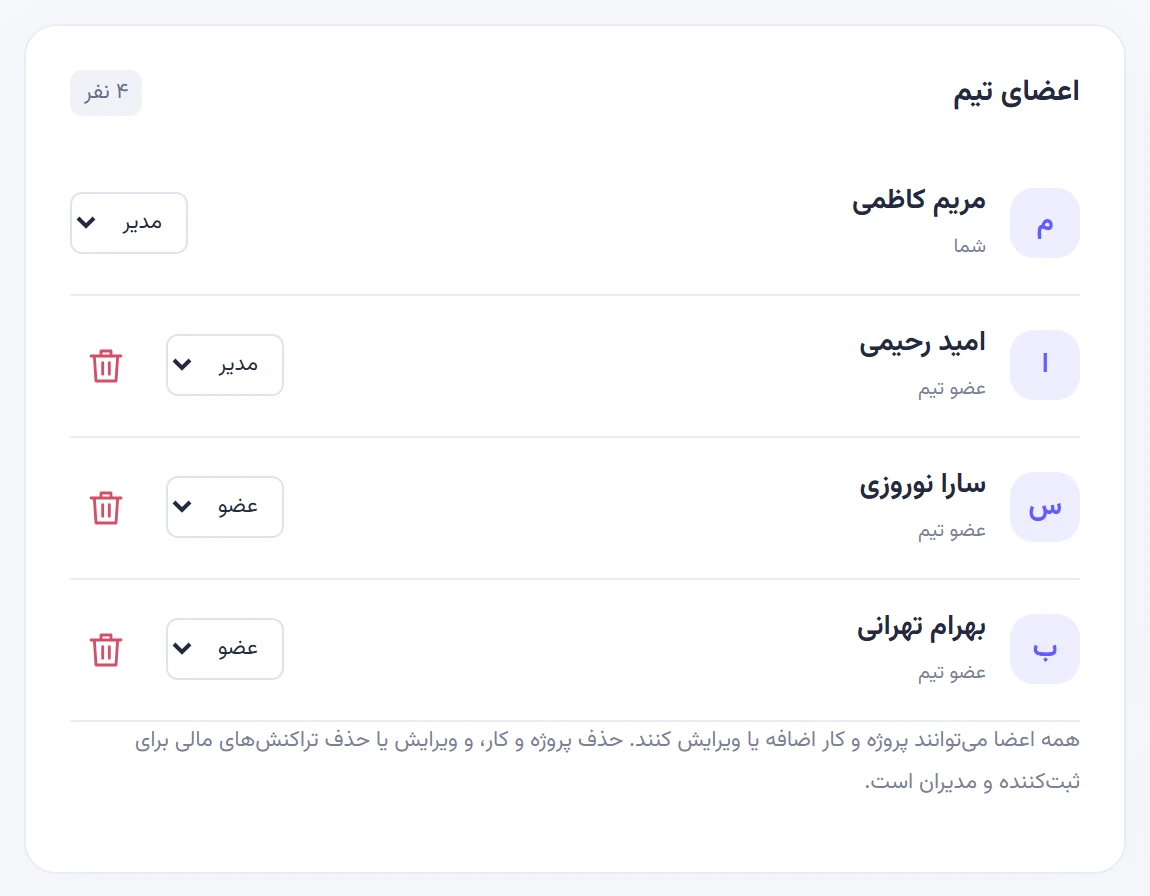
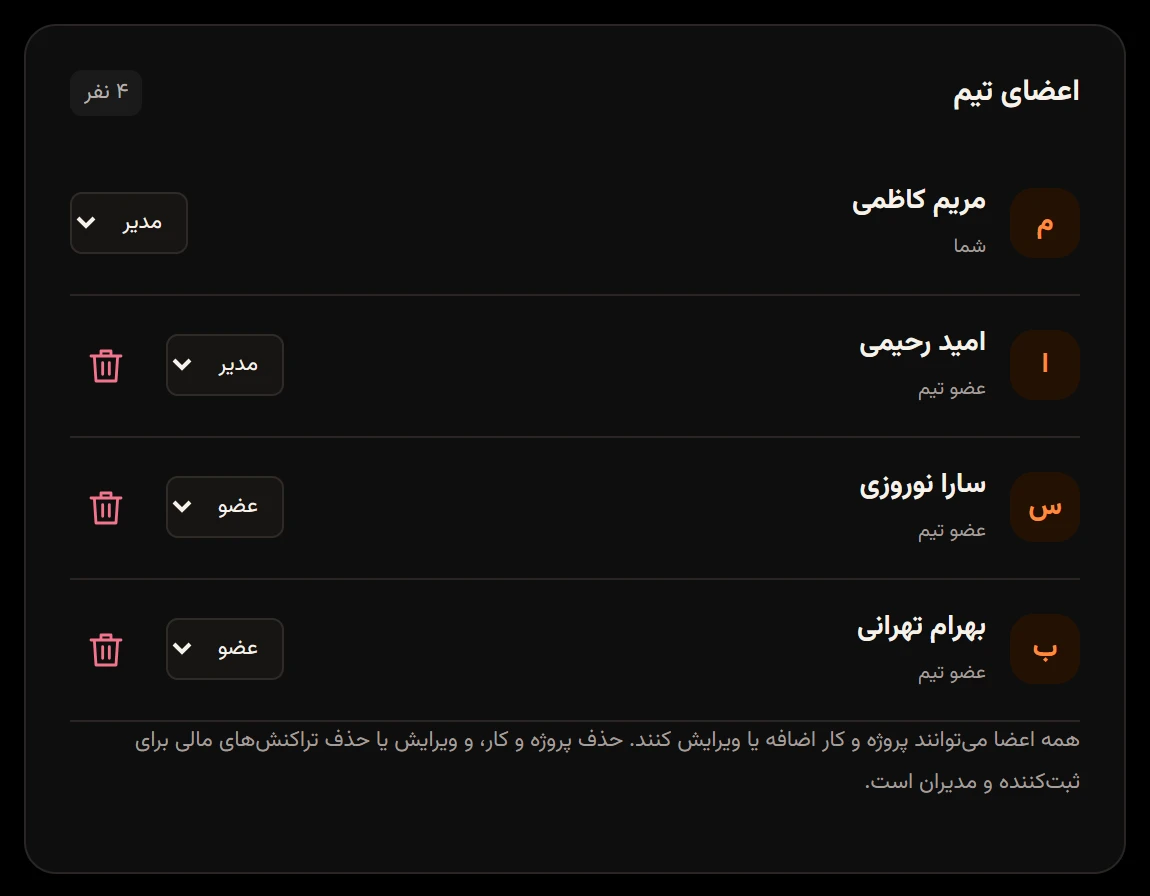
The member list is in Members & settingsاعضا و تنظیمات, under Team membersاعضای تیم. Admins see a role list and a remove button next to each person; members only see everyone’s role.
Change someone’s role
Section titled “Change someone’s role”Only admins can do this.
-
In Team membersاعضای تیم, open the role list next to the person’s name.
-
Choose Adminمدیر or Memberعضو. The change saves right away and you’ll see “Member role changed.” («نقش عضو تغییر کرد.»)
The other members get a Member role changedتغییر نقش عضو notification. A team must always have at least one admin, so if you try to demote the last one you’ll see “The team must have at least one admin.” («تیم باید حداقل یک مدیر داشته باشد.») Make someone else an admin first.
Remove someone from the team
Section titled “Remove someone from the team”-
In Team membersاعضای تیم, tap the trash button next to the person’s name.
-
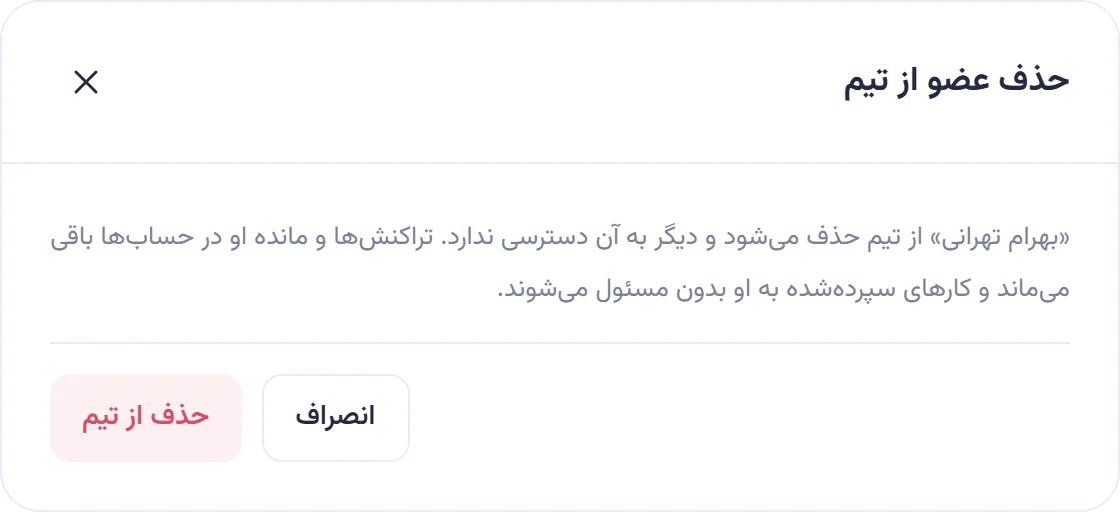
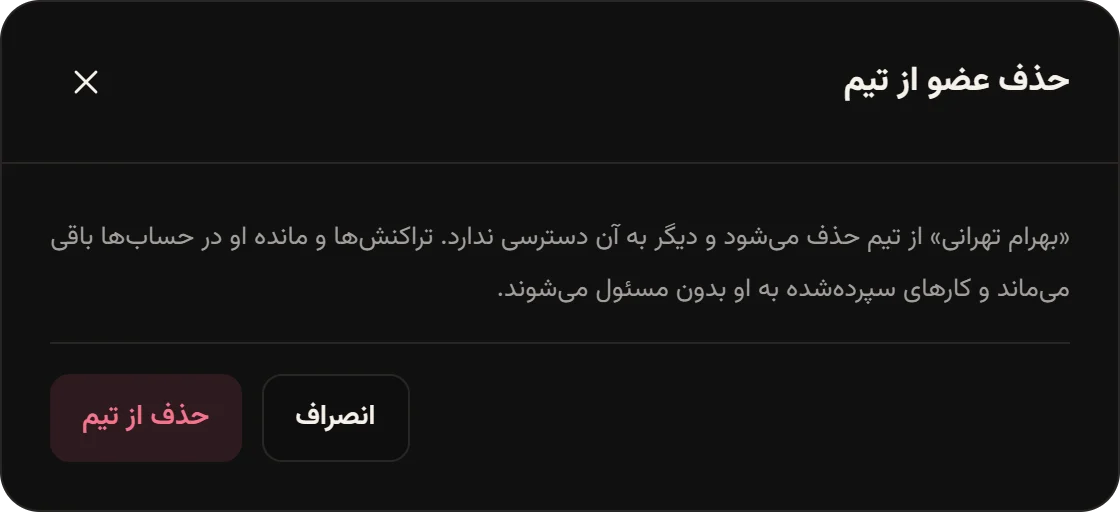
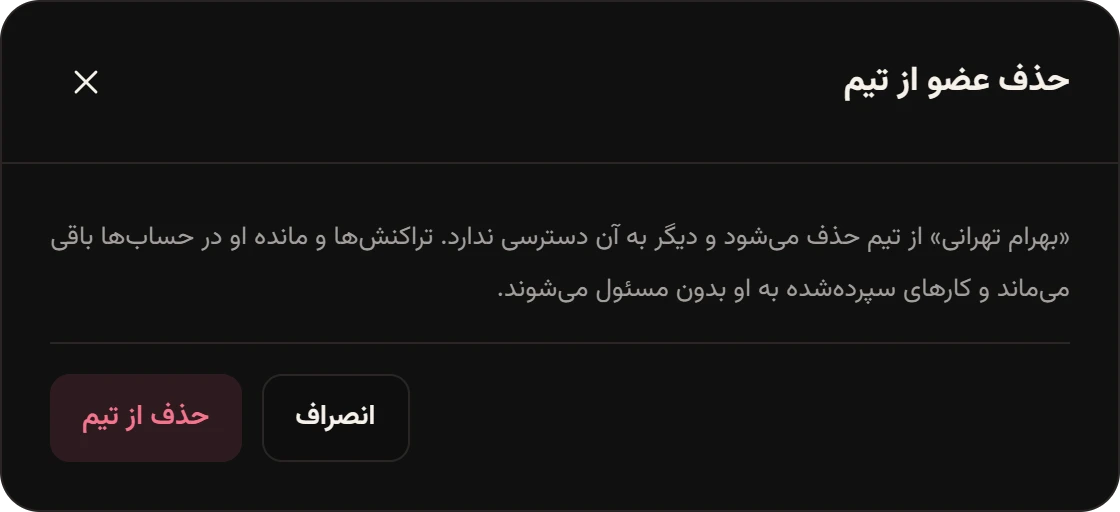
Read the Remove memberحذف عضو از تیم window and tap Remove from teamحذف از تیم.
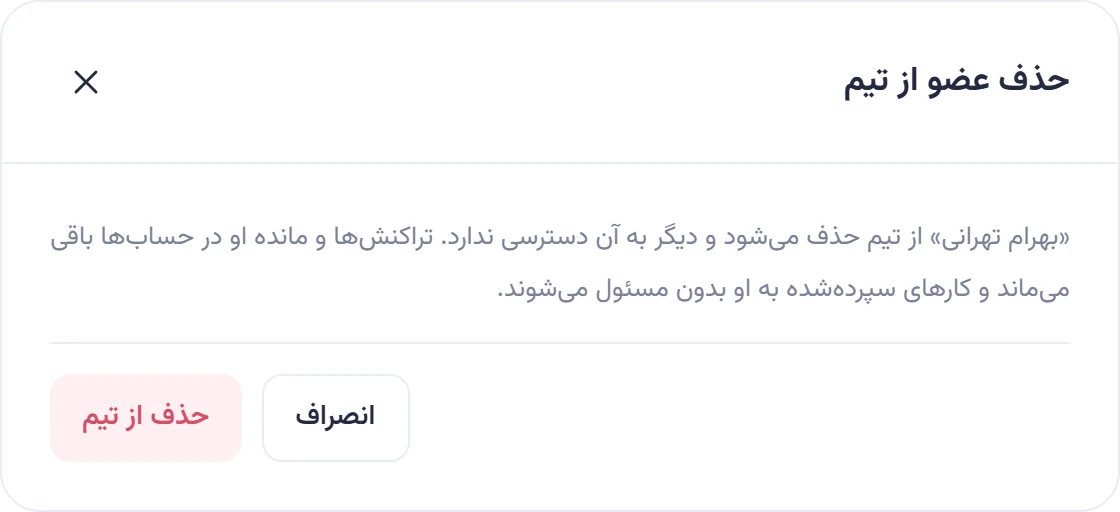
After removal:
- The person loses all access to the team. If they have Hamkar open at that moment, they see “You were removed from this team.” («شما از این تیم حذف شدید.»)
- Their expenses, settlements and balance stay in the team.
- Tasks assigned to them become unassigned.
- The other members get a Member removedحذف عضو از تیم notification.
Admins can remove other admins too, as long as it isn’t the team’s last admin.
Leave a team
Section titled “Leave a team”-
In Members & settingsاعضا و تنظیمات, under Data and membershipدادهها و عضویت, tap Leave teamخروج از تیم.
-
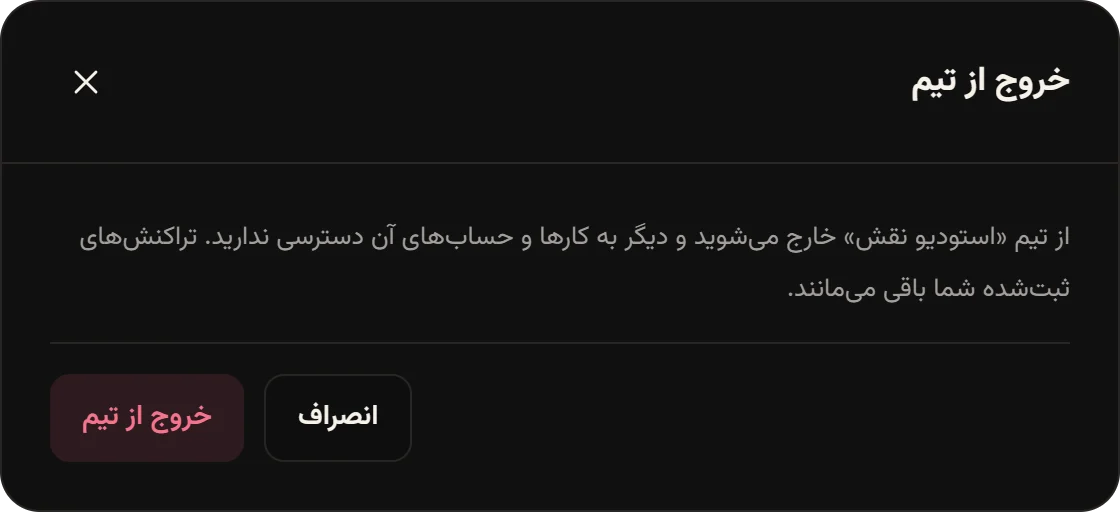
In the Leave teamخروج از تیم window, tap Leave teamخروج از تیم again.
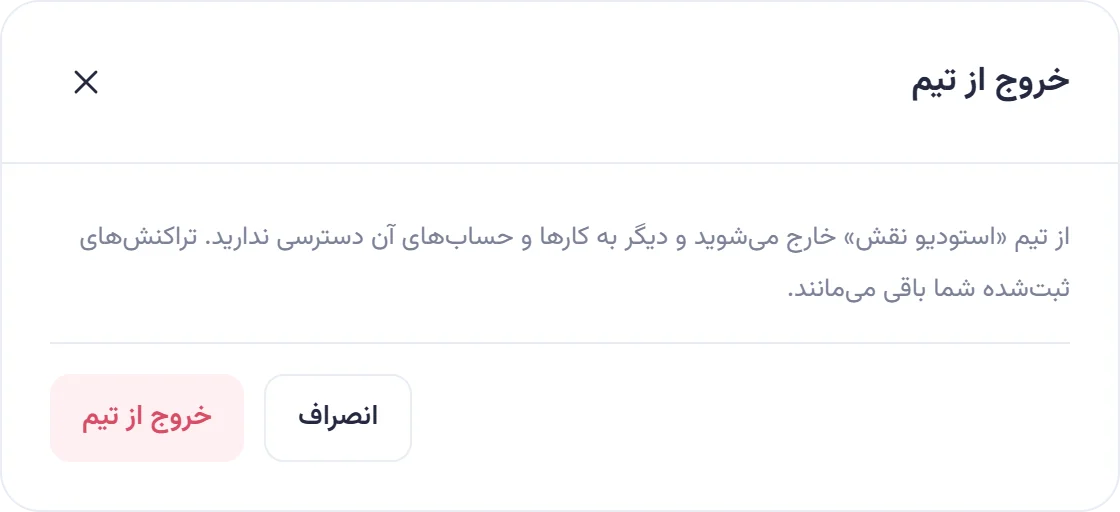
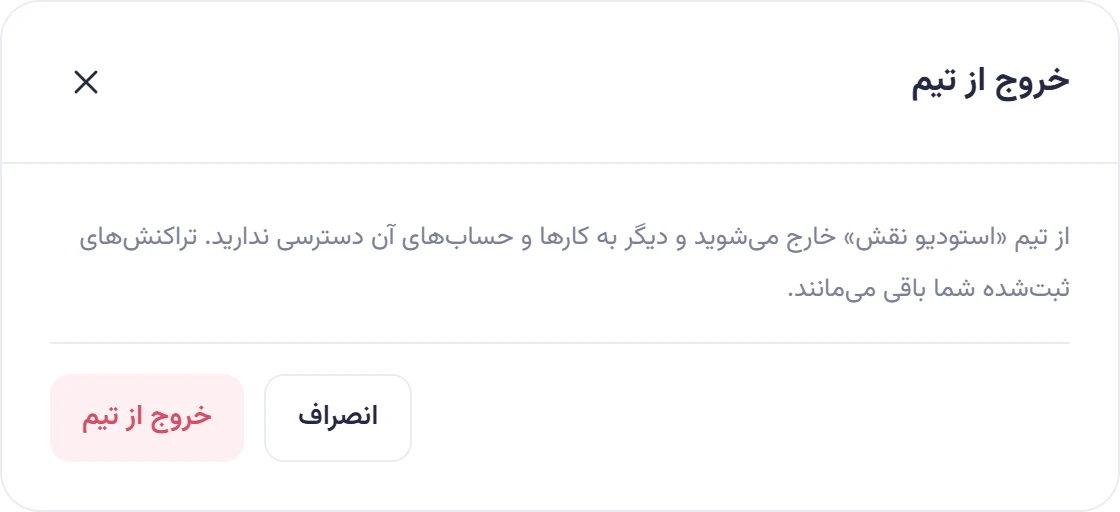
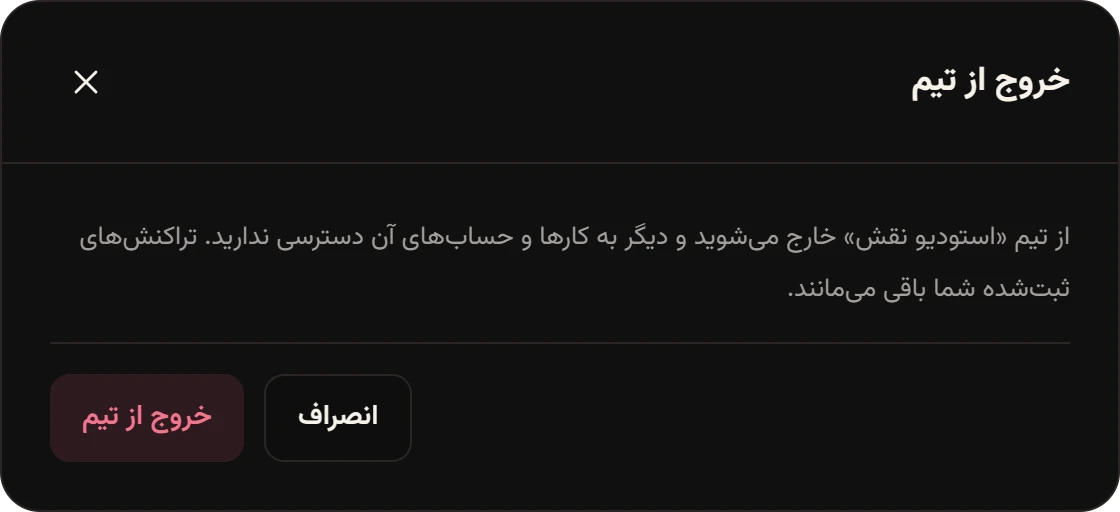
You’ll see “You left the team.” («از تیم خارج شدید.») and Hamkar opens your next team. If you have no other team, you go back to the welcome screen.
Two things block leaving:
- If you are the only member, delete the team instead. Team settings, export and deleting a team
- If you are the only admin, make someone else an admin first.
Former members and their money
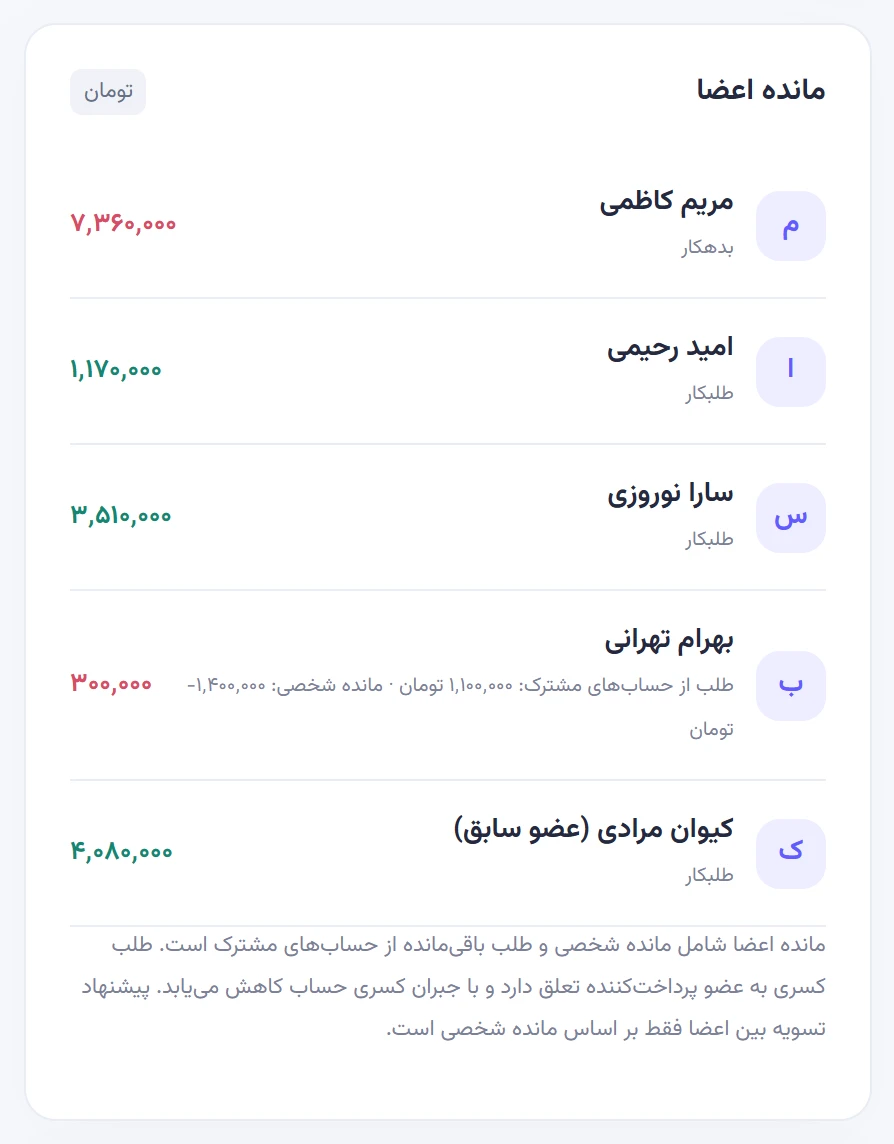
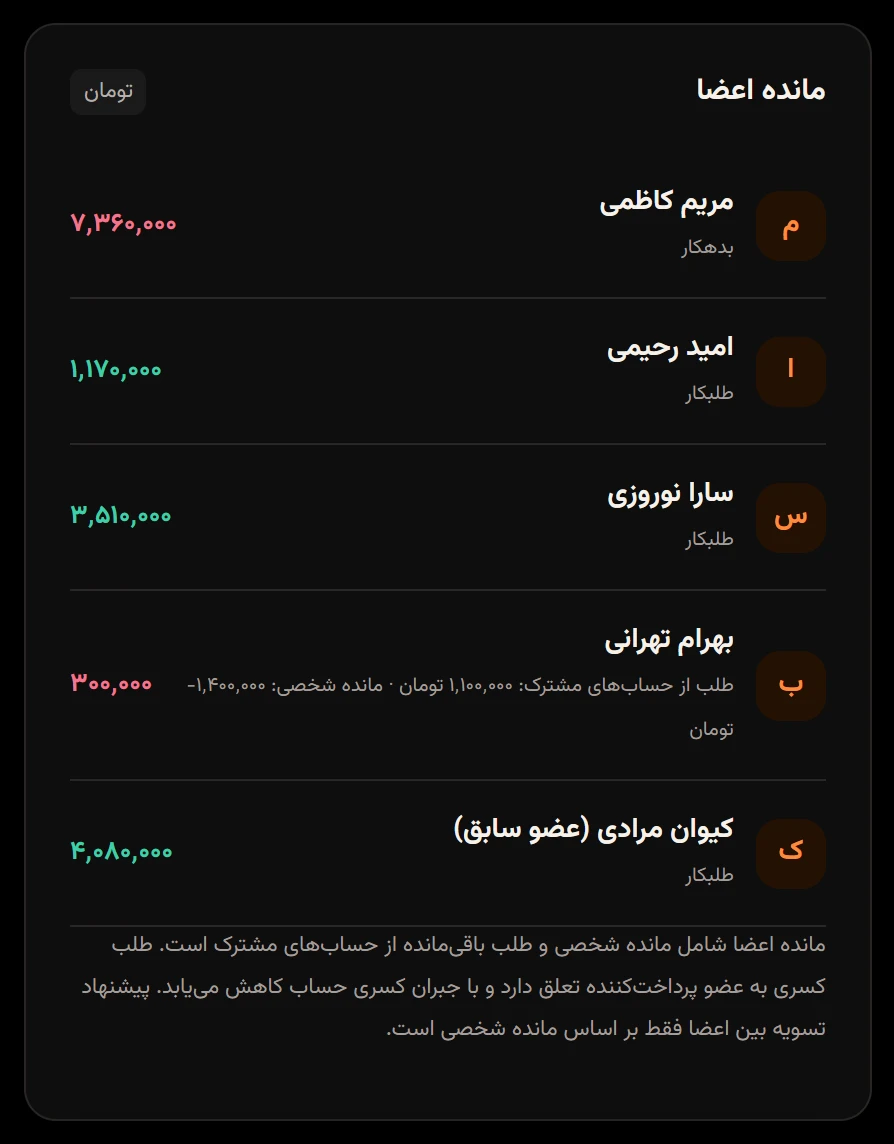
Section titled “Former members and their money”Someone leaving or being removed doesn’t break the team’s books. Hamkar keeps them in Member balancesمانده اعضا and Suggested settlementsپیشنهاد تسویه with “(former member)” («عضو سابق») after their name, so what they owe or are owed isn’t lost.
At Naghsh Studio, Keyvan Moradi left partway through. He had paid for a cordless drill, a laser level and scaffolding rental. After he left:
- The task «اجرای کفسازی و تراز» (floor screed and leveling), which was assigned to him, became unassigned.
- Maryam transferred him 6,000,000 toman and recorded it as a settlement with Keyvan.
- He is still owed 4,080,000 toman, which shows in Suggested settlementsپیشنهاد تسویه under «کیوان مرادی (عضو سابق)».
What to know about former members:
- You can record settlements with a former member. The other side of the payment, or an admin, records it.
- New expenses can’t include a share for a former member, and they can’t be chosen as depositor or recipient.
- If they rejoin with an invite code, they come back as a member and their old history reconnects to their name.