Tasks
A task is one concrete step that needs doing, like ordering faucets or choosing the living room paint color. Any team member can create and edit any task.
Create a task
Section titled “Create a task”-
Tap New taskکار جدید. It’s on the Overviewنمای کلی and on the Tasksکارها و تسکها page. The + button at the top of each board column also creates a task with that column’s status.
-
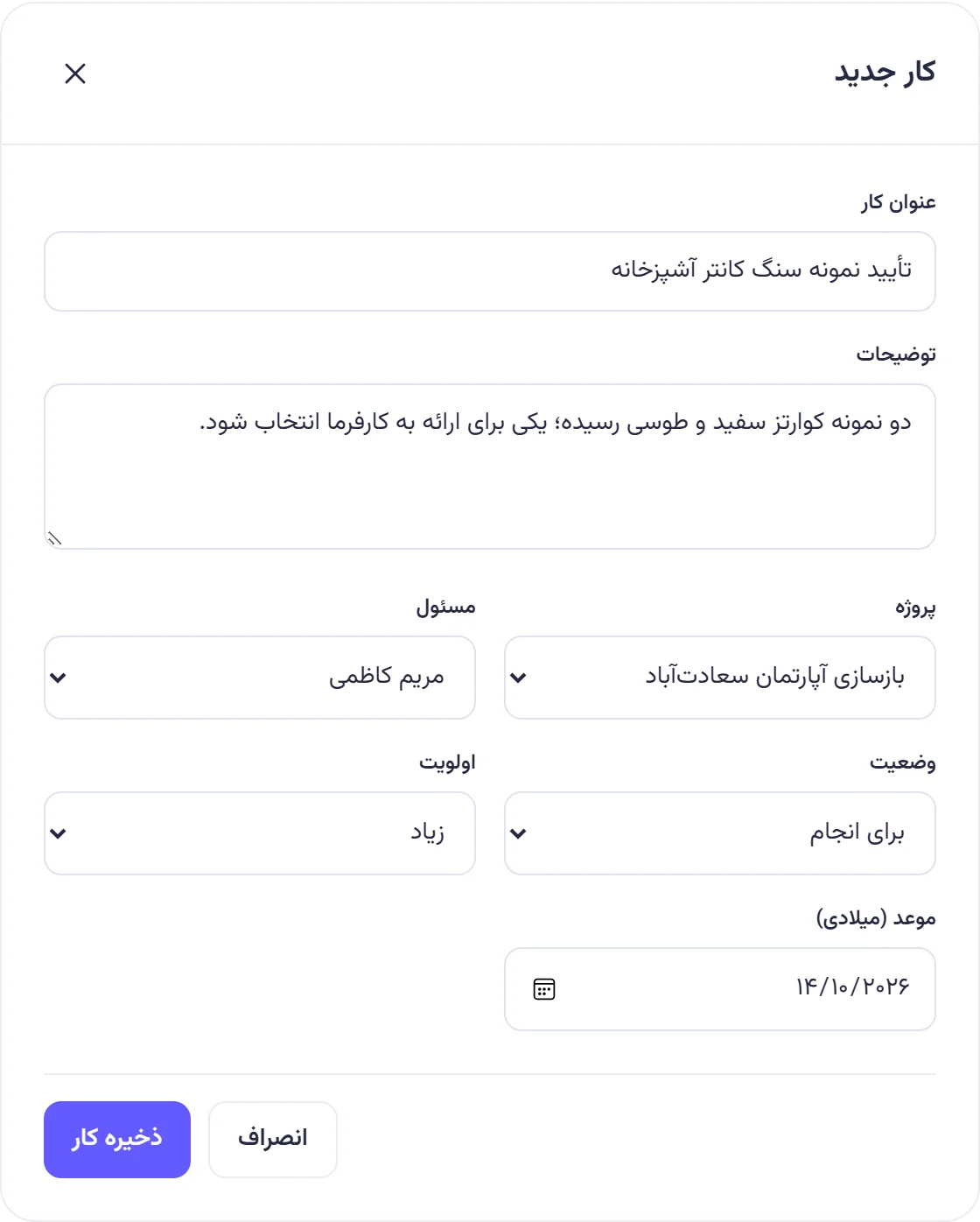
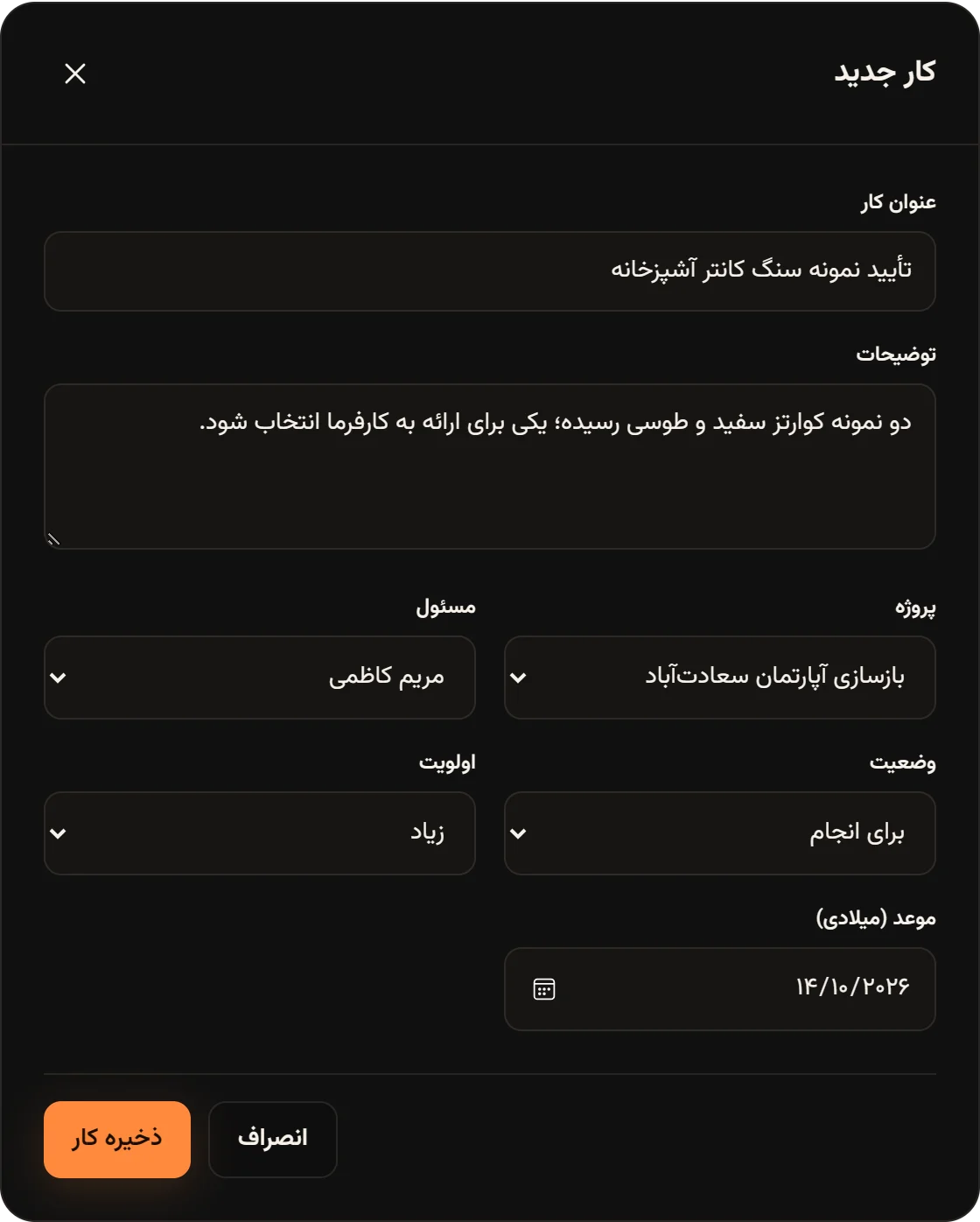
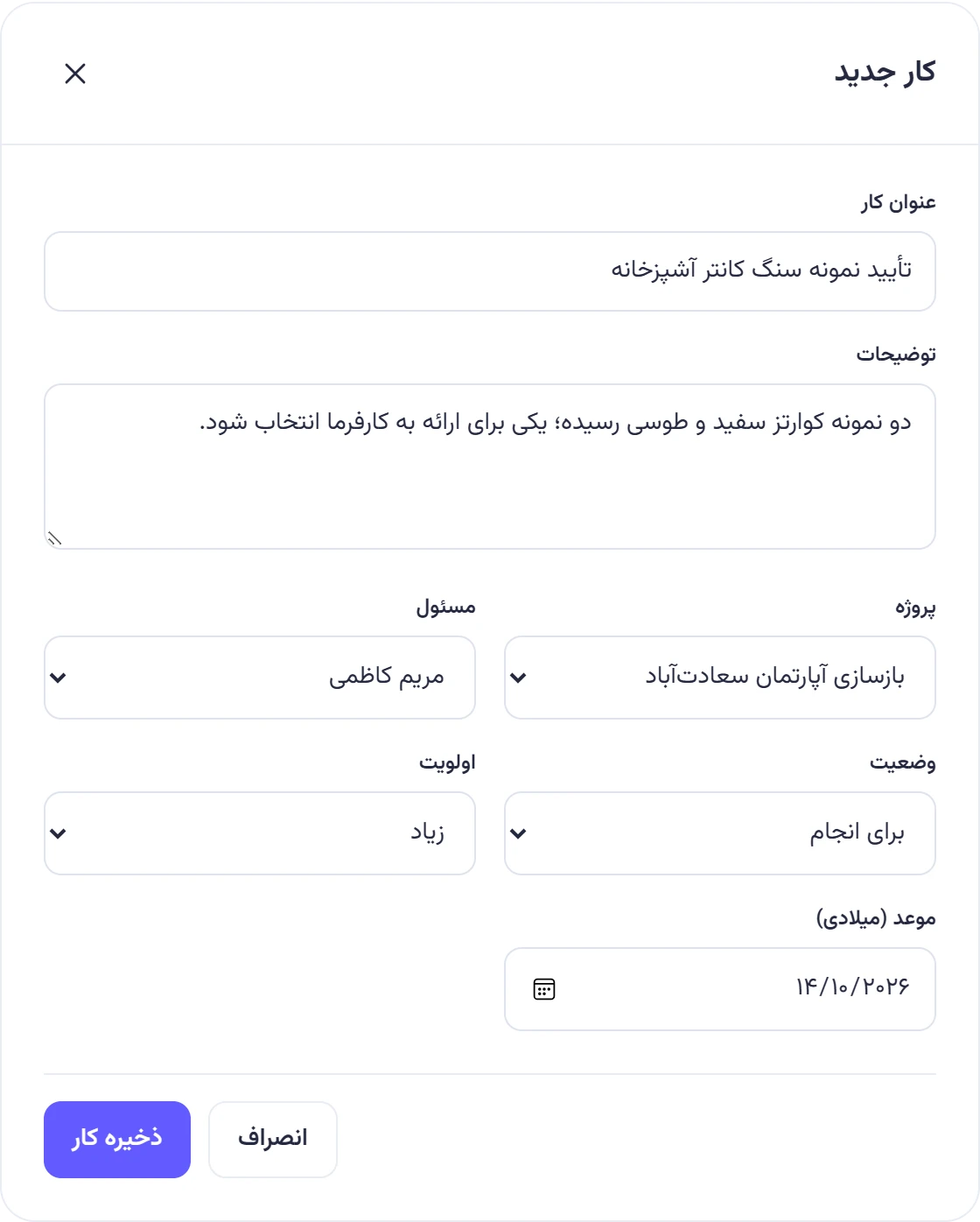
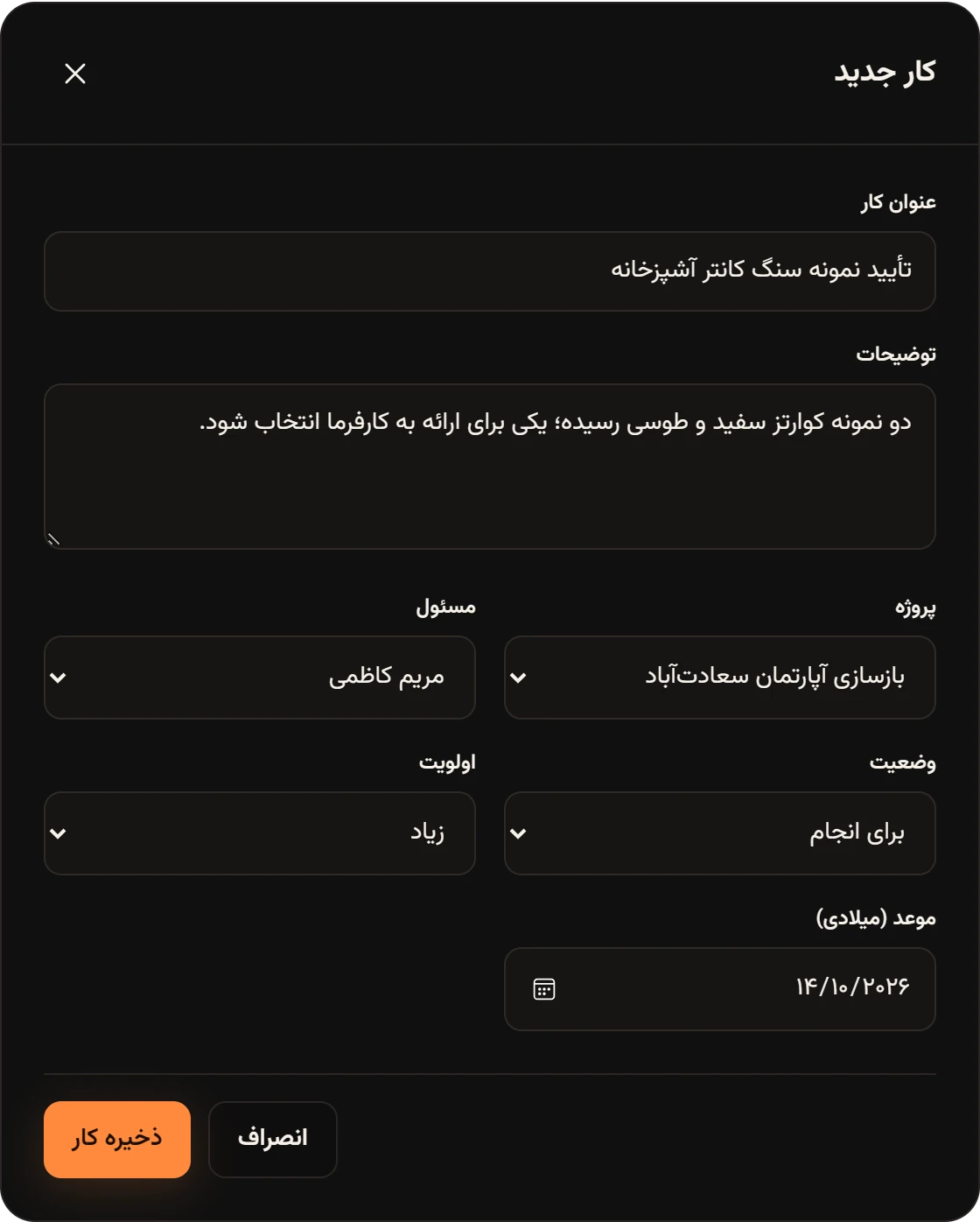
Fill in the fields:
- Task titleعنوان کار (required, up to 200 characters)
- Descriptionتوضیحات: details or a checklist, up to 10,000 characters
- Projectپروژه: only active projects are listed
- Assigneeمسئول: a member, or Not setتعیین نشده
- Statusوضعیت and Priorityاولویت (Lowکم, Mediumمتوسط or Highزیاد)
- Due date (Gregorian)موعد (میلادی): optional
-
Tap Save taskذخیره کار.
If the team has no active project, you’ll see “Create an active project first.” («ابتدا یک پروژه فعال بسازید.») and the new project window opens.
Task status
Section titled “Task status”Every task has one of four statuses: To doبرای انجام, In progressدر حال انجام, In reviewدر انتظار بررسی and Doneانجامشده. You can change it in three places:
- Board: on a computer, drag the card to another column with the mouse.
- Table: change the Statusوضعیت list in the task’s row.
- Task window: open the task, change Statusوضعیت and save.
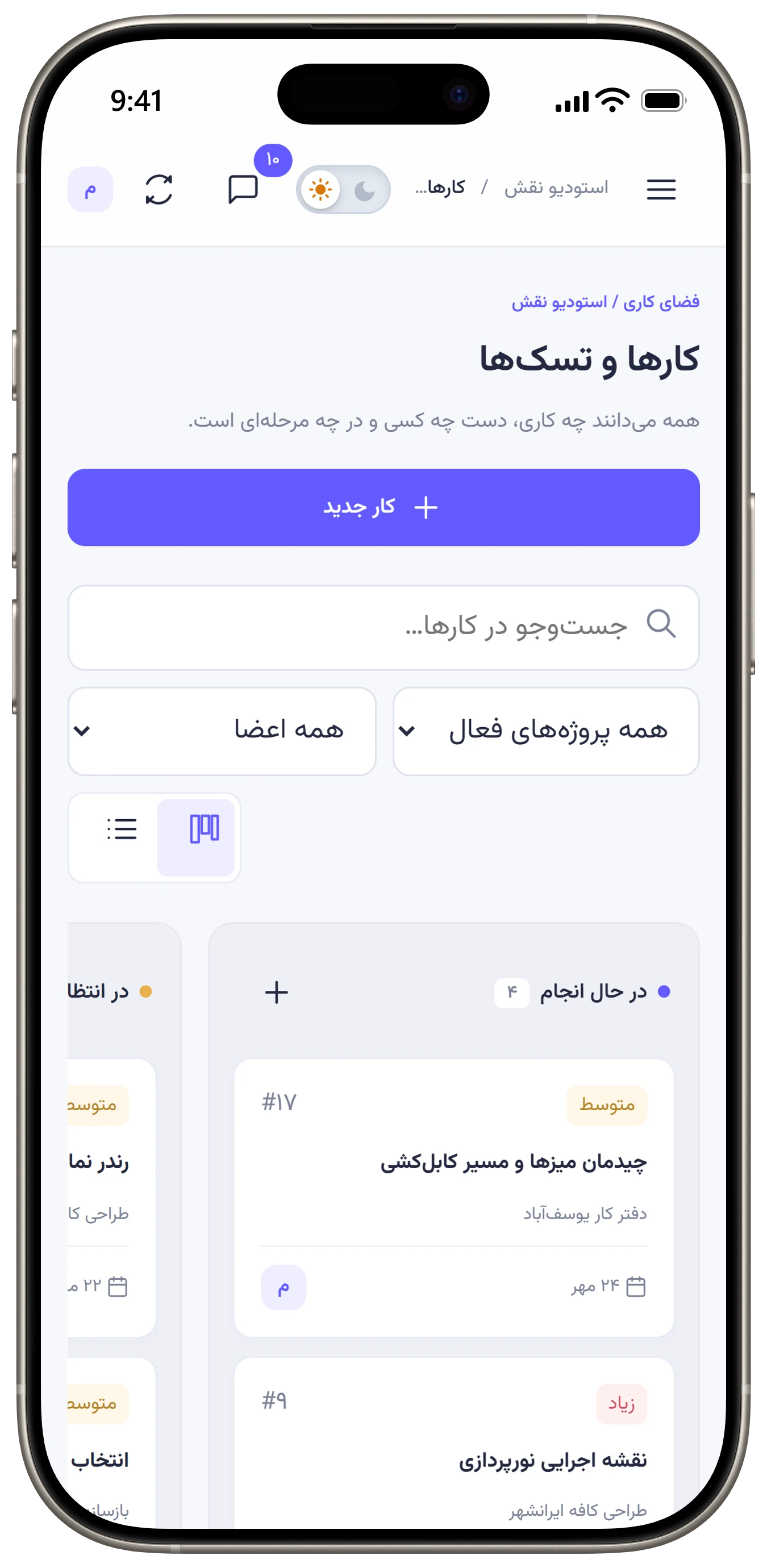
On a phone, dragging cards on the board doesn’t work. Change the status in the task window or the table view instead. On a phone the board’s columns sit side by side; swipe left and right to move between them.
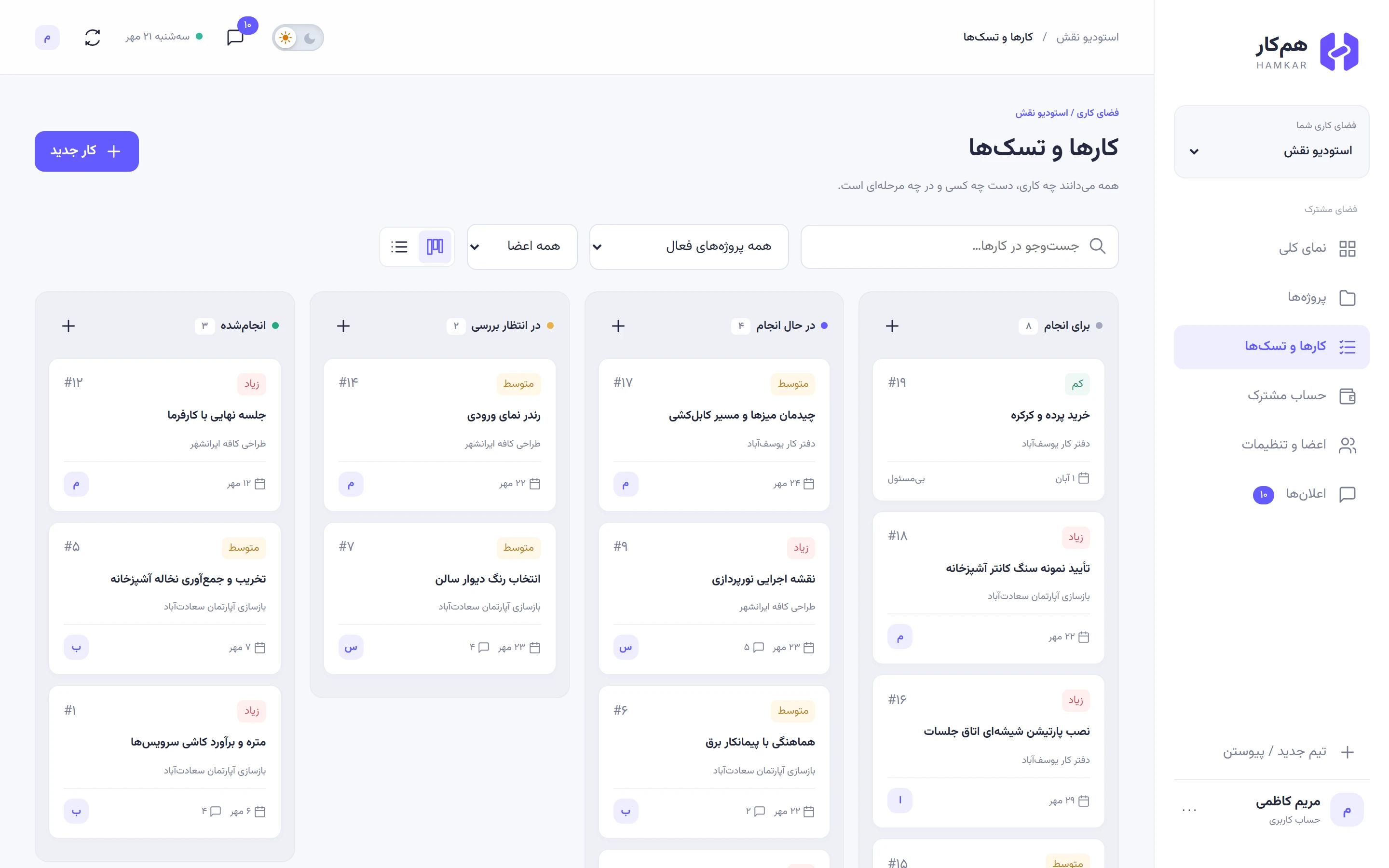
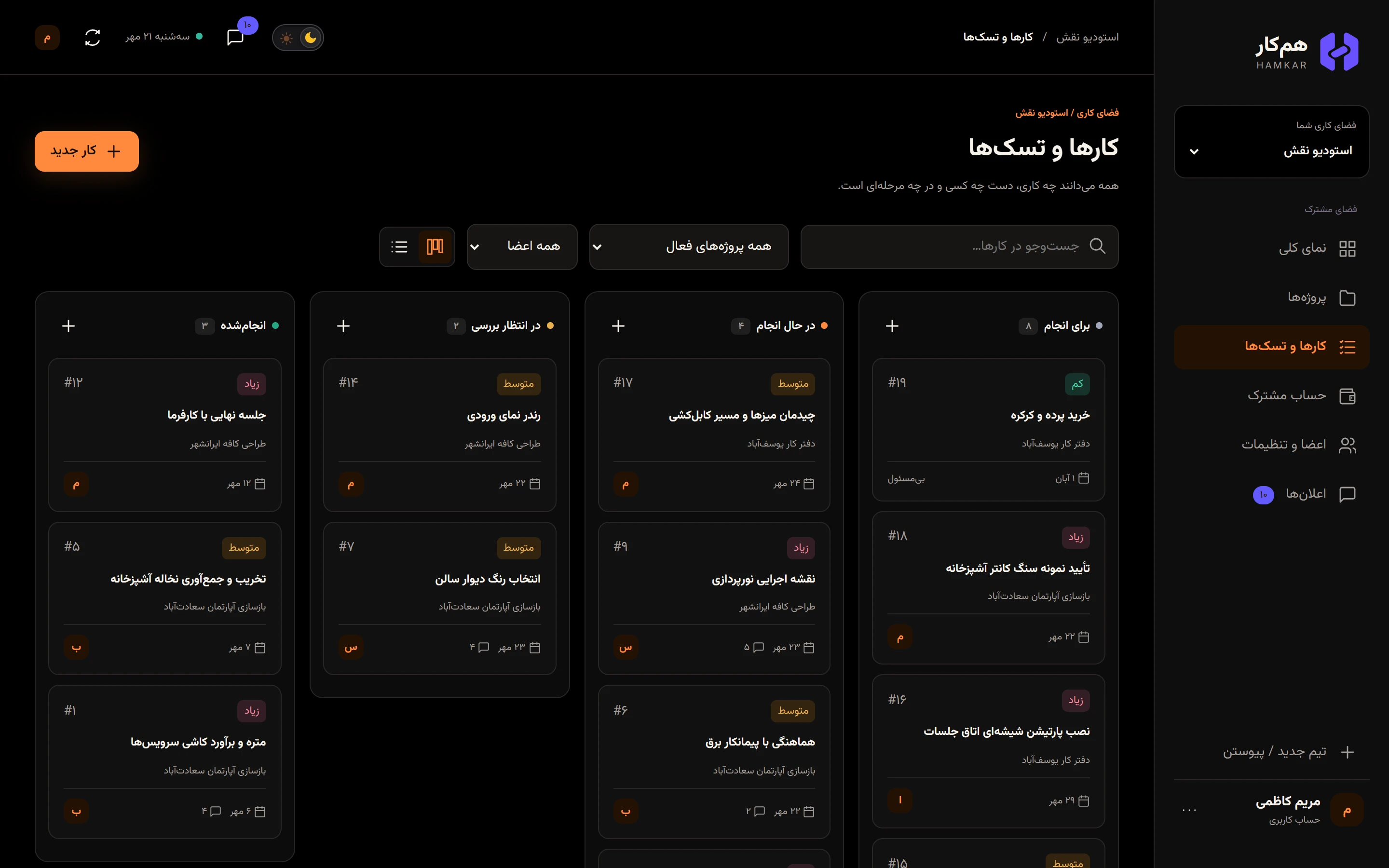
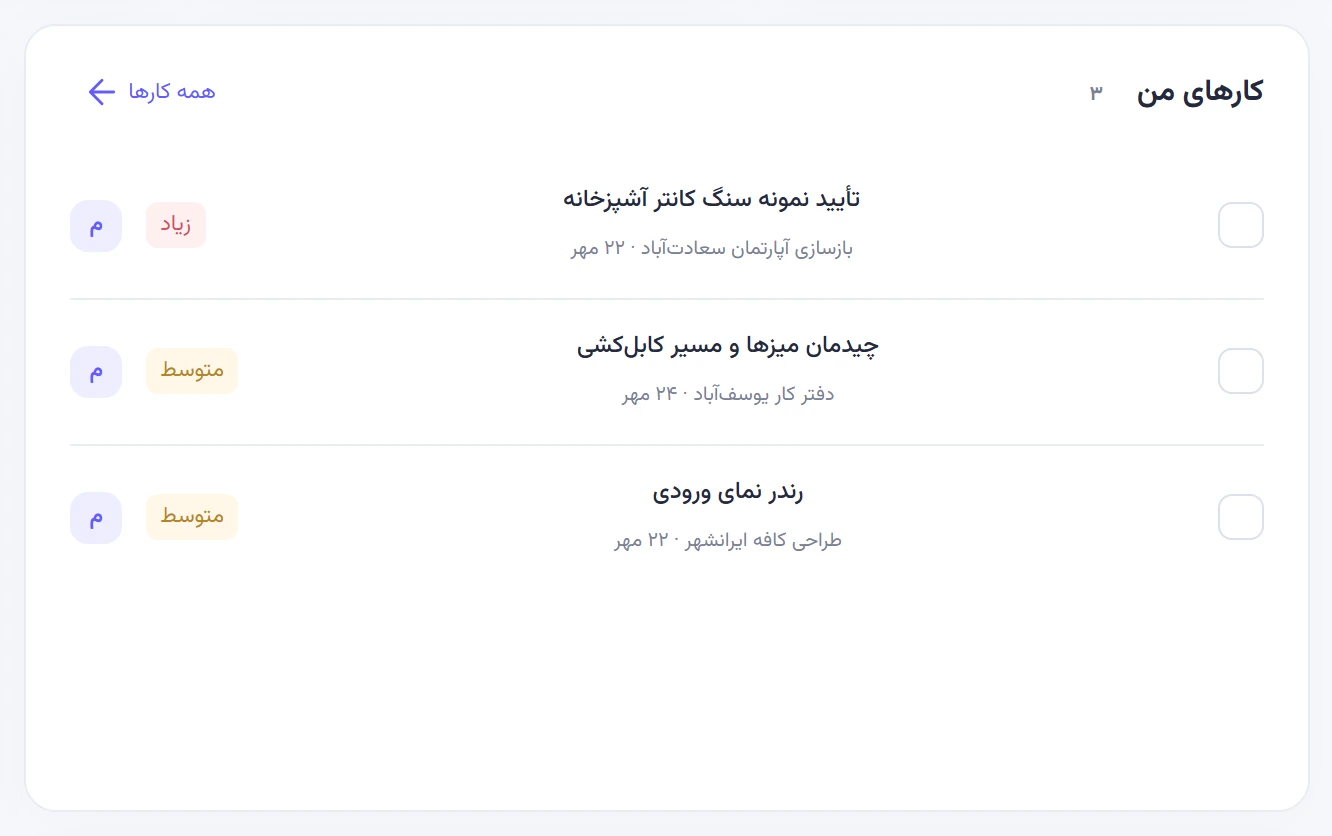
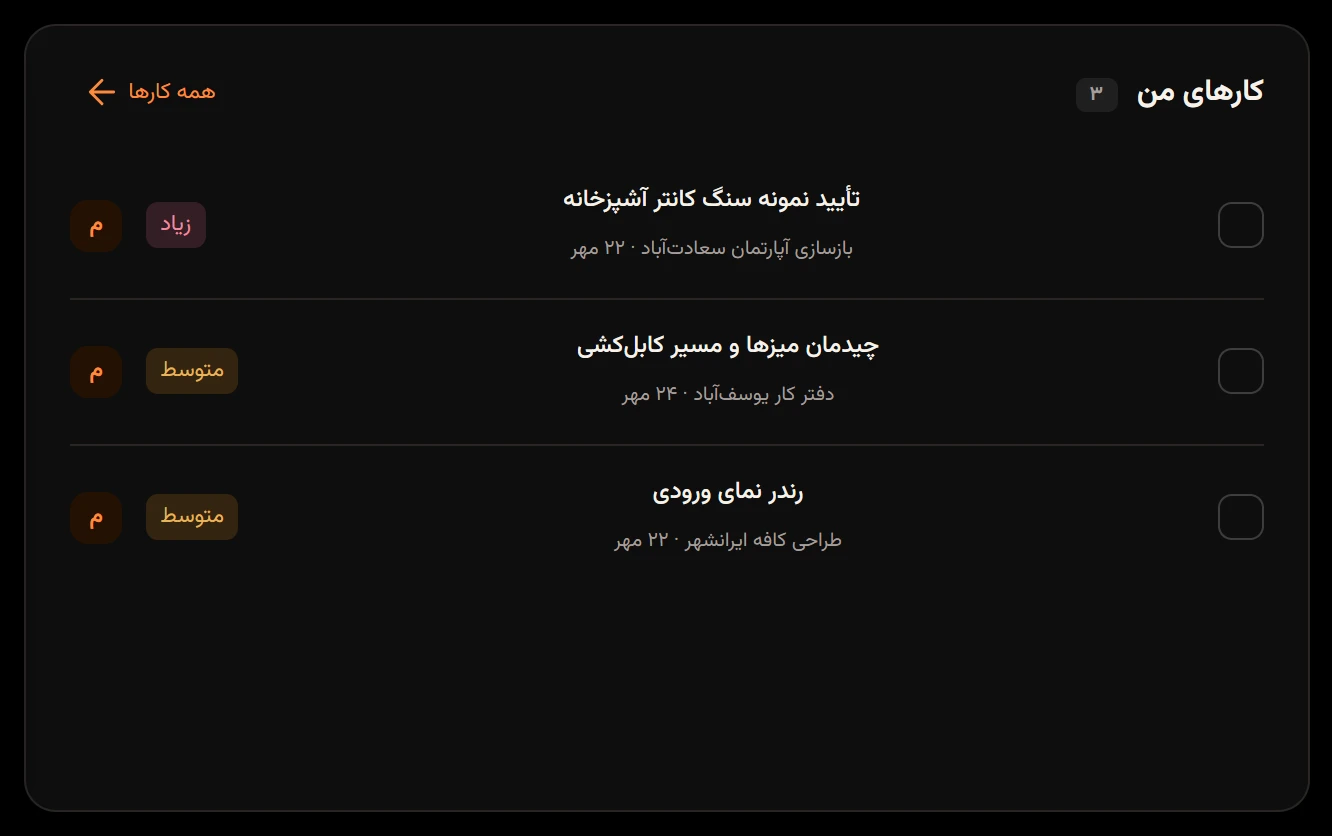
When a task reaches Doneانجامشده, the others get a Task completedانجام کار notification. On the Overviewنمای کلی, the round button next to each task under My tasksکارهای من also marks it done. Tap it again and the task goes back to To doبرای انجام, not to whatever status it had before.
Board and table
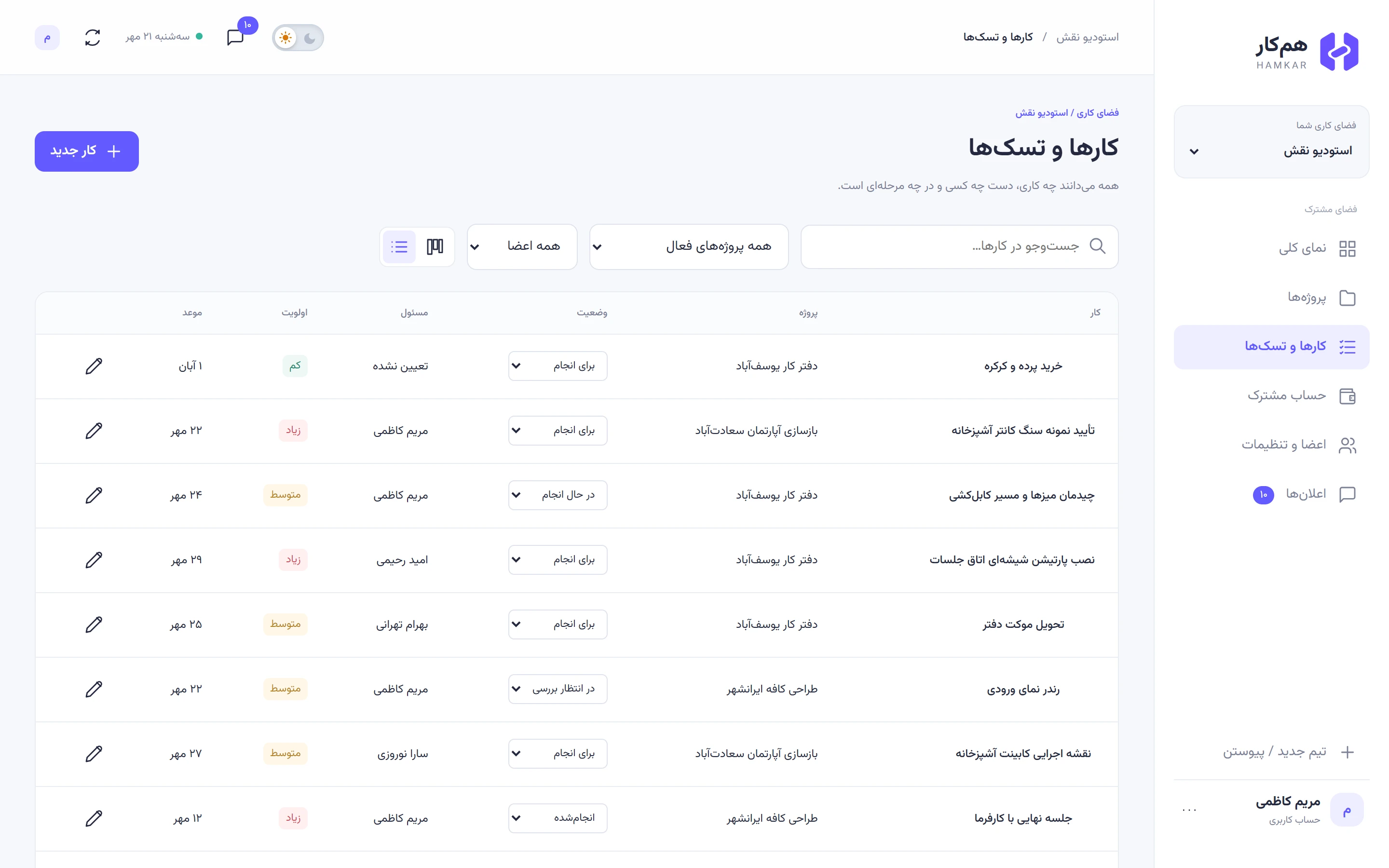
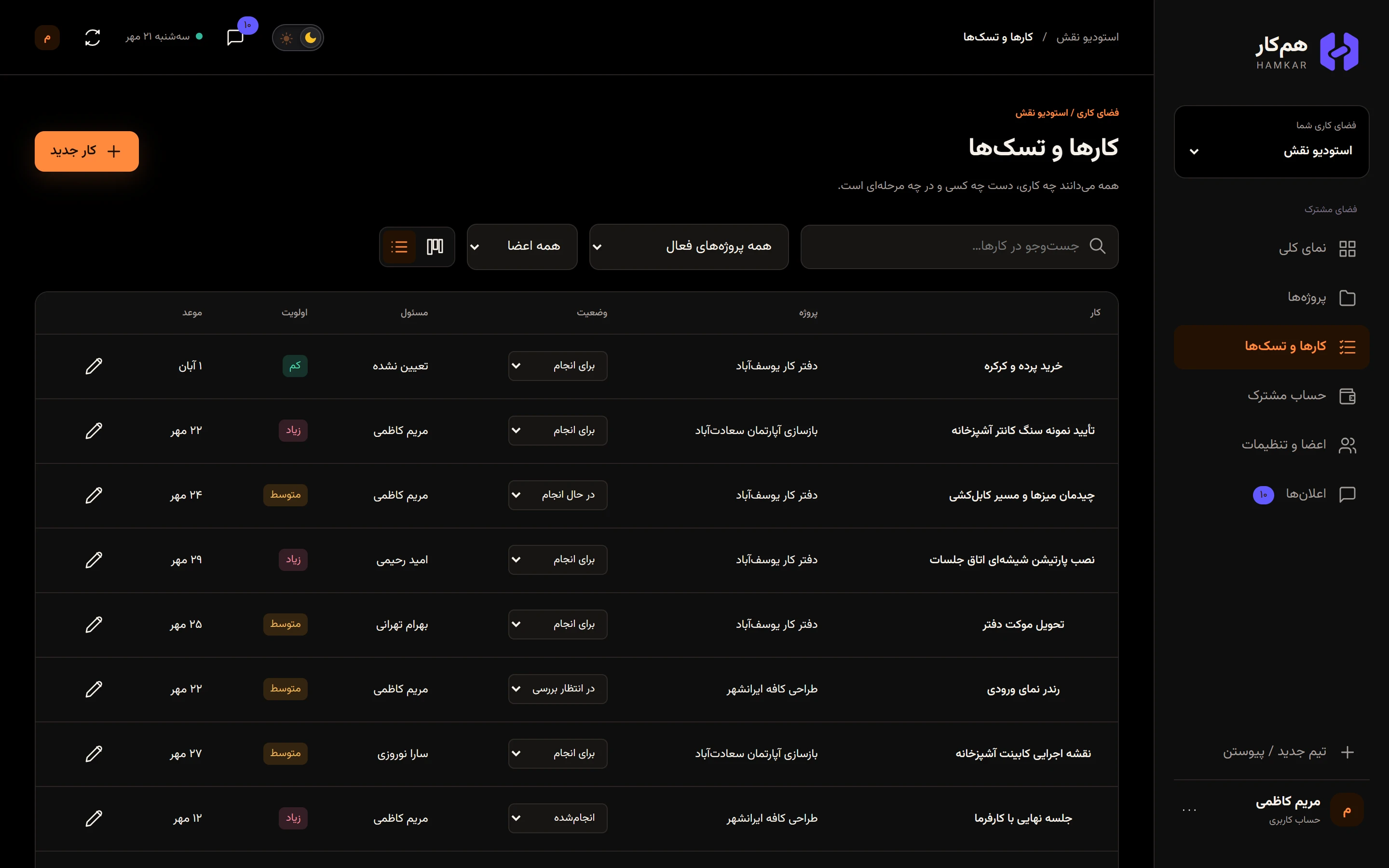
Section titled “Board and table”On the Tasksکارها و تسکها page, switch between board and table with the two buttons next to the filters.
- A board card shows the priority, task number, title, project, due date, comment count and the assignee’s avatar, or Unassignedبیمسئول. When the due date has passed and the task isn’t done, the date turns red.
- The table has the columns Taskکار, Projectپروژه, Statusوضعیت, Assigneeمسئول, Priorityاولویت and Dueموعد.
Finding tasks
Section titled “Finding tasks”- Search: type in the search box (“جستوجو در کارها…”). Titles and descriptions are searched as you type.
- Project filter: defaults to All active projectsهمه پروژههای فعال. Archived projects are listed too, marked “(archived)”.
- Assignee filter: All membersهمه اعضا or one person.
- Your own tasks: on the Overviewنمای کلی, tap All tasksهمه کارها next to My tasksکارهای من to open the Tasks page filtered to you.
Assigning a task
Section titled “Assigning a task”In the task window, pick an Assigneeمسئول and save. Only that person gets the Task assigned to youکار به شما سپرده شد notification, and the task shows up in their My tasksکارهای من. Everyone else gets the usual new-task or task-changed notification. If you assign a task to yourself, you don’t get a notification.
Editing and deleting
Section titled “Editing and deleting”- To edit, tap the card or the task title to open Task detailsجزئیات و ویرایش کار. Saving without changes sends no notification.
- Only the person who created the task, or an admin, can delete it. The trash button is at the bottom of the task window. The task and its discussion are deleted together.