Finding your way around
Every Hamkar page opens from one menu. Here is where everything lives.
The sidebar
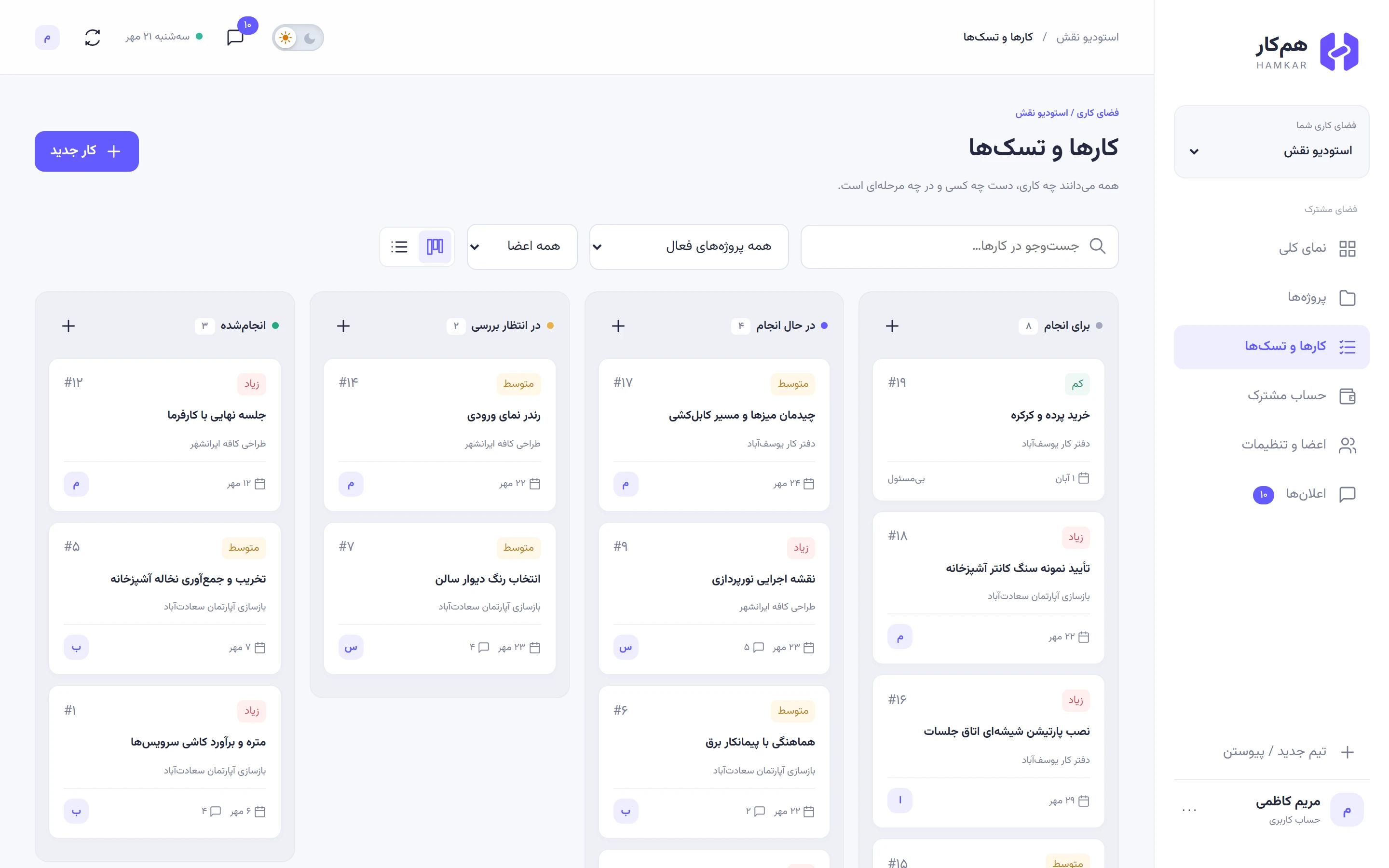
Section titled “The sidebar”On a computer the menu sits on the right-hand side (Hamkar is laid out right to left). From top to bottom it has:
- The Hamkar logo and name.
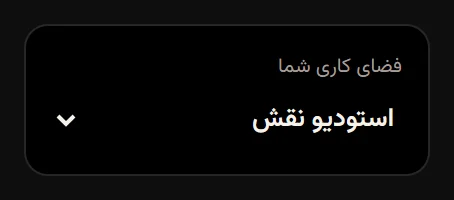
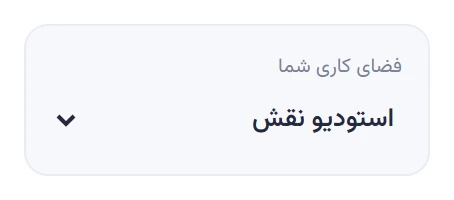
- Your workspaceفضای کاری شما: a list of the teams you belong to. Pick a team and every page shows that team’s data.
- Under Shared spaceفضای مشترک, the team’s pages:
| Page | What’s on it |
|---|---|
| Overviewنمای کلی | Team summary: stats, your tasks, project progress, latest expenses and teammates |
| Projectsپروژهها | A card for each project with a progress bar; create, edit and archive projects |
| Tasksکارها و تسکها | All tasks in a board or table view, with search and filters |
| Shared financesحساب مشترک | The team’s shared accounts, expenses, settlements, member balances and suggested settlements |
| Members & settingsاعضا و تنظیمات | Team details, invite code, members and roles, full export, leaving and deleting the team |
| Notificationsاعلانها | The notification inbox with an unread count; notification settings open from here too |
- At the bottom, New team / Joinتیم جدید / پیوستن to create another team or join one with an invite code.
- Your name button, labeled Profileحساب کاربری, which opens your name, password, sign-out and account deletion.
The top bar
Section titled “The top bar”At the top of every page you see where you are, for example “Naghsh Studio / Tasks”. The other side of the bar has:
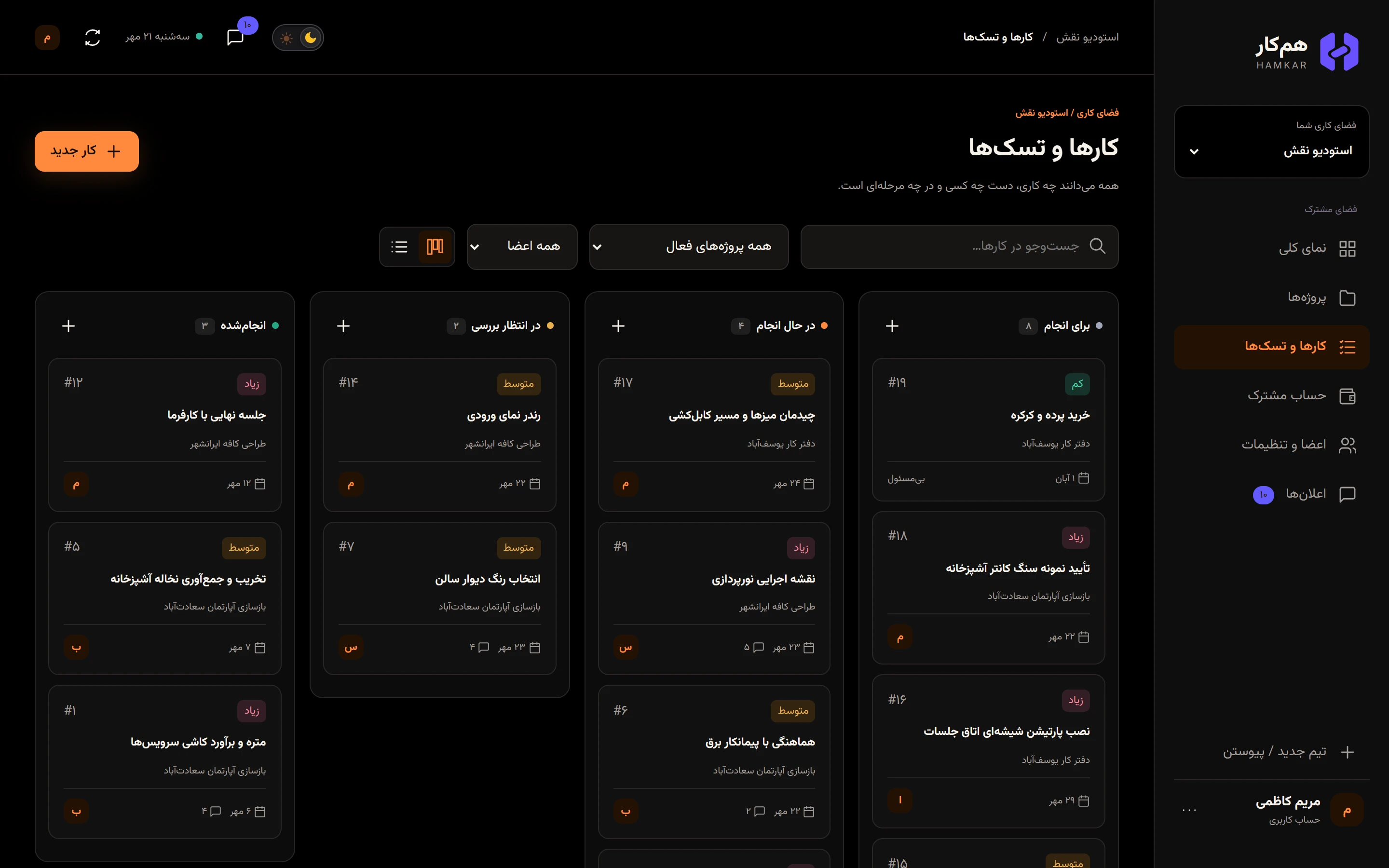
- The light and dark theme switch.
- The notification bell with your unread count.
- Today’s date (on larger screens only).
- The Refreshبهروزرسانی button to fetch the team’s latest data.


On a phone
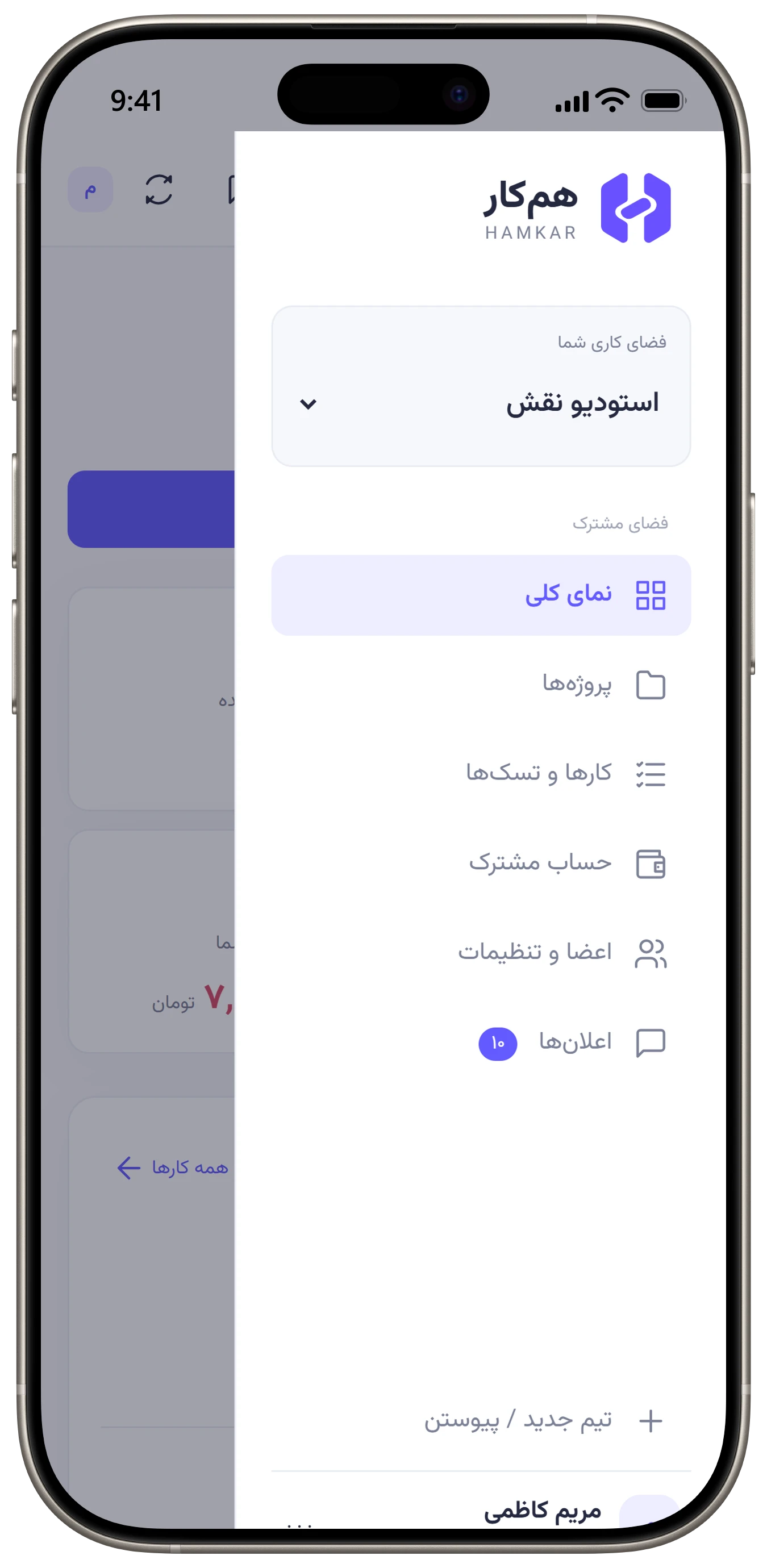
Section titled “On a phone”On small screens the sidebar is hidden. Tap the three-line button at the top to slide it in, and tap outside it to close it. Hamkar has no bottom navigation bar; every page opens from this menu.
Switching teams
Section titled “Switching teams”-
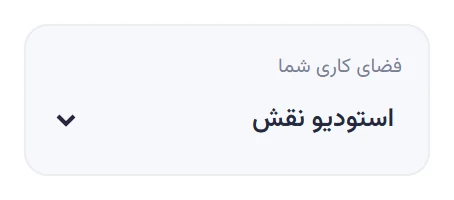
In the menu, tap the Your workspaceفضای کاری شما list.
-
Pick another team. Task filters are cleared and that team’s data loads.
Notifications from all your teams land in one inbox, so you don’t need to switch teams to see another team’s news.
Dialogs
Section titled “Dialogs”Creating and editing tasks, expenses, settlements and most other things happens in a window on top of the page. To close it, tap the X at its top, tap outside it, or press your phone’s Back button in the Android app.