The notification inbox
The notification inbox shows what happened in your teams while you were away. Notifications from all your teams come in one list, newest first.
Open the inbox
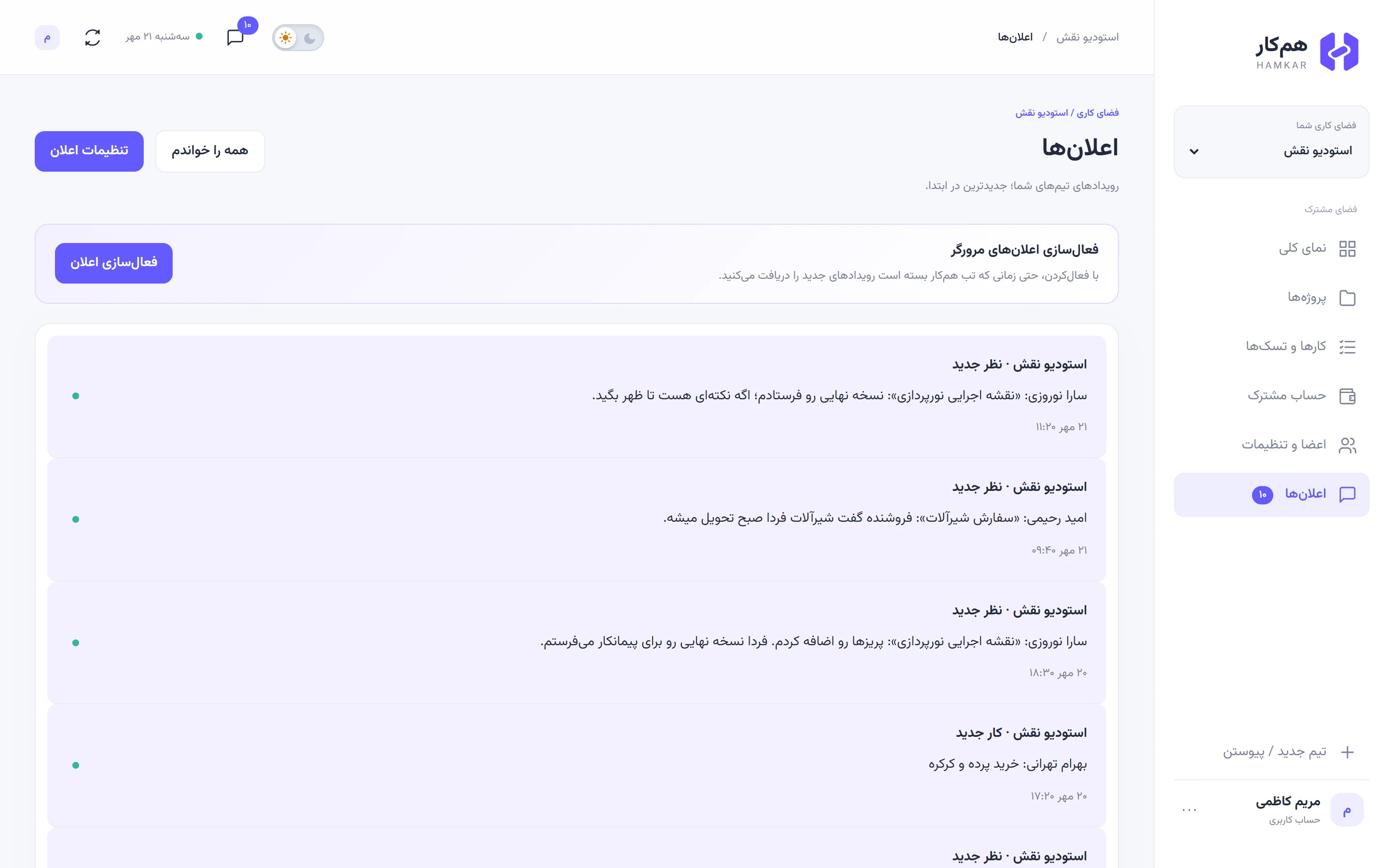
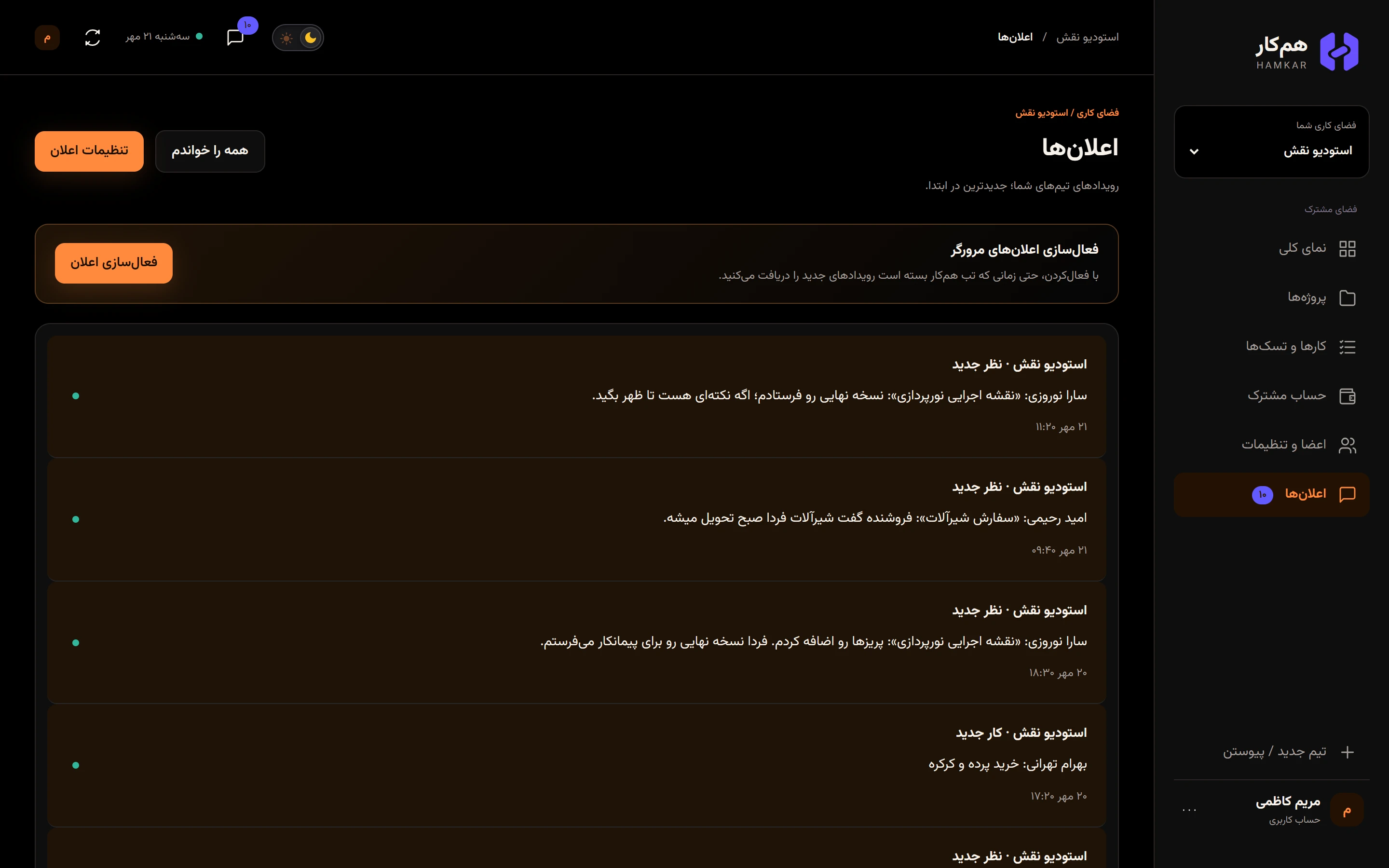
Section titled “Open the inbox”Tap Notificationsاعلانها in the menu, or the bell in the top bar. The red number on both is your unread count.


What a notification says
Section titled “What a notification says”- Title: the team name and what happened, such as «استودیو نقش · هزینه جدید» (Naghsh Studio · New expense).
- Body: who did it and the details, such as «امید رحیمی: ناهار جلسه هماهنگی کارگاه · ۲٬۸۰۰٬۰۰۰ تومان» (Omid Rahimi: site coordination lunch · 2,800,000 toman). Money notifications include the amount and currency; comment notifications include the task title and the start of the comment.
- Time: date and time.
- Unread notifications have a tinted background and a colored dot.
Open a notification
Section titled “Open a notification”Tap it. It’s marked as read and Hamkar takes you to the right place, even if it belongs to another team:
- Task and comment notifications: that task’s window opens.
- New or edited expense: Expense detailsجزئیات هزینه.
- New settlement: Settlement detailsجزئیات تسویه.
- New deposit or withdrawal: that transaction’s details.
- Everything else, such as deletions, new attachments, accounts and members: the relevant page (Shared financesحساب مشترک, Projectsپروژهها or Members & settingsاعضا و تنظیمات).
To mark everything as read, tap Mark all readهمه را خواندم.
What doesn’t show up
Section titled “What doesn’t show up”- Things you did yourself.
- Events you turned off in Notification settings.
- Notifications from a team you left; leaving a team also clears its notifications from your inbox.
- Being removed from a team, or a team being deleted. You only see a message about those if Hamkar is open at that moment.
A few numbers
Section titled “A few numbers”- The inbox shows your 100 most recent notifications.
- Read notifications are cleaned up after 90 days, and all notifications after one year.
- Read status is stored on the server and is the same on all your devices.
Notifications outside the page
Section titled “Notifications outside the page”You only see the inbox while Hamkar is open. To hear about things when the page is closed, turn on browser notifications or install the Android app. If browser notifications are off, the inbox shows a “Turn on browser notifications” («فعالسازی اعلانهای مرورگر») box with an Enable notificationsفعالسازی اعلان button.

