Comments and files
Hamkar has two places for conversation and paperwork: the discussion under each task, and attachments on money transactions. This page covers both.
Task discussion
Section titled “Task discussion”Every task has a discussion that the whole team can read and write in. That keeps the talk about a task next to the task, instead of in a separate chat.
-
Open the task.
-
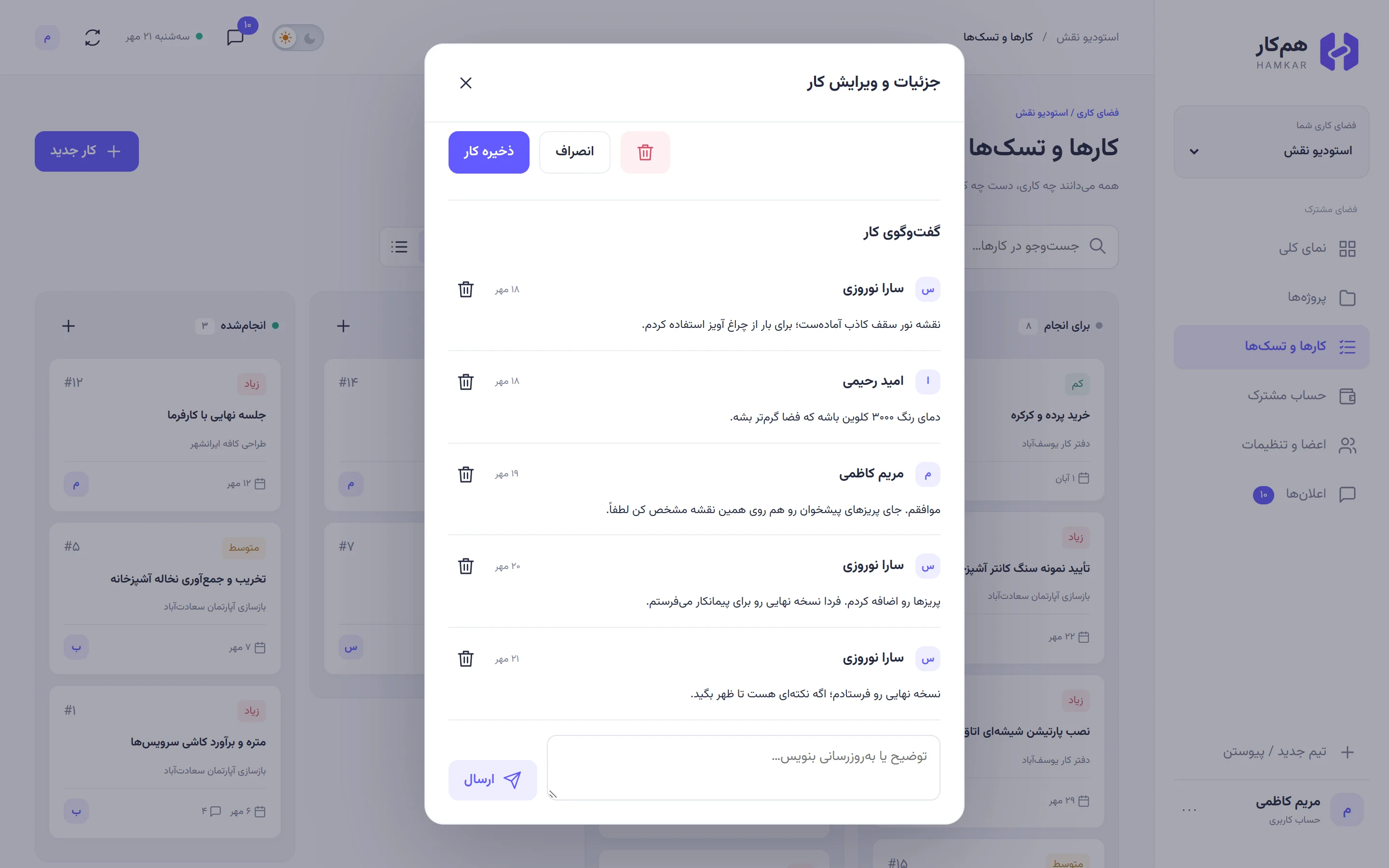
At the bottom of the window, under Task discussionگفتوگوی کار, type in the comment box (“توضیح یا بهروزرسانی بنویس…”).
-
Tap Sendارسال.
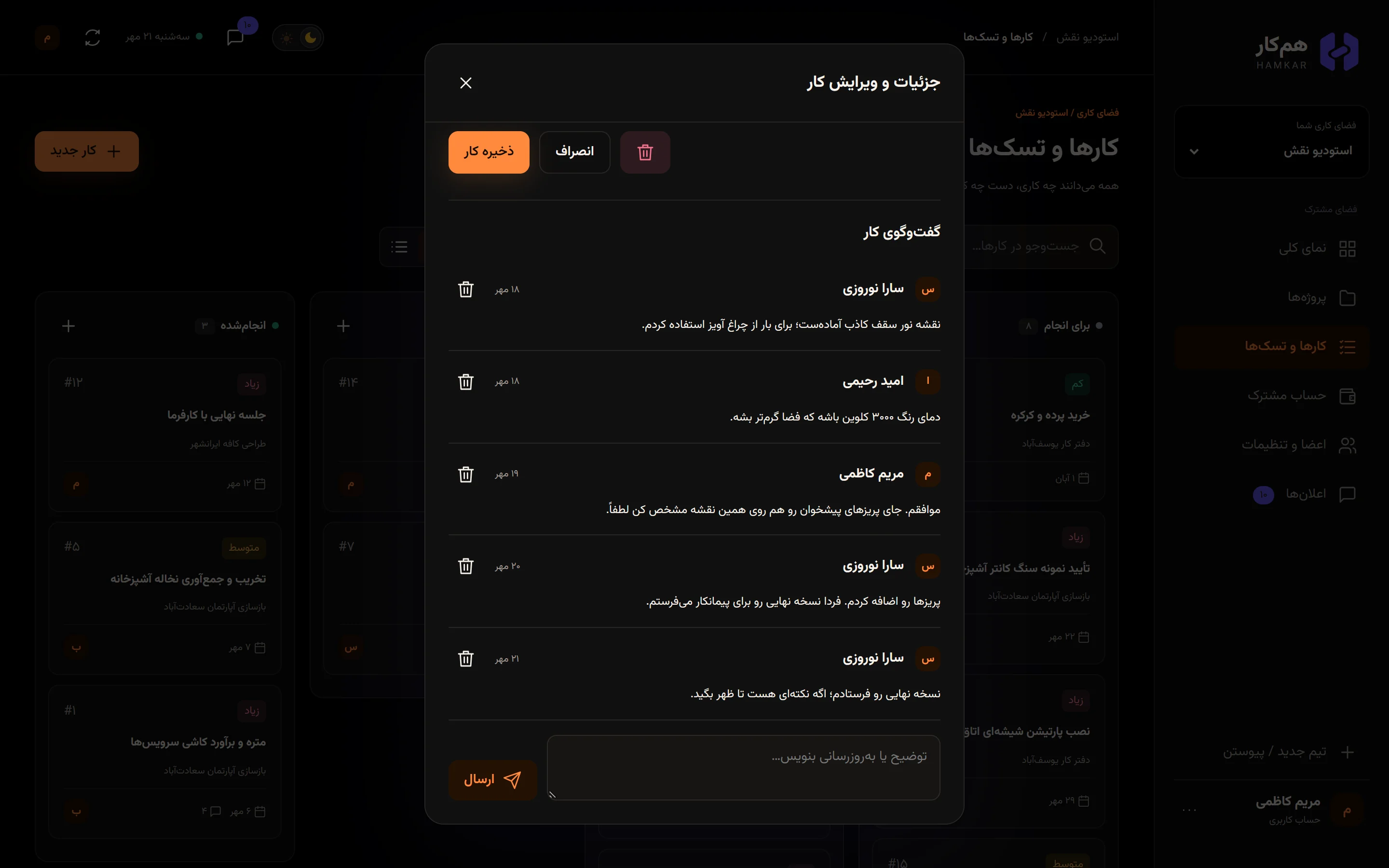
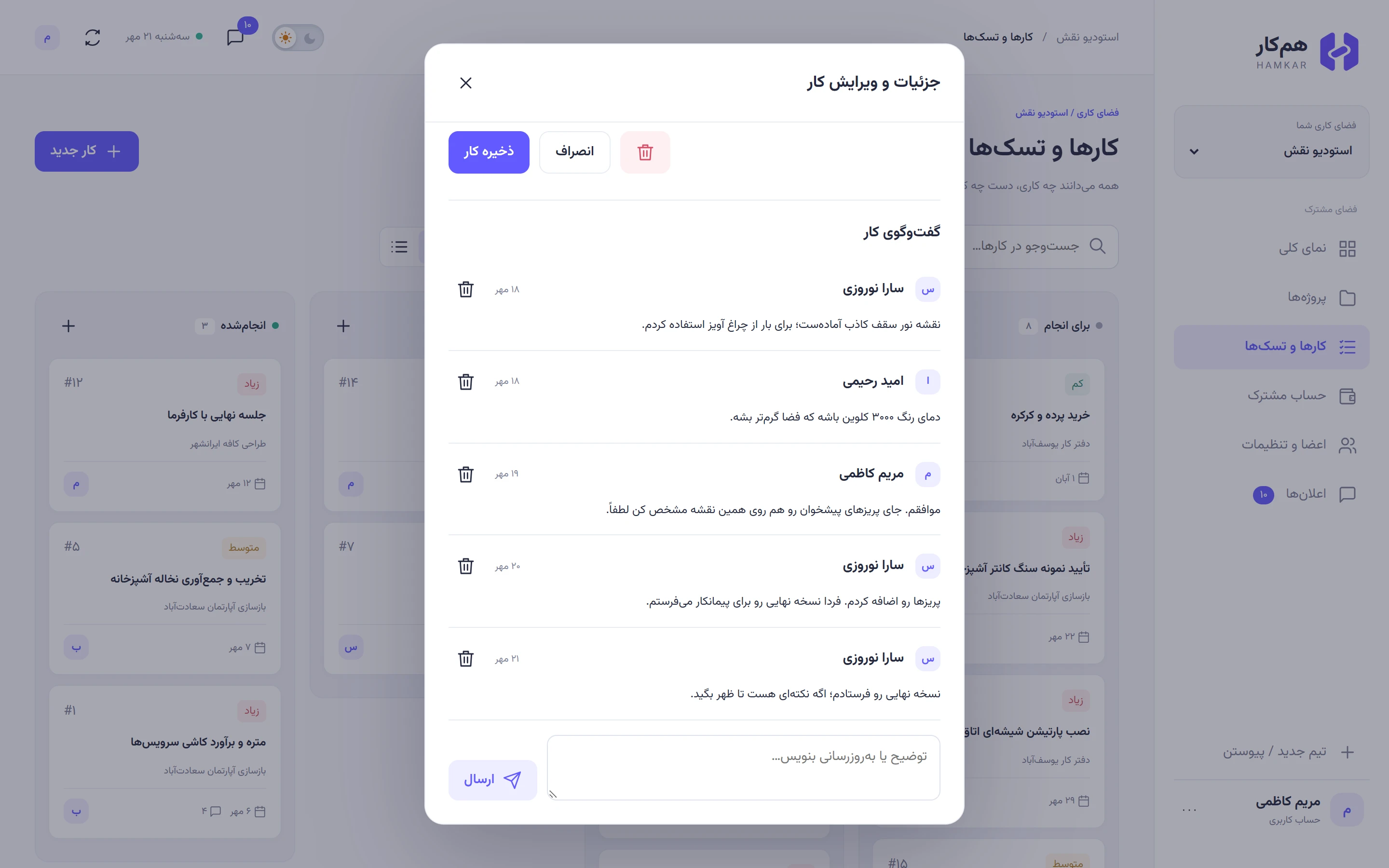
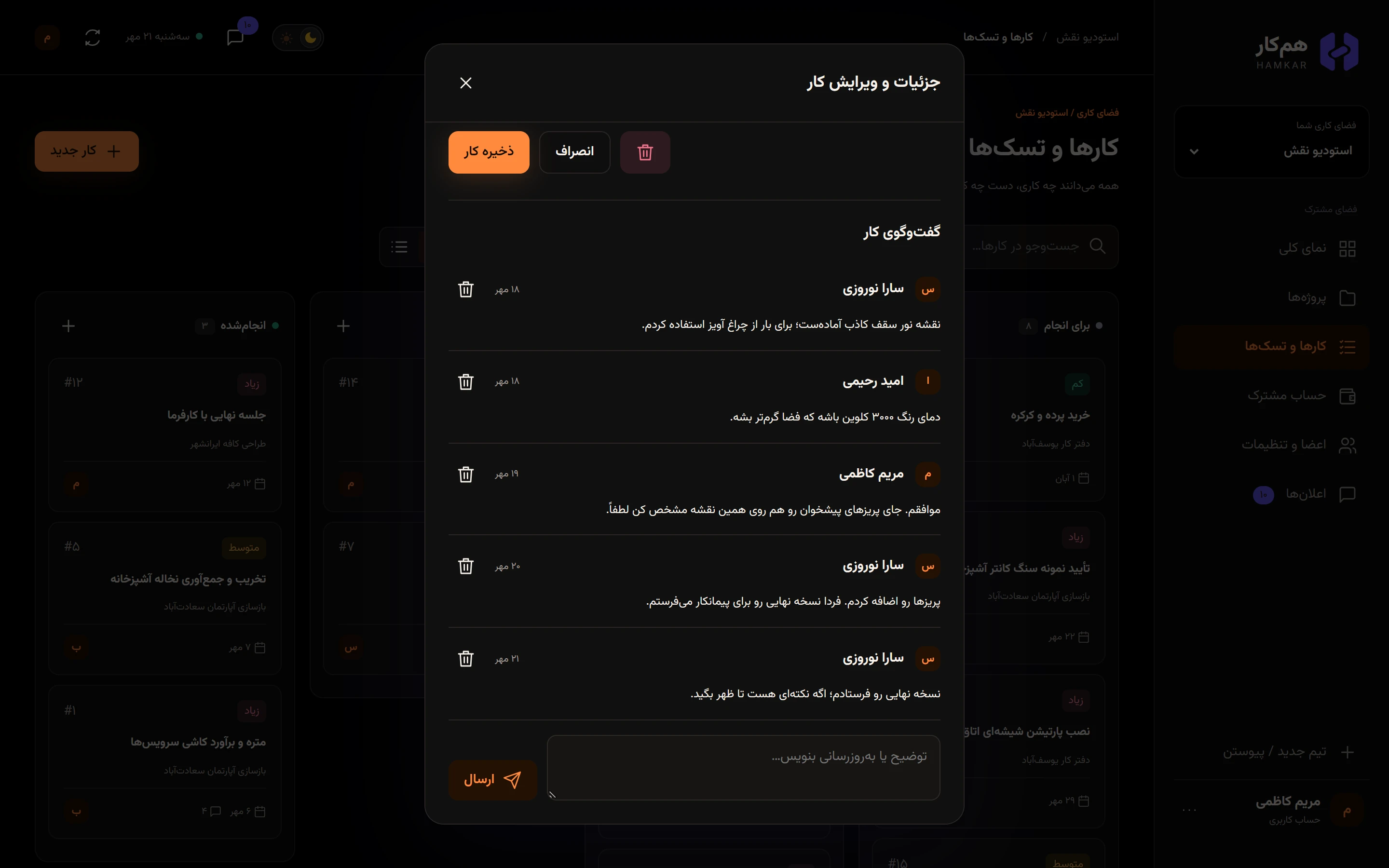
- A comment can be up to 5,000 characters of plain text.
- The other members get a New commentنظر جدید notification showing the task title and the start of your comment. In the Android app they can reply straight from that notification. Notifications on Android
- If someone has this task open at that moment, the new comment appears in the discussion without a refresh.
- Comments can’t be edited. The author and admins can delete one with the trash button. It’s deleted right away, with no confirmation.
At Naghsh Studio, the discussion on the lighting plan task («نقشه اجرایی نورپردازی») went like this: Sara said the false-ceiling lighting plan was ready, Omid suggested a 3000 K color temperature, Maryam asked her to mark the counter’s sockets on the same plan, and Sara reported she’d sent the final version. Anyone who opens the task later sees all of those decisions in one place.
Attaching files
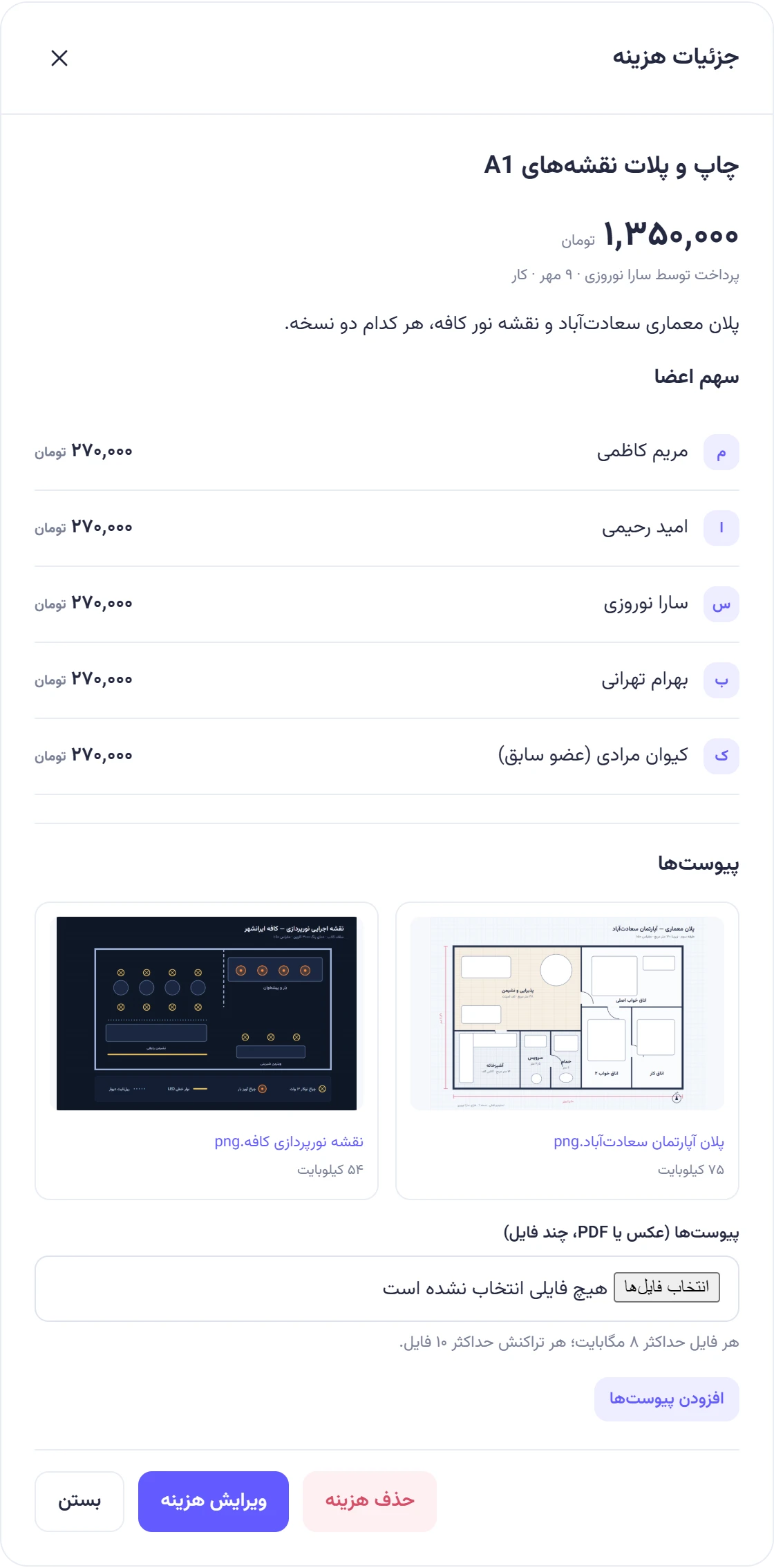
Section titled “Attaching files”Attachments go on expenses, settlements, deposits and withdrawals: a photo of a receipt, a pro forma invoice, a bank transfer slip. Tasks, projects and comments don’t take attachments. If a file belongs to a task, put it on the expense for that purchase and mention it in the task discussion. That’s exactly what Omid did at Naghsh Studio: he attached the tile pro forma invoice to the expense «خرید کاشی و سرامیک سرویسها» and wrote under the tile estimate task that the file was attached.
Which files
Section titled “Which files”- Formats: JPEG, PNG, WebP and GIF images, and PDF. The type is detected from the file’s contents, not its name.
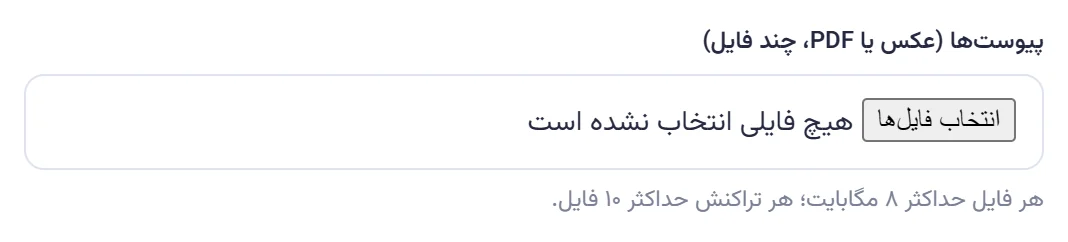
- Up to 8 MB per file.
- Up to 10 files per transaction, and up to 32 MB per upload.
Adding attachments
Section titled “Adding attachments”-
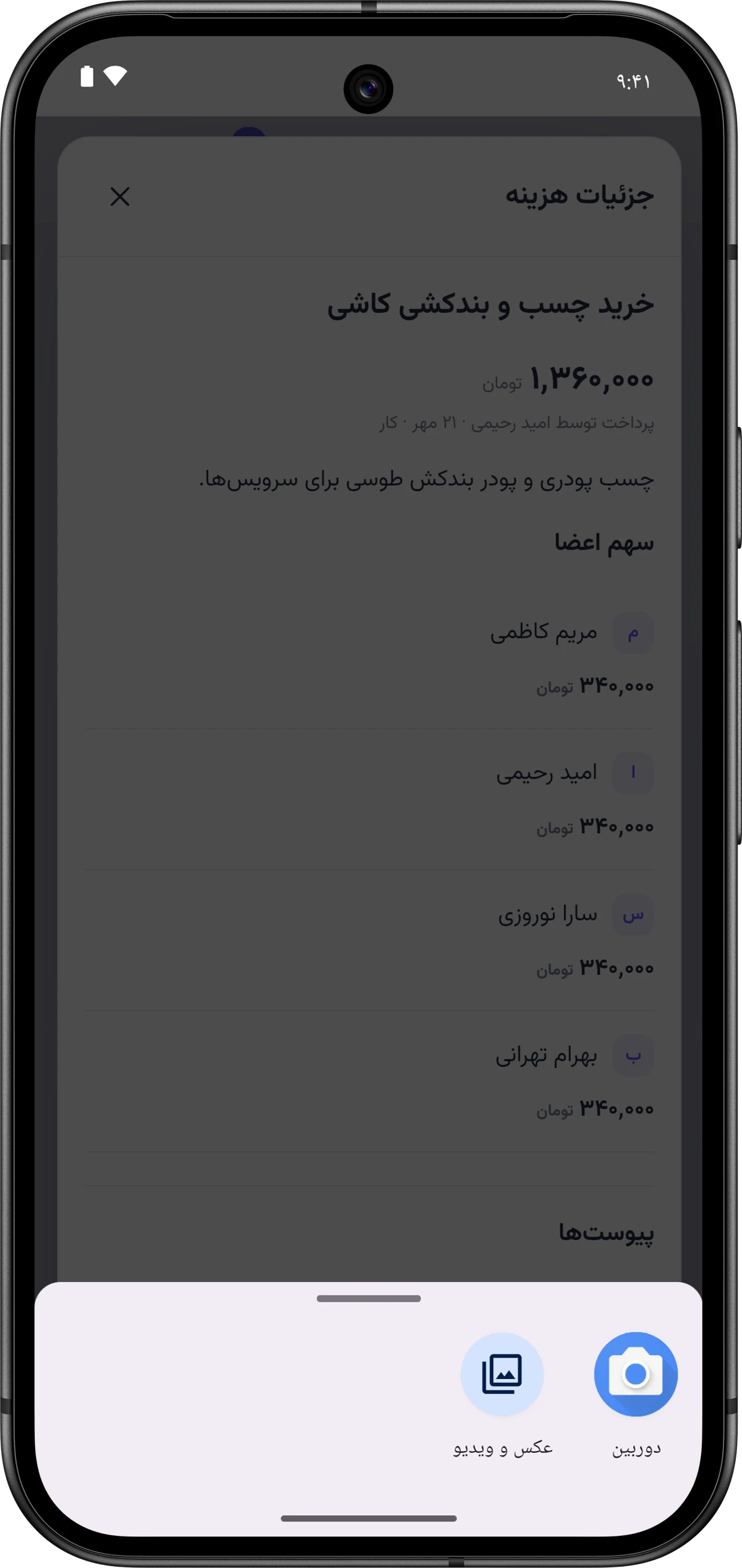
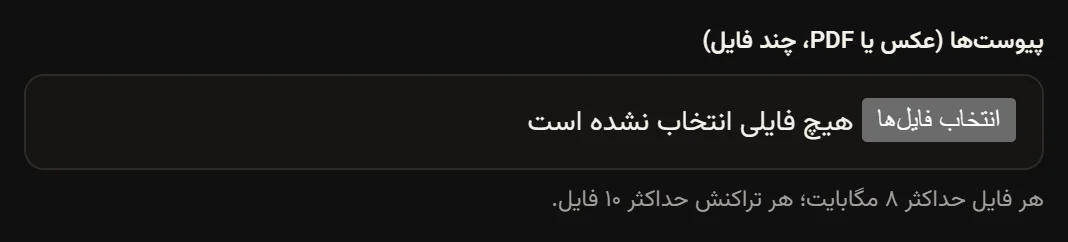
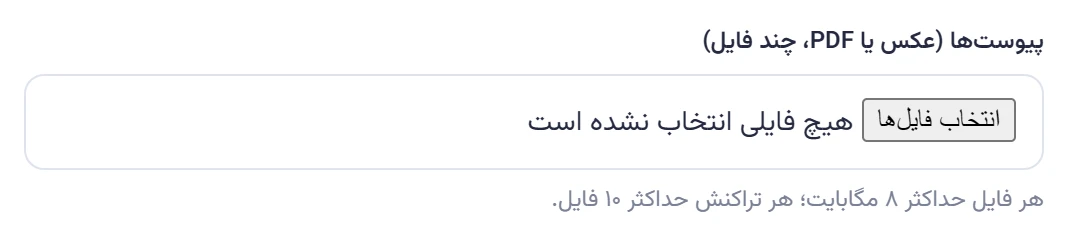
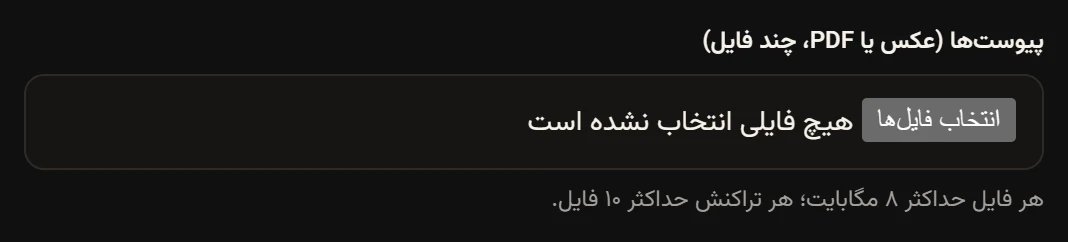
In the expense, settlement, or deposit and withdrawal form, tap “Attachments (photo or PDF, several files)” («پیوستها (عکس یا PDF، چند فایل)») and choose one or more files. In the Android app you can photograph the receipt with the camera right there.
-
Save the form. The transaction is saved first, then the files upload.
-
To add files to a transaction that’s already recorded, open it with Detailsجزئیات, choose files in the Attachmentsپیوستها section and tap Add attachmentsافزودن پیوستها.
Only the person who recorded the transaction, or an admin, can add attachments. Everyone in the team can see them.
If the transaction saves but the upload fails, you’ll see a message like “The expense was saved, but the attachments weren’t uploaded:” («هزینه ذخیره شد، اما پیوستها آپلود نشدند:») followed by the reason. The transaction is there, so don’t record it again. Just add the files again from Detailsجزئیات. On a slow connection an upload gets up to 15 minutes.
Viewing attachments
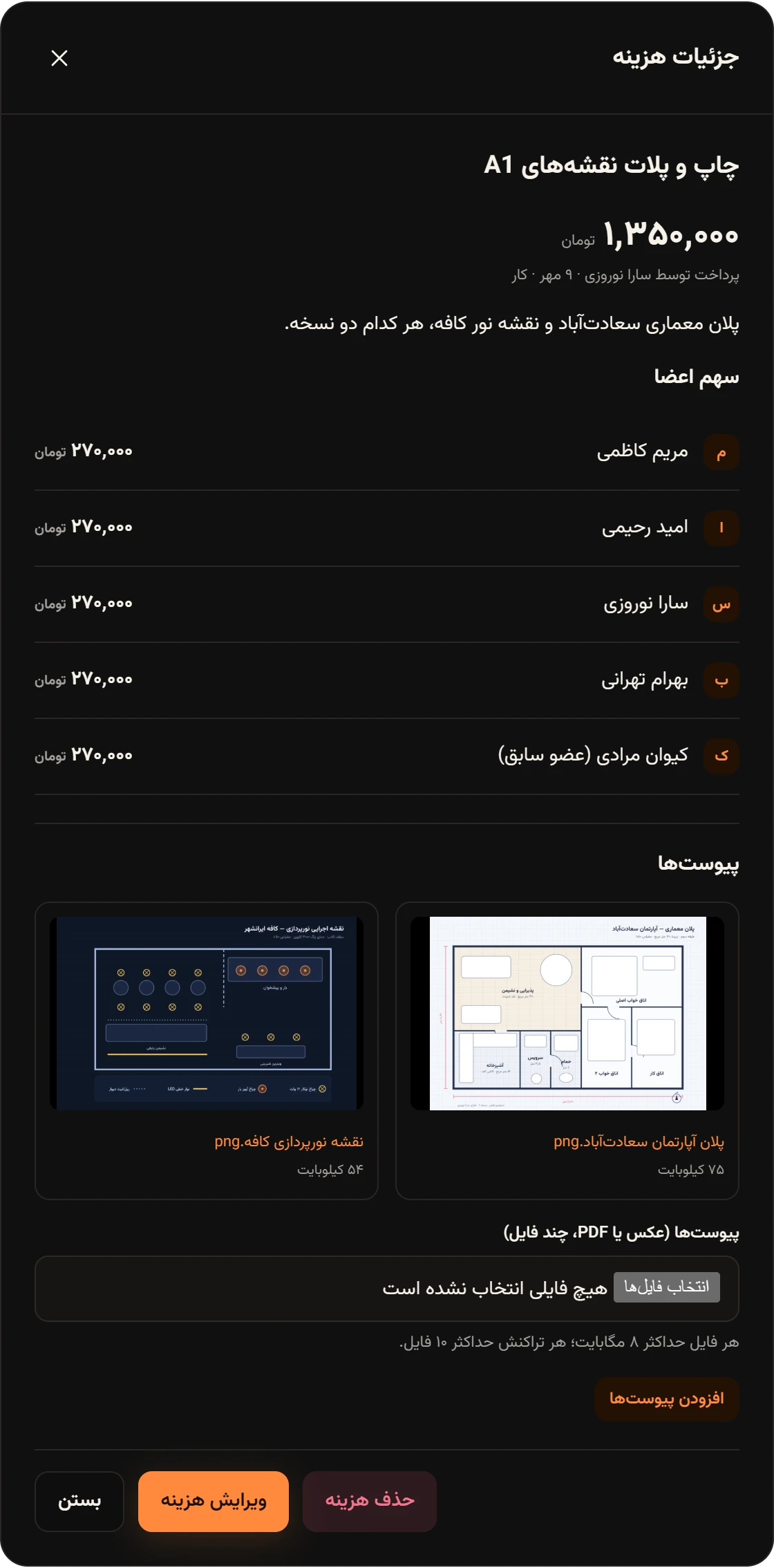
Section titled “Viewing attachments”In a transaction’s Detailsجزئیات window, images show as thumbnails and PDFs as a “PDF” tile. Tap one to open the file in a new browser tab. In the Android app, the file opens in your phone’s image or PDF viewer.